5.3
102
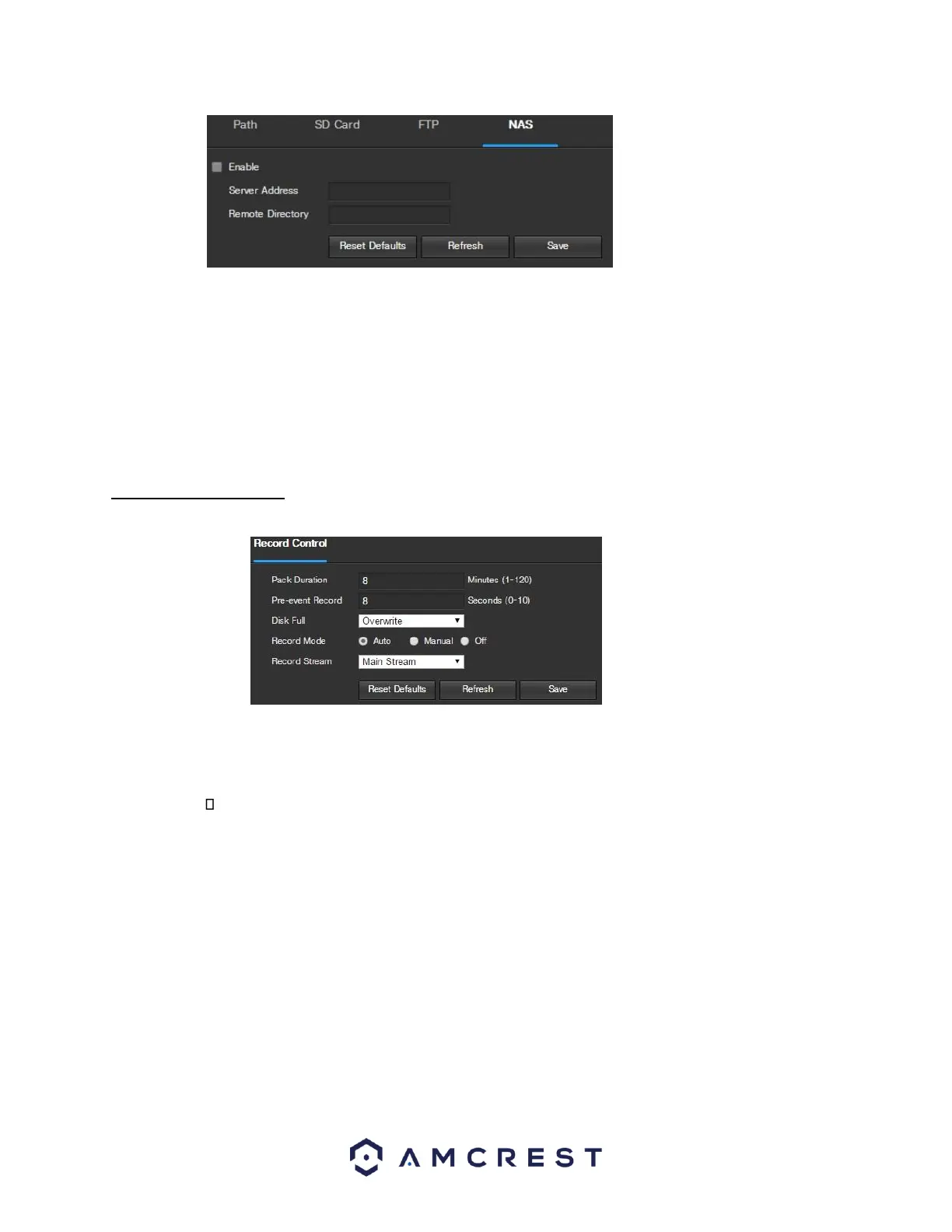
Below is an explanation of the fields on the NAS settings tab:
• Enable: This checkbox allows the user to enable NAS uploading for the camera’s recorded media.
• Server Address: This field allows the user to designate a DDNS address for the NAS server/device.
• Remote Directory: This field allows the user to specify a remote directory on the NAS to send the
recorded media to.
To reset to default settings, click the Reset Defaults button. To refresh the page, click the Refresh button. To save
the settings, click the Save button.
5.3.4.3 Record Control
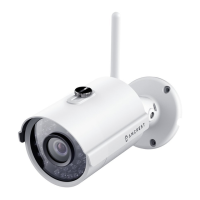
This menu is where general recording settings are configured. Below is a screenshot of the record control menu:
Below is an explanation of the fields on the Record Control settings tab:
• Pack Duration: This field allows the user to set how many minutes each file is comprised of.
• Pre-event Record: This field allows the user to specify how many seconds before an event should be
recorded. Disk Full: This dropdown box allows the user to designate what the camera should do when the
disk is full. There are 2 options: Overwrite or Stop.
• Record Mode: This set of radio buttons allows the user to designate the recording mode. The options are
Auto, Manual, and Off.
• Record Stream: This dropdown box allows the user to specify which stream to record. The options are main
stream and sub stream.
To reset to default settings, click the Reset Defaults button. To refresh the page, click the Refresh button. To save
the settings, click the Save button.
5.3.5 System
This menu section allows the user to change general settings for the camera.












 To Next Page