58
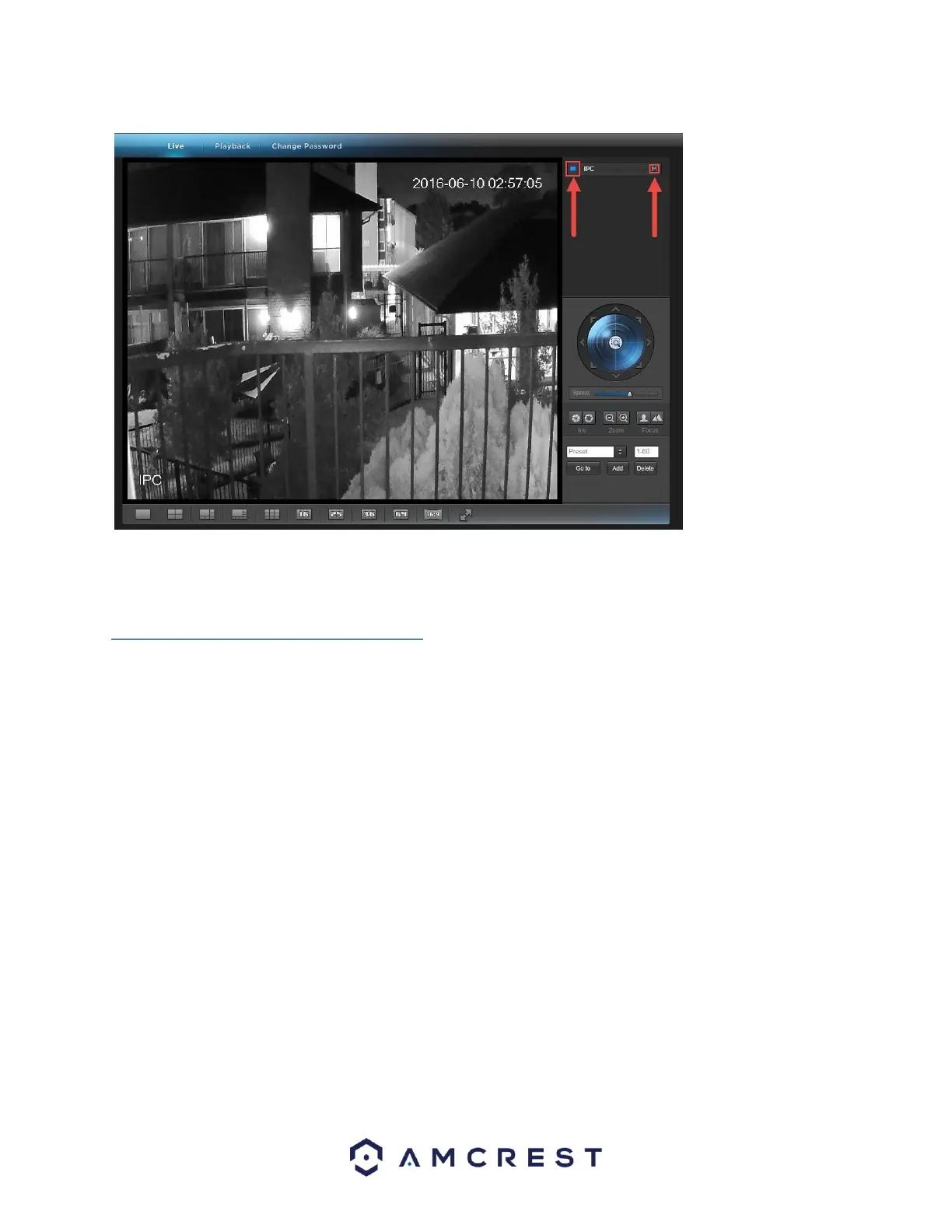
Click the “S” to change it to an “M” which stands for “Main Stream” and will give you a full HD quality video
stream. To go back to “Sub Stream”, for lower quality video (that works better on slower internet connections),
click the “M” and change it to an “S” again.
4.7 Remote Web Access Setup
There are two main methods for setting up remote access: UPnP/DDNS, and Port Forwarding.
4.7.1 UPnP/DDNS Remote Web Access Setup
Using Universal Plug and Play (UPnP) and Dynamic Domain Name Server (DDNS) functionality is the easiest way to
setup stable remote access. For this method, your router should support the UPnP networking protocol and the
protocol should be enabled. Please refer to your router manufacturer’s documentation to learn how to enable
UPnP on your router.
Below is a step-by-step walkthrough that details how to setup the Amcrest IP3M-956/IPM-751 Cameras for
Remote Web Access using UPnP and DDNS:
1. Login to your camera’s web interface, open the main menu then go to Setup -> Network.
2. Using the left hand menu, go to the Connection menu, and write down the HTTP port. It is recommended
to ensure the port number is at least 5 digits long to prevent any port conflicts. If need be, change the
port to a 5 digit number that is less than 65535, note the number down, and click save before proceeding
to the next step.











 To Next Page