45
4.4.3 Logging in
Before attempting to gain local access, you will need to make sure the following items are true:
1. You have your login credentials (if using this local access method as your first, initial choice to setup your
camera, only items 2 and 3 of this list need to be true)
2. You have located your camera’s IP address
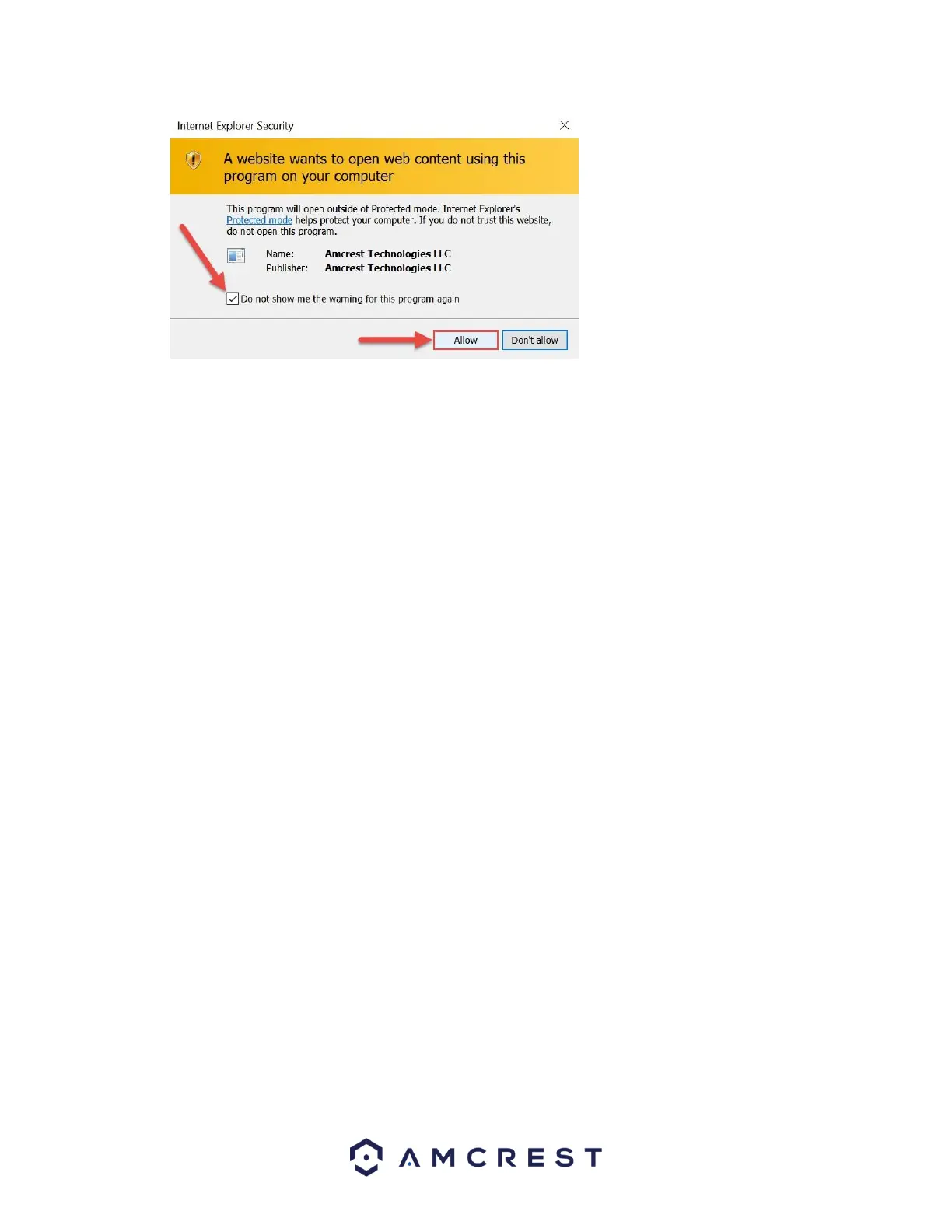
3. You have installed the Amcrest browser plugin
If you did not follow any of the app setup methods covered in section 4.3, and this is your first time logging into
your camera, please use the following default username and password:
Username: admin
Password: admin
Note: After logging in for the first time, you will be prompted to change your password.
To find the camera’s IP address, please refer to the Amcrest IP Config Software method (section 4.4.1) above.
To install the browser plugin for the camera’s web interface, please refer to the section 4.4.2 above.
1. Take the IP address and type it into the Internet Explorer search bar, then hit ‘Enter’. It should look
something like “http://192.168.1.74:12345/”











 To Next Page