65
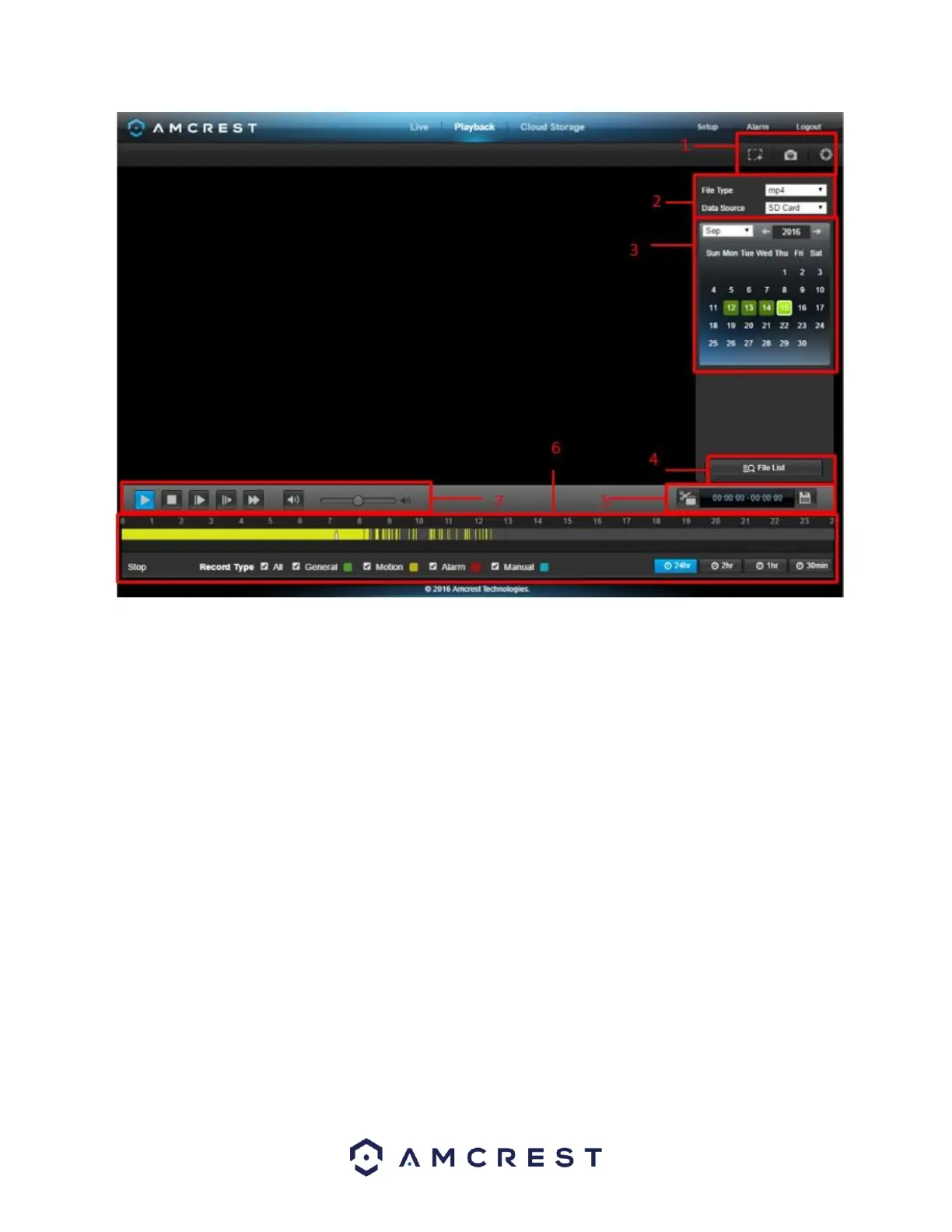
This is the interface for the playback menu. There are 7 main sections:
1. Quick Actions: This panel allows the user to zoom in on playback footage, take a snapshot of the playback
footage, or open the help menu.
2. File Menu: This panel allows the user to select a file type and data source.
3. Calendar: This panel allows the user to pick a date that they would like to playback video from. When a date
has recorded footage available, it’s green. The current date is blue, unless it has recorded footage, then it’s a
lighter green.
4. File List: This button opens a file list of all recorded video for a specific date range. From here, the user can
download these videos to their PC.
5. Trim Panel: This panel allows the user to trim playback video for download. By specifying time stamps, the
user can trim down.
6. Recorded Video Panel: This panel allows the user to specify what type of video they would like to playback
and it also allows the user to select where to start playback from. The buttons on the bottom right allow the
user to select a zoom level.
7. Playback Bar: This panel allows the user to control playback. It also allows the user to control playback speed,
and playback volume.
Clicking the File List opens the following screen on the sidebar:











 To Next Page