Mouse Operation
Please refer to the following sheet for mouse operation instructions.
When you have selected one menu item, left mouse click to view the menu
content.
Modify a checkbox or motion detection status.
Click a combo box to show the dropdown list
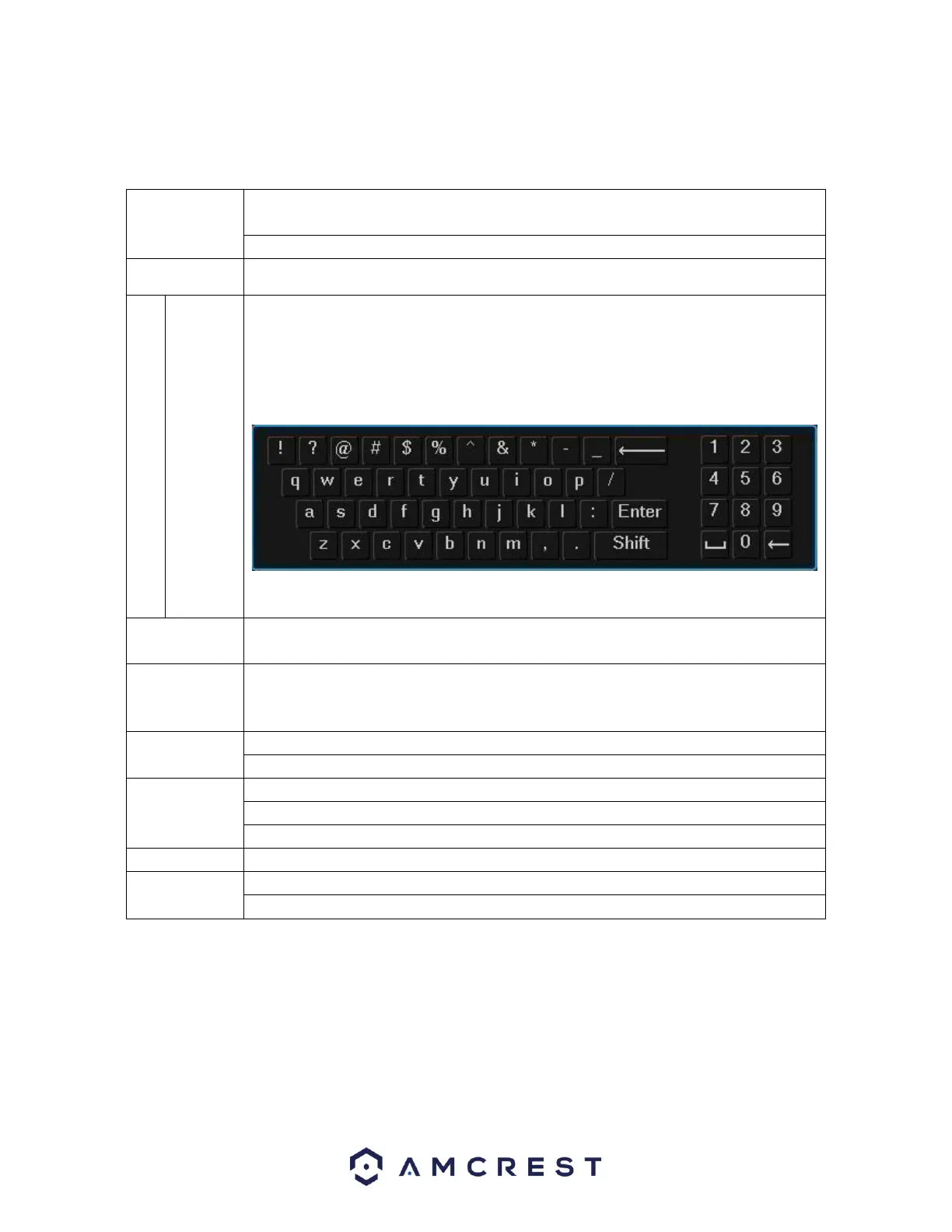
In an input box, you can select different input methods. Left click the
corresponding button on the panel to input a numeral/English character
(small/capitalized). Here ← stands for backspace. _ stands for space.
In English input mode: _ stands for inputting a space icon and ← stands for
deleting the previous character.
In numeral input mode: _ stands for clear and ← stands for deleting the previous
numeral.
Implement special control operations such as double click one item in the file list
to playback the video.
In multiple-window mode, double left click one channel to view in full-screen.
Double left click the current video again to go back to previous multiple-window
mode.
In real-time monitor mode, this pops up a shortcut menu.
Exit the current menu without saving any modifications.
In a numeral input box: Increase or decrease the numeral value.
Switch the items in the check box.
Select current control or move control
Select the motion detection zone
Select the privacy mask zone
Device Installation
After applying power to the NVR, the system will turn on. Allow the NVR to finish loading. The
Device Initialization screen will appear. Select your location, language, and video standard then
click Next to continue.
Select your time zone as well as current date and time. Click Next to continue.


 To Next Page