ii
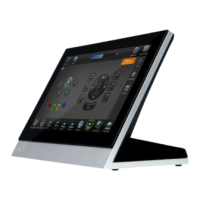
MVP-7500/8400 Modero Viewpoint Wireless Touch Panels
Table of Contents
Using the Site Survey tool ............................................................................................. 22
Step 2: Configure the Card’s Wireless Security Settings ........................................ 24
Configuring the Modero’s wireless card for unsecured access to a WAP200G ............. 25
Configuring the Modero’s wireless card for secured access to a WAP200G ................. 27
Automatically set SSID .................................................................................................. 27
Manually set SSID.......................................................................................................... 28
Configuring multiple wireless Moderos to communicate to a target WAP200G........... 31
Step 3: Choose a Master Connection Mode ........................................................... 31
USB................................................................................................................................ 31
Prepare your PC for USB communication with the panel .............................................. 32
Configure the panel for USB communication ................................................................ 32
Configure a Virtual NetLinx Master using NetLinx Studio............................................. 33
Ethernet ........................................................................................................................ 35
Master Connection to a Virtual Master via Ethernet ..................................................... 35
Using G4 Web Control to Interact with a G4 Panel ................................................ 38
Using your NetLinx Master to control the G4 panel ............................................... 40
Upgrading MVP Firmware ................................................................................43
Upgrading the Modero Firmware via the USB port ................................................ 44
Step 1: Configure the panel for a USB Connection Type .............................................. 44
Step 2: Prepare Studio for communication via the USB port ........................................ 44
Step 3: Confirm and Upgrade the firmware via the USB port ....................................... 45
Upgrading the Docking Station Firmware via USB ................................................. 47
Step 1: Prepare the Docking Station for firmware transfer via USB.............................. 47
Step 2: Upgrade the Docking Station firmware via USB ............................................... 48
Setup Pages ......................................................................................................51
Setup Pages............................................................................................................ 51
Navigation Buttons........................................................................................................ 53
Custom Logo ................................................................................................................. 53
Protected Setup Pages ........................................................................................... 54
Protected Setup Navigation Buttons............................................................................. 56
Security Settings ........................................................................................................... 57
System Settings Page.................................................................................................... 58
Wireless Settings Page.................................................................................................. 60
Wireless Settings........................................................................................................... 66
Open Settings ............................................................................................................... 67
WEP Settings................................................................................................................. 67
WPA-PSK Settings ......................................................................................................... 69
EAP-LEAP Settings ........................................................................................................ 70
EAP-FAST Settings ........................................................................................................ 71
EAP-PEAP Settings........................................................................................................ 72


 To Next Page
 Loading...