English - 55 -
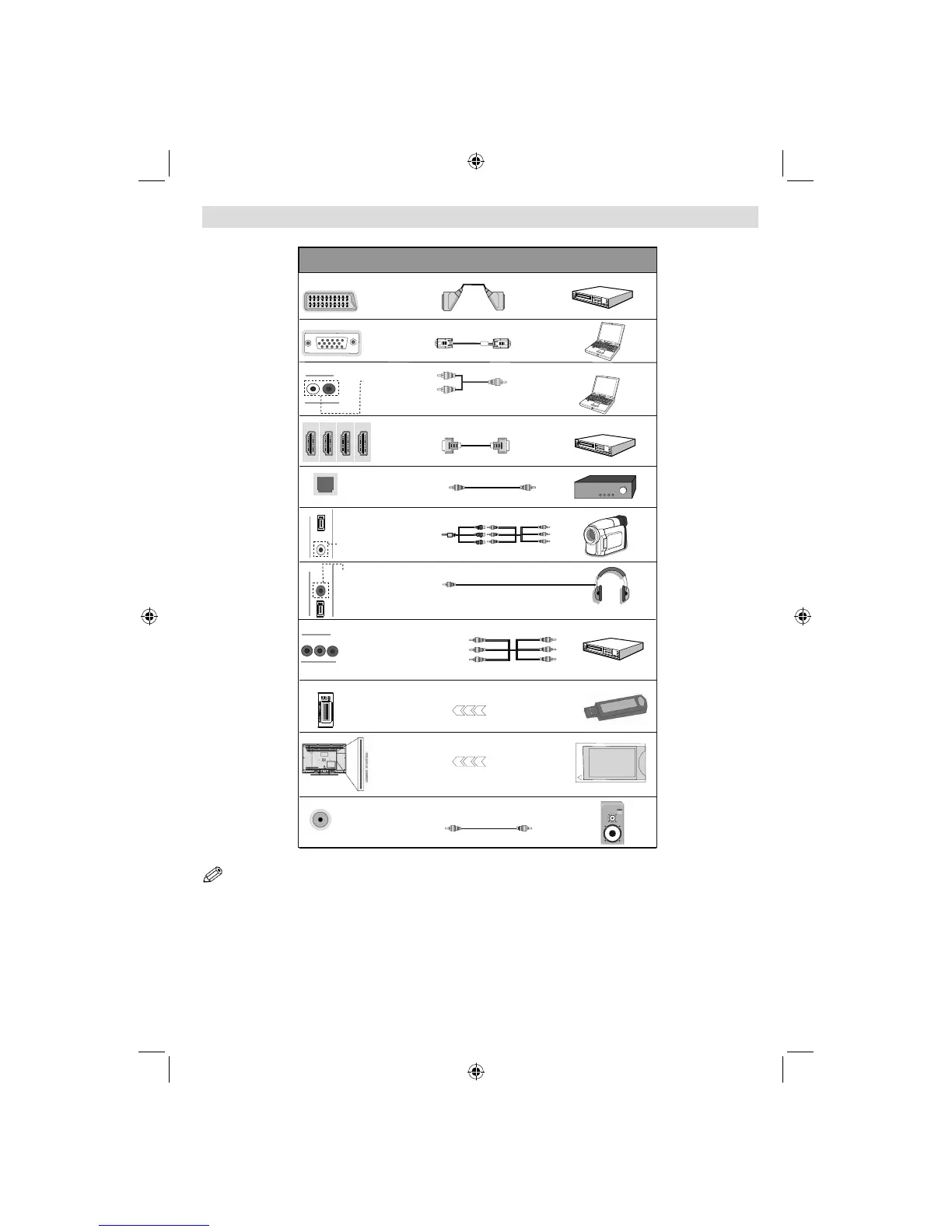
Viewing the Connections
AV Connection
Cable (supplied)
Scart
Connection
(back)
VGA
Connection
(back)
PC/YPbPr Audio
Connection
(back)
HDMI
Connection
(back & side)
S/PDIF Optical Out
(back)
S/PDIF
Side AV
Connection
(side)
Headphone
Connection
(side)
USB
Connection
(side)
Connector Type Cables Device
Y BPRP
AUDIO L&R
SIDE AV
HEADPHONE
YPbPr Video
Connection
(back)
CI
Connection
(side)
CAM
module
Subwoofer
Connection
(back)
NOTE: When connecting a device via the Side AV input, you must use the supplied connection cables to enable connection.
See the illustrations above. To enable PC audio, you will need to use PC/YPBPR AUDIO CONNECTION WHITE & RED inputs.
| If an external device is connected via the SCART socket, the TV will automatically switch to AV mode.| When receiving DTV
channels (Mpeg4 H.264) or while in Media Browser mode, output will not be available via the scart socket. | When using the
wall mounting kit (optional), we recommend that you plug all your cables into the back of the TV before mounting on the wall.
| Insert or remove the CI module only when the TV is SWITCHED OFF. You should refer to the module instruction manual
for details of the settings. Insert the CAM and then the viewing card to the slot that is located in the terminal cover at the rear
side of the TV. The module should be correctly inserted, it is impossible to insert fully if reversed. The CAM or the TV terminal
may be damaged if the CAM is forcefully inserted.
A03_[GB]_MB90_4836UK_DVBT_C_PVR_MMH_DLNA_100HZ_BASIC IB_55985LED_GOLD18_10079836_50229710.indd 55A03_[GB]_MB90_4836UK_DVBT_C_PVR_MMH_DLNA_100HZ_BASIC IB_55985LED_GOLD18_10079836_50229710.indd 55 24.08.2012 15:38:4224.08.2012 15:38:42


 To Next Page