English - 64 -
Connectivity Functions
Connecting to a Wired Network
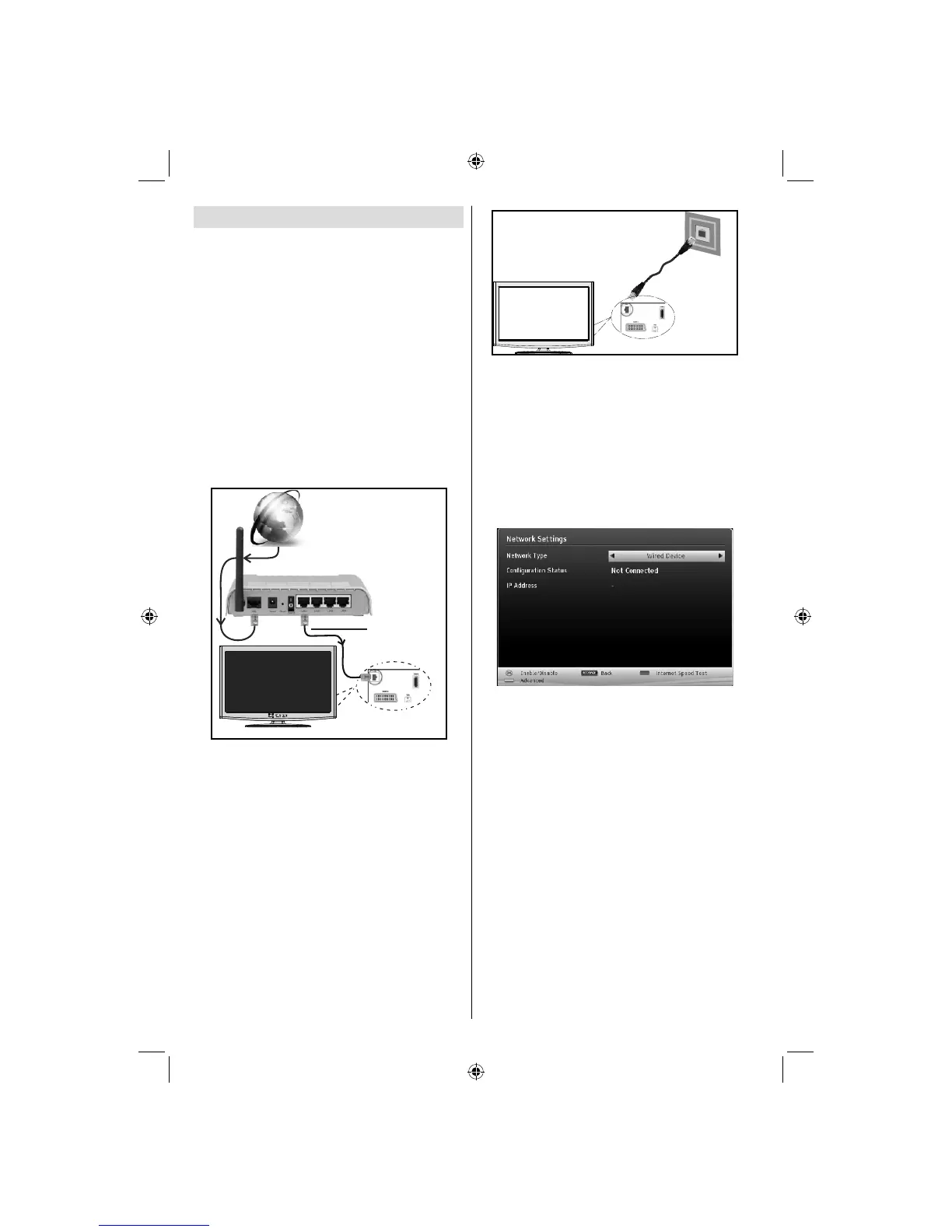
For connecting to a wired LAN network, you
should perform the following steps:
Connect broadband ISP connection ethernet cable •
to the ETHERNET INPUT of your modem.
Ensure that Nero Media Home software is installed •
to your PC.(for DLNA function). See Appendix A for
more information on the installation process.
Afterwards, you should connect your PC to the one •
of your modem’s LAN connectors (e.g. LAN 1) by
using a proper LAN cable.
Use another LAN output of your modem (e.g. LAN •
2) to enable the connection to your TV. You can add
your TV to your LAN by connecting the LAN port at
the rear of your TV to your modem’s LAN connector
as illustrated.
Lan(Ethernet cable)
Broadband ISP
Connection
Rear of TV
To access and play shared fi les, you must Select •
Media Browser. Press Menu button and select Media
Browser by using Left or Right button. Press OK to
continue. Select the desired fi le type and press OK.
You must always use the Media Browser screen to
access and play shared network fi les.
PC/HDD/Media Player or any other devices that are •
DLNA 1.5 compatible should be used with wired
connection for higher playback quality.
To confi gure wired settings please refer Network
Settings section in Settings menu.
You might be able to connect your TV to your LAN •
network depending on your network’s confi guration.
In such a case, use an ethernet cable to connect
your TV directly to the network wall outlet.
The modem port
on the wall
Rear of TV
Confi guring Network Settings
Your TV’s Network Settings include Wired and Wireless
Connection options. However, if your TV does not have USB
Wi-Fi dongle, you should use Wired Connection type. If you
try to connect via Wireless Connection when your TV does
not have a USB Wi-Fi dongle, a warning screen will appear
and the TV will not get an IP address. Try connecting the
LAN cable after this and then the TV will be able to get an
IP address.
Confi guring Wired Device Settings
If you are connecting the TV via ETHERNET INPUT,
select Network Type as Wired Device to confi gure.
Network Type
Network type can be selected as Wired device, in
accordance with the active connection to the TV set.
Select this as Wired if you have connected to the TV
a LAN cable.
Confi guration Status
This section displays the status of the connection. Select
Connected if you want to activate connection. Select
as Not Connected to end an active connection.
IP Address
If an active connection is available, the IP address will
be displayed on this section. If you want to confi gure
IP address preferences, press GREEN button and
switch to the advanced mode.
Confi guring Wired Network Settings in
Advanced Mode
After pressing GREEN button, Advanced mode will
be available. While in Advanced Mode, press RED
button to edit settings. When fi nished, press OK to
save, Press RETURN to cancel.
A03_[GB]_MB90_4836UK_DVBT_C_PVR_MMH_DLNA_100HZ_BASIC IB_55985LED_GOLD18_10079836_50229710.indd 64A03_[GB]_MB90_4836UK_DVBT_C_PVR_MMH_DLNA_100HZ_BASIC IB_55985LED_GOLD18_10079836_50229710.indd 64 24.08.2012 15:38:4824.08.2012 15:38:48


 To Next Page