English - 59 -
Menu Features and Functions
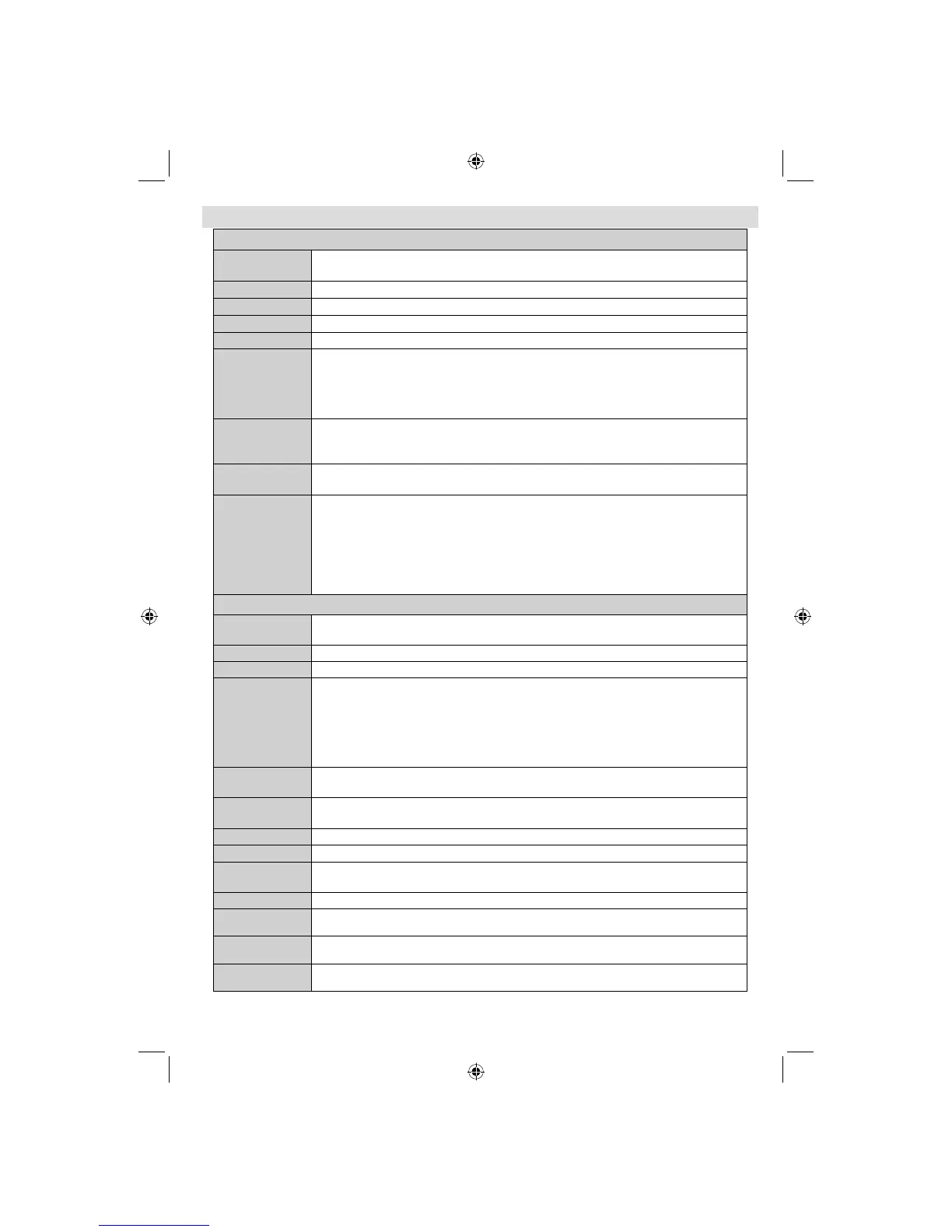
Picture Menu Contents
Mode
For your viewing requirements, you can set the related mode option. Picture mode can
be set to one of these options: Cinema , Game , Sport, Dynamic and Natural .
Contrast Sets the lightness and darkness values of the screen.
Brightness Sets the brightness value for the screen.
Sharpness Sets the sharpness value for the objects displayed on the screen.
Colour Sets the colour value, adjusting the colors.
Power Save
Mode
To set Power Save Mode as Eco, Picture Off and Disabled. See the section, “Environmental
Information” in this manual for further information on Power Save Mode. If Picture Off
is selected, “Screen will be off in 15 seconds” message will be displayed on the screen.
Select PROCEED and press OK to continue. The screen will be off in 15 seconds. If you
disable Power Save Mode, Picture mode will be automatically set to Dynamic.
Backlight
(optional)
This setting controls the backlight level and it can be set to Auto, Maximum, Minimum and
Eco Mode. Backlight function will be inactive if Power Save Mode is set to On. Backlight cannot
be activated in VGA, Media Browser mode or while the picture mode is set to Game.
Noise
Reduction
If the broadcast signal is weak and the picture is noisy, use Noise Reduction setting to reduce the
noise amount. Noise Reduction can be set to one of these options: Low, Medium, High or Off.
Pixellence
Demo Mode
While Mode option is highlighted in picture menu, Pixellence demo mode will be displayed
bottom of the menu screen. Pixellence function optimizes the TV’s video settings and
helps to acquire a better image quality. Pixellence mode thus includescontrast, sharpness,
colour enhancement and skin tone correction along with the skin tone detection.Press OK
to start Pixellence demo mode for experiencing Pixellence quality. Throughout the demo
mode, the screen is splitted into two sections, one displaying the Pixellence active area;
the other displaying the normal broadcast. Press OK button to quit the demo mode.
Advanced Settings
Dynamic
Contrast
You can change contrast rate by using dynamic contrast function. Dynamic contrast can
be set to one of these options: Low, Medium, High or Off.
Colour Temp Sets the desired colour tone.
Picture Zoom Sets the picture size to Auto,16:9, Subtitle,14:9, 14:9 Zoom, 4:3 or Cinema.
Movie Sense
Movie Sense: Press Use “Left” / “Right” to set Movie Sense Low, Med, High or Off. While Movie
Sense is active, it will optimize the TV’s video settings for motional images to acquire a better
quality and readability.
When Movie Sense option is set to Low, Med or High, Movie Sense demo option will be available.
If one of these options is selected and if you press OK button, then the demo mode starts. While
demo mode is active, the screen will be divided into two sections, one displaying the movie
sense activity, the other displaying the normal settings for TV screen.
HDMI True
Black
While watching from HDMI source, this feature will be visible in the Picture Settings
menu. You can use this feature to enhance blackness in the picture.
Film Mode
Films are recorded at a different number of frames per second to normal television programmes.
Turn this feature on when you are watching fi lms to see the fast motion scenes clearly.
Skin Tone
Adjust the desired skin tone.
Colour Shift Adjust the desired colour tone.
RGB Gain
Press OK button to edit RGB gain. You can confi gure the colour temperature values
using the RGB Gain feature.
Reset Resets the picture settings to factory default settings.
Autoposition
(in PC mode)
Automatically optimizes the display. Press OK to optimize.
H Position
(in PC mode)
This item shifts the image horizontally to right hand side or left hand side of the screen.
V Position
(in PC mode)
This item shifts the image vertically towards the top or bottom of the screen.
A03_[GB]_MB90_4836UK_DVBT_C_PVR_MMH_DLNA_100HZ_BASIC IB_55985LED_GOLD18_10079836_50229710.indd 59A03_[GB]_MB90_4836UK_DVBT_C_PVR_MMH_DLNA_100HZ_BASIC IB_55985LED_GOLD18_10079836_50229710.indd 59 24.08.2012 15:38:4624.08.2012 15:38:46



 To Next Page