English - 75 -
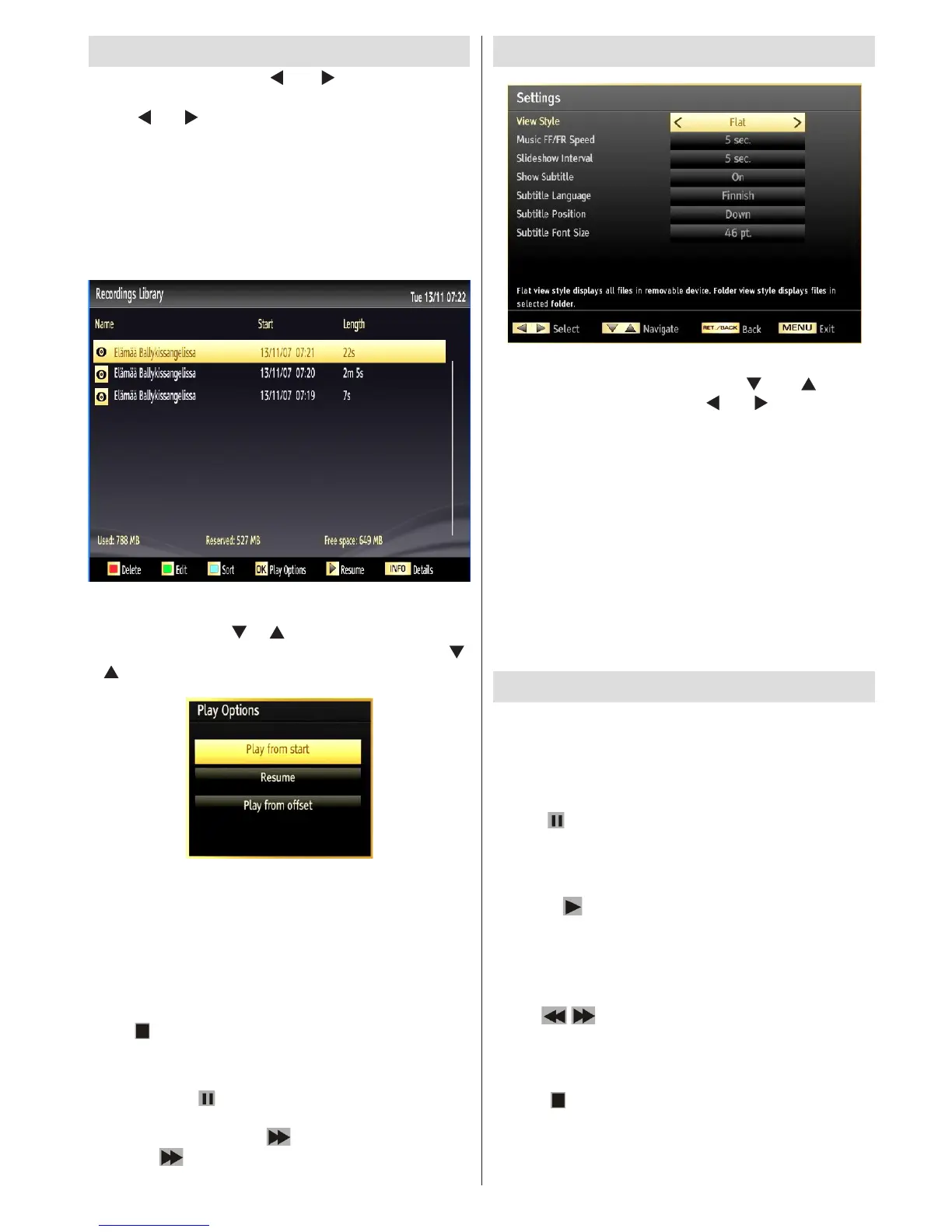
Recordings Library
In the main menu, use “ ” or “ ” buttons to select
Media Browser. Highlight Recordings Library item by
using “ ” or “ ” button and press OK button to enter.
Recordings Library will then be displayed.
IMPORTANT: To view recordings library, you should
rst connect a USB disk to your TV while the TV is
switched off. You should then switch on the TV to
enable recording feature. Otherwise, recording feature
will not be available.
Select a recorded item from the list (if previously
recorded) by using “ ” / “ ” button. Press OK button
to view Play Options. Select an option by using “ ”
/ “ ” or OK buttons.
Available playback options:
• Play from start: Plays the recording from the
beginning.
• Resume: Recommences the recordings.
• Play from offset: Species a playing point.
Note: Viewing main menu and menu items will not be
available during the playback.
Press (STOP) button to stop a playback and return
to return to Recordings Library.
Slow Forward
If you press (PAUSE) button while watching
recorded programmes, slow forward feature will be
available. You can use button to slow forward.
Pressing button consecutively will change slow
forwarding speed
Media Browser Settings
You can set your Media Browser preferences by
using the Settings dialog. Press “ ” or “ ” button
to highlight an item and use “ ” or “ ” button to set.
View Style: Sets default browsing mode.
Music FF/FR Speed: Sets Music FF/FR Speed
time.
Slide Show Interval: Sets slide show interval time.
Show Subtitle: Sets subtitle enabling preference.
Subtitle Language: Sets supported subtitle
language.
Subtitle Position: Sets subtitle position as up or
down.
Subtitle Font Size: Sets subtitle font size (max.
54pt).
Timeshift Recording
IMPORTANT: To record a programme, you should
rst connect a USB disk to your TV while the TV is
switched off. You should then switch on the TV to
enable recording feature. Otherwise, recording feature
will not be available.
• Press (PAUSE) button while watching a broadcast
for switching to timeshifting mode.
• In timeshifting mode, the programme is paused and
simultaneously recorded to the connected USB disk
(*). Press (PLAY) button again to watch the paused
programme from the stopped moment.
• This playback is performed in x1 playback speed.
You will see the timeshift gap between the real and
the timeshifted programme in the info bar.
• Use / (PREVIOUS/NEXT) buttons to move
forward or backward on timeshift playback. When the
timeshift is reached, timeshifting mode will be quitted
and you will switch back to watching normal broadcast.
• Press (STOP) button to quit timeshifting mode.
(*) Similtaneous timeshifting recording’s duration
depends on your connected USB disk’s file size
and defined Max. Timeshift in the Recordings


 To Next Page