English - 78 -
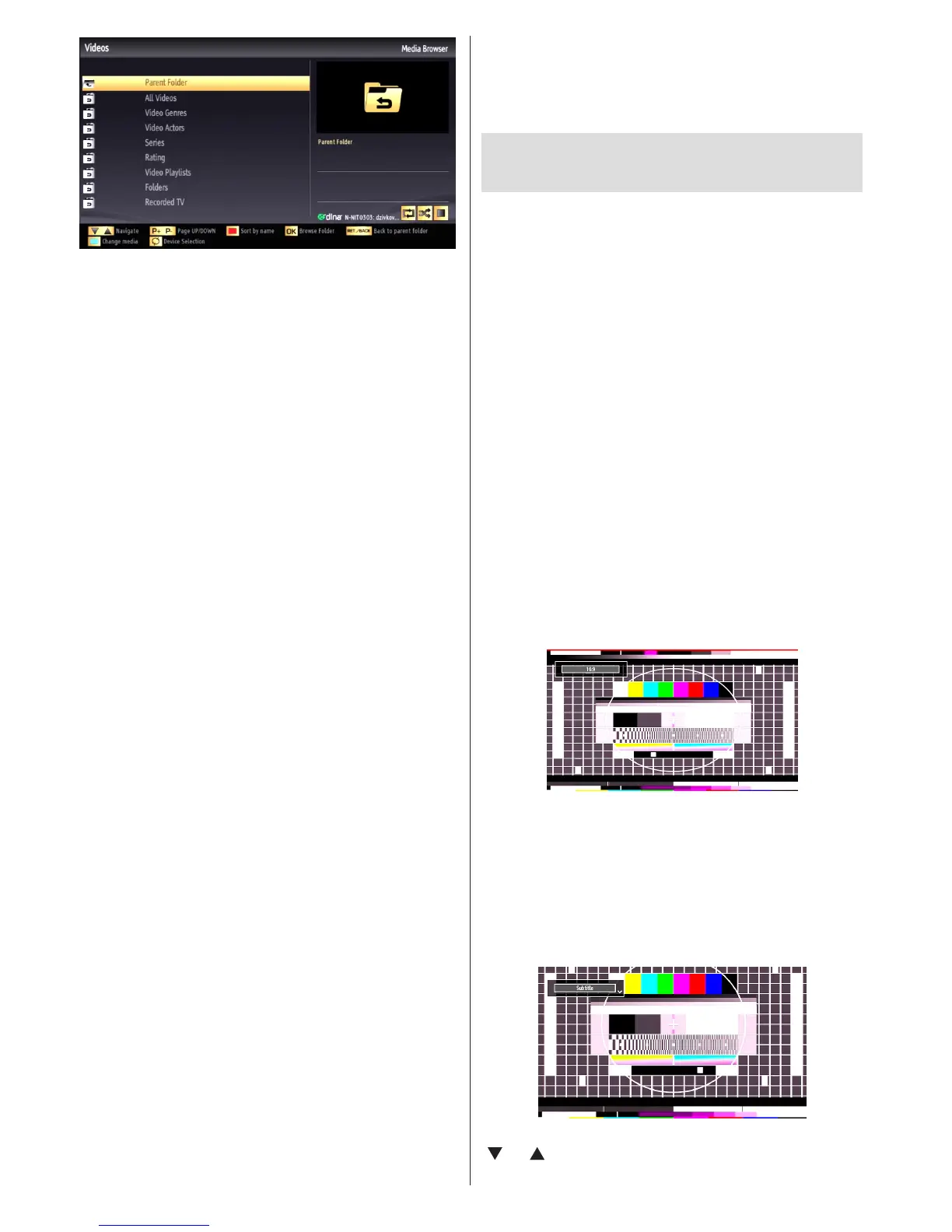
• Select Videos from this screen to list all the available
video les from the selected network.
• To play other media types from this screen, you must
go back to main Media Browser screen and select
media type as desired and then perform the network
selection again (See Step 3).
• Refer to Media Browser USB Playback section for
further information on le playback.
• Subtitle les do not work if you watch video from
network through DLNA.
• You can connect only one television with DLNA to
same network.
• If a problem occurs with DLNA network, please
switch on/off your television.
• Trick mode and jump are not supported with DLNA
function.
CAUTION:
• There may be some PC’s which may not be able to
utilize the DLNA function due to administrator and
security settings. (such as business PC’s).
• For best home network streaming with this set, the
supplied Nero software should be installed.
• For home server function, only PCs with WINDOWS
7 operating system are supported.
• Please restart the PC after releasing the media les
for dlna server function, in order to make changes
available.
Connecting to your Cell Phone via WiFi
(Optional)
• If your cell phone has WiFi feature, you can connect
your cell phone to your TV by using WiFi connection
via a router, in order to play content from your phone.
For this, your cell phone must have an appropriate
sharing software.
• Connect to your router following the steps stated
above in the Wireless Connection section.
• Afterwards, engage your cell phone with the router
and then activate sharing software on your cell
phone. Then, select les that you would like to share
with your TV.
• If the connection is established correctly, you should
now access the shared les of your cell phone via
the Media Browser of your TV.
• Enter Media Browser menu and playback device
selection OSD will be displayed. Select your cell
phone’s ident and press OK to continue.
Note: This feature may not be supported by some
cell phones.
Changing Image Size: Picture
Formats
• You can change the aspect ratio (image size) of
the TV for viewing the picture in different zoom
modes.
• Press “SCREEN” button repeatedly to change
the image size. Available zoom modes are listed
below.
Auto
When AUTO is selected, the aspect ratio of the screen
is adjusted by the information provided by the selected
source(if available)
The format being displayed in AUTO mode is
completely independent of WSS information which
could be included in the broadcast signal or the signal
from an external device.
Note: Auto mode only will be available in HDMI,
YPbPr and DTV sources.
16:9
This uniformly stretches the left and right sides of a
normal picture (4:3 aspect ratio) to ll the wide TV
screen.
• For 16:9 aspect ratio pictures that have been
squeezed into a normal picture (4:3 aspect ratio),
use the 16:9 mode to restore the picture to its
original shape.
Subtitle
This zooms up the wide picture (16:9 aspect ratio)
with subtitles to the full screen.
Note: You can shift the screen up or down by pressing
“ ” / “ ” buttons while picture zoom is selected as
14:9 Zoom, Cinema or Subtitle.


 To Next Page