16
KVM function
What is KVM?
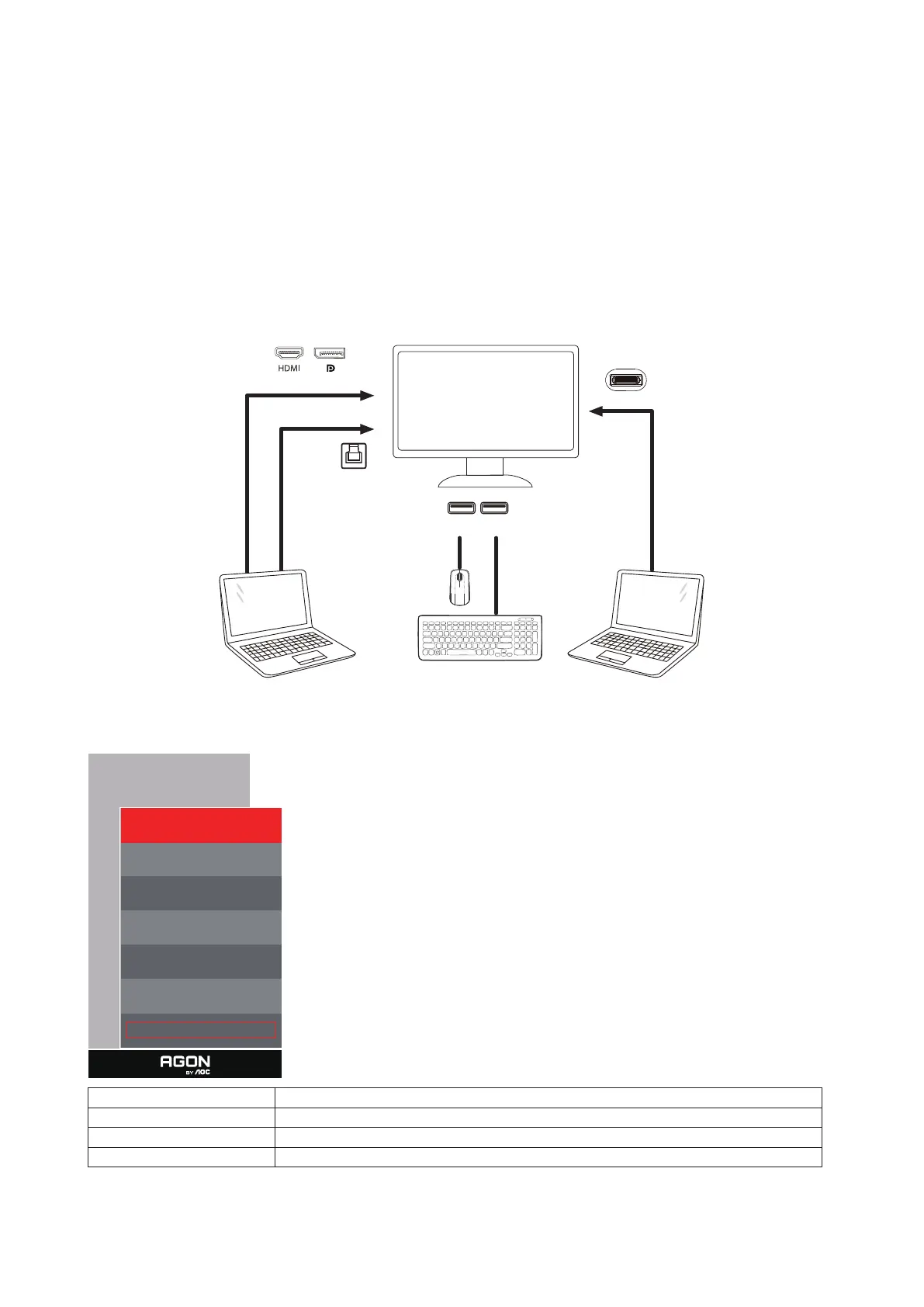
With KVM function, you can show two PCs, or two notebooks, or one PC and one notebook on one AOC monitor and control the two
devices with one set of keyboard and mouse. Switch your control over your PC or notebook devices by choosing input signal source on
“Input Select” of OSD menu.
How to use KVM?
Step 1: Please connect one device (PC or notebook) to monitor via USB C.
Step 2: Please connect the other device to monitor via HDMI or DisplayPort. Then please also connect this device to monitor with USB
upstream.
Step 3: Please connect your peripherals (keyboard and mouse) to monitor via USB port.
Device 2
USB USB
USB-C
Device 1
USB UP
Note: Display design may differ from that illustrated
Step 4: Enter to OSD menu. Go to OSD Setup page and select “Auto”, “USB C”, or “USB UP” of USB Selection tab.
OSD Setup
Language English
Timeout 10
H. Position 100
Transparence 25
Break Reminder O
USB O
USB Selection Auto
USB Selection Function Description
Auto Auto selects USB C or USB Up depending on the input source.
USB C Provides USB Hub function through Type-C cable.
USB Up Provides USB Hub function through USB B cable.



 To Next Page