Apogee Duet 3 User’s Guide
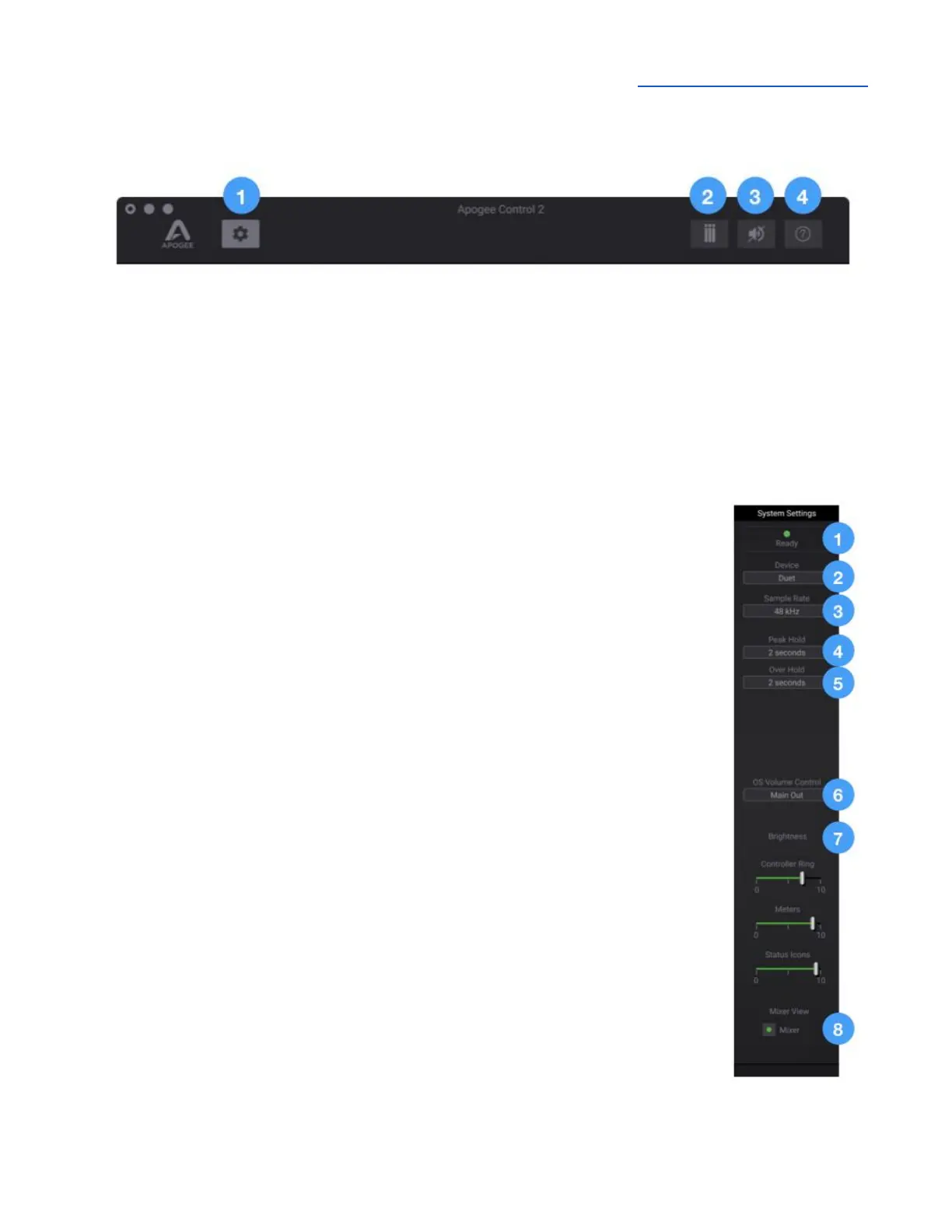
Toolbar
1. Show/hide System Settings sidebar
2. Clear Meters
3. Mute All Outputs
4. Open the Hover Help window
System Settings Sidebar
Provides System-wide settings that apply to your recording system as a whole.
1. System Status Display - Displays the status of the connected hardware.
● Green - System is ready: Hardware is connected and recognized over
USB.
●
2. Device - When multiple Apogee devices are connected to the same host,
select the device in focus (i.e. under control of the software) in the Device
dropdown.
3. Sample Rate - Set Duet 3’s sample rate. In some cases this setting may be
overridden by software running on the computer (e.g. when a DAW session
is open).
4. Peak Hold - Set the time that peak indications are held on the level meters.
5. Over Hold - Set the time that over indicators are held on the level meters.
6. OS Volume Control - Choose the Duet 3 analog outputs (either Speaker or
Headphones) to be controlled by the operating system audio volume
control.
7. Brightness - Set the brightness of top panel LEDs individually: Controller
Ring, Meters and Status Icons.
8. Mixer View - Show/hide the Direct mixer in the Primary window.


 To Next Page