Apogee Duet 3 User’s Guide
Channel Section
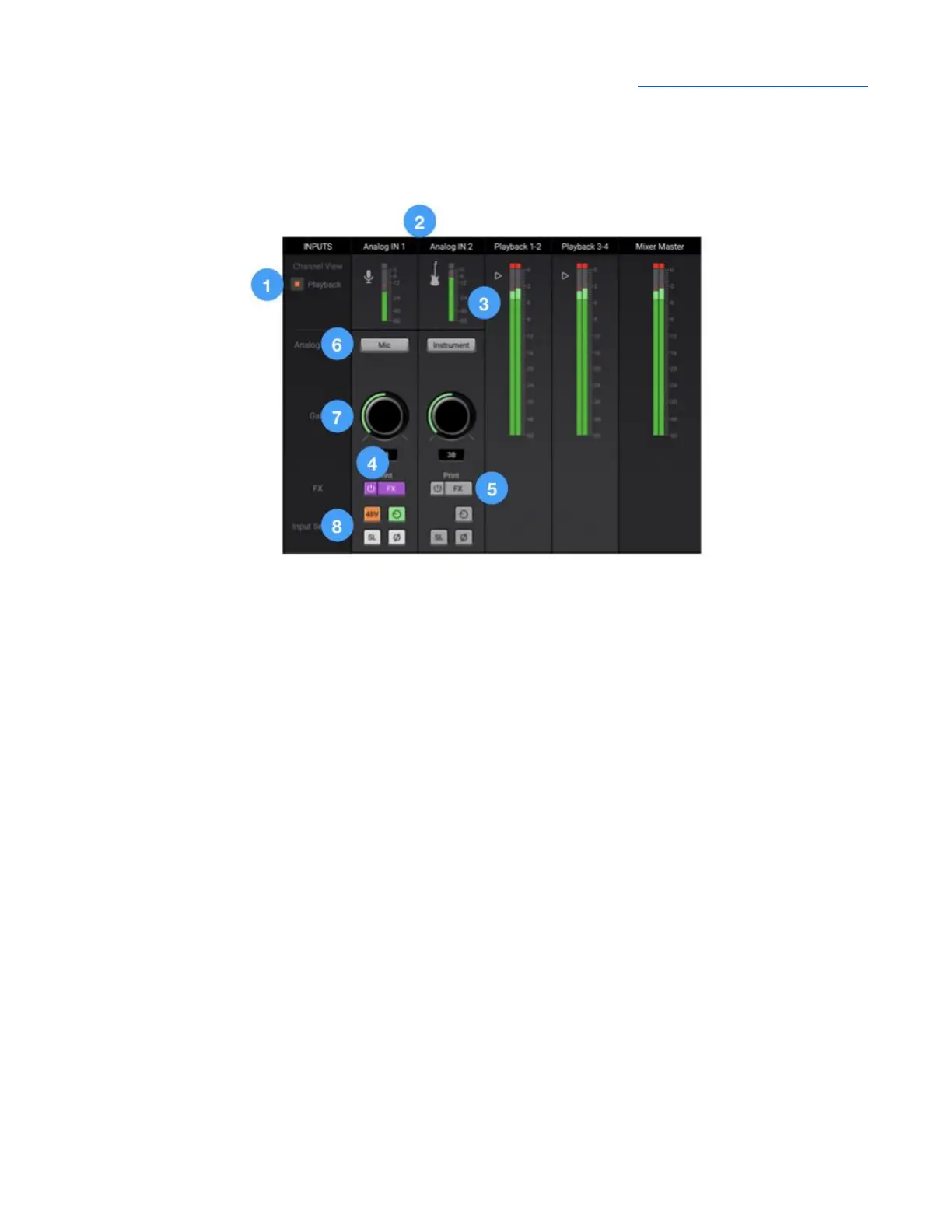
This portion of the Primary window displays channels for Analog and Playback inputs.
General Settings
1. Channel View Button - click to show/hide Playback channels. The Analog In channels are always
shown.
2. Channel Label - Indicates the channel type - Analog In or Playback. Analog IN labels are
transmitted to your DAW.
3. Input Channel Level Meter - displays the digital signal level of the channel. The Analog IN channel
levels are post A/D conversion.
4. ECS FX On/Off - Toggle on/off the ECS FX plugins.
5. Show/Hide ECS FX window - Click to show/hide the ECS FX window.
Analog IN Channels 1-2
Analog IN channels represent inputs from microphones, instruments and other analog sound sources.
● Analog inputs are routed to software (DAW) inputs 1-2 as well as Mixer inputs 1-2.
6. Analog Level - choose the analog reference level for Analog inputs 1-2.
● Choose Mic when connecting microphones or direct boxes to the XLR input.
● Choose Inst when connecting a guitar or keyboard, or any high impedance (Hi-Z) instrument
to the 1/4” input (balanced TRS or unbalanced TS).
● Choose +4dBu when connecting “pro” gear with a nominal +4 dBu output level (such as an
external mic pre, compressor, or EQ) to the XLR input.
● Choose -10dBV when connecting “semi-pro”, hi-fi, or musical instrument gear with a nominal
-10dBV dBu output level to the XLR input.


 To Next Page