32 Chapter 3 iPhoto at a Glance
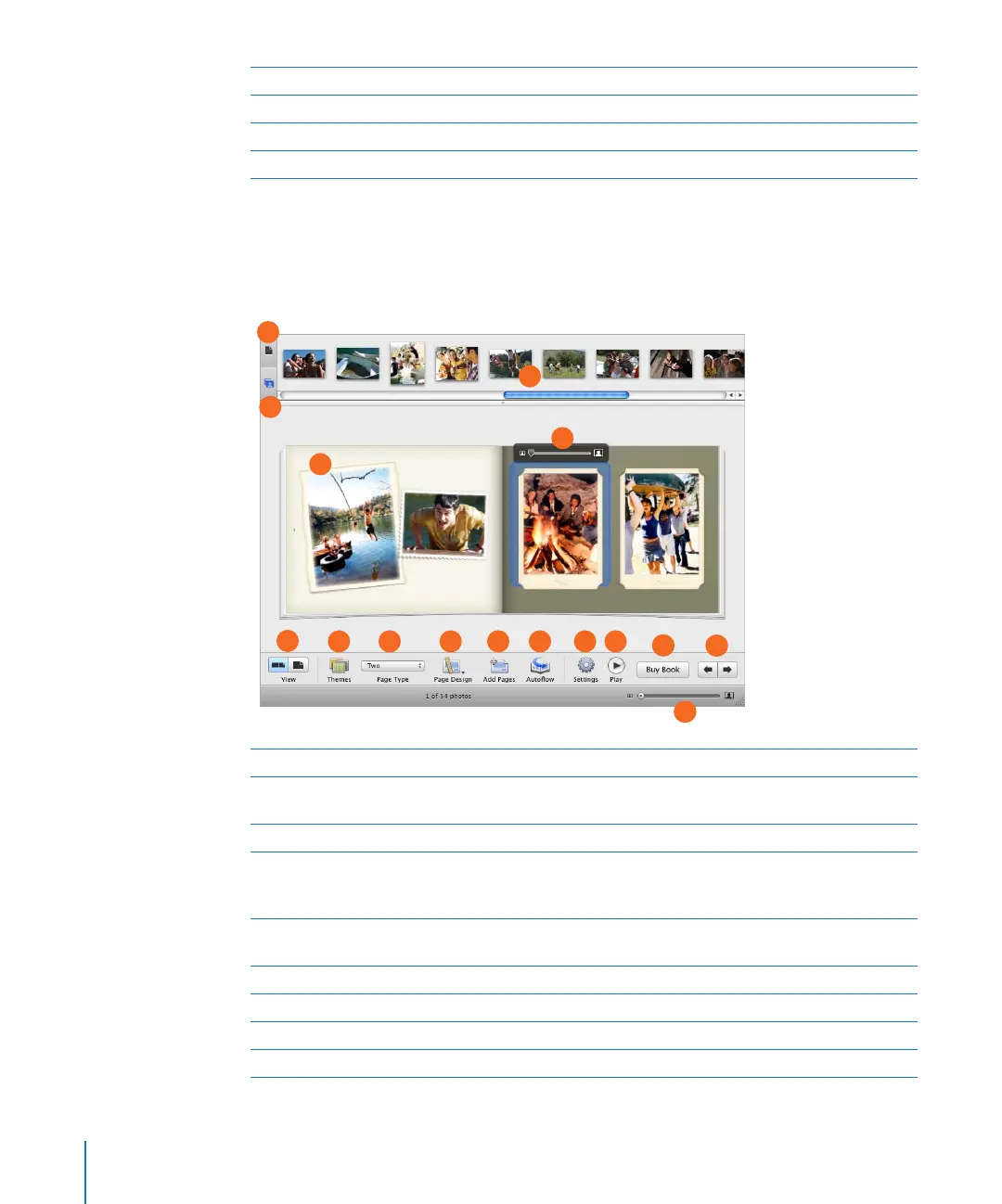
Book View
When you select a book in the Source list, iPhoto displays its pages and provides tools
to easily create the perfect book for any occasion.
I Settings button: Click to choose visual effects for your entire slideshow.
J Music button: Click to choose the background music for your slideshow.
K Arrow buttons: Click to go to the previous or next photo in a slideshow.
L Zoom slider: Drag to select which part of the photo is displayed during your slideshow.
A Page View button: Click to display book pages in the photo browser.
B Unplaced Photos button: Click to display unplaced photos. You can place these photos in your
book by dragging them to a page.
C Photo browser: View book pages or your book’s unplaced photos.
D Viewing area: View the page you selected in the photo browser. To rearrange photos on the
same page, drag them to a new location on the page. To replace a photo on a page, drag a new
photo from the photo browser to the photo you want replaced.
E Zoom slider: Position a selected photo within its book frame by zooming in on only the area
you want to show.
F View buttons: Click to show single pages or two-page spreads in the viewing area.
G Themes button: Click to select a book size and layout design.
H Page Type pop-up menu: Choose a new page type for the selected page.
I Page Design button: Choose a new layout for the selected page type.
C
B
D
E
F
G H
I
J K
A
L
N
M
O
P



 To Next Page