35
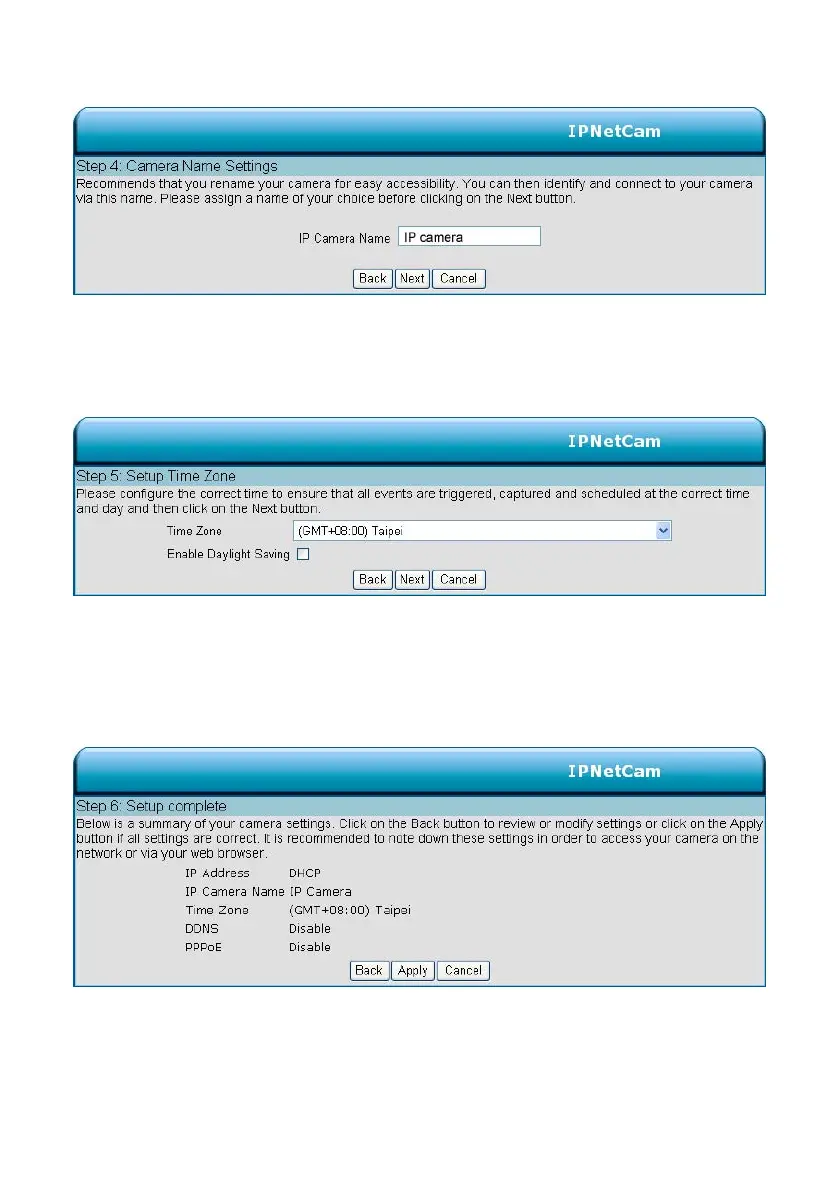
Step 4:
Enter a name for your camera and click Next to continue.
Step5:
Configure the correct time to ensure that all events will be triggered, captured and scheduled at the
right time. Click Next to continue.
Step 6:
If you have selected DHCP, you will see a summary of your camera’s settings. Please note down
all this information as you will need it for accessing your camera within the network.
Click Apply to save your settings.



 To Next Page