MANUAL V2.0
5 & 7
VIEWING PHOTOS > P. 28
3.3 PhOTO VIewer seTTIngs
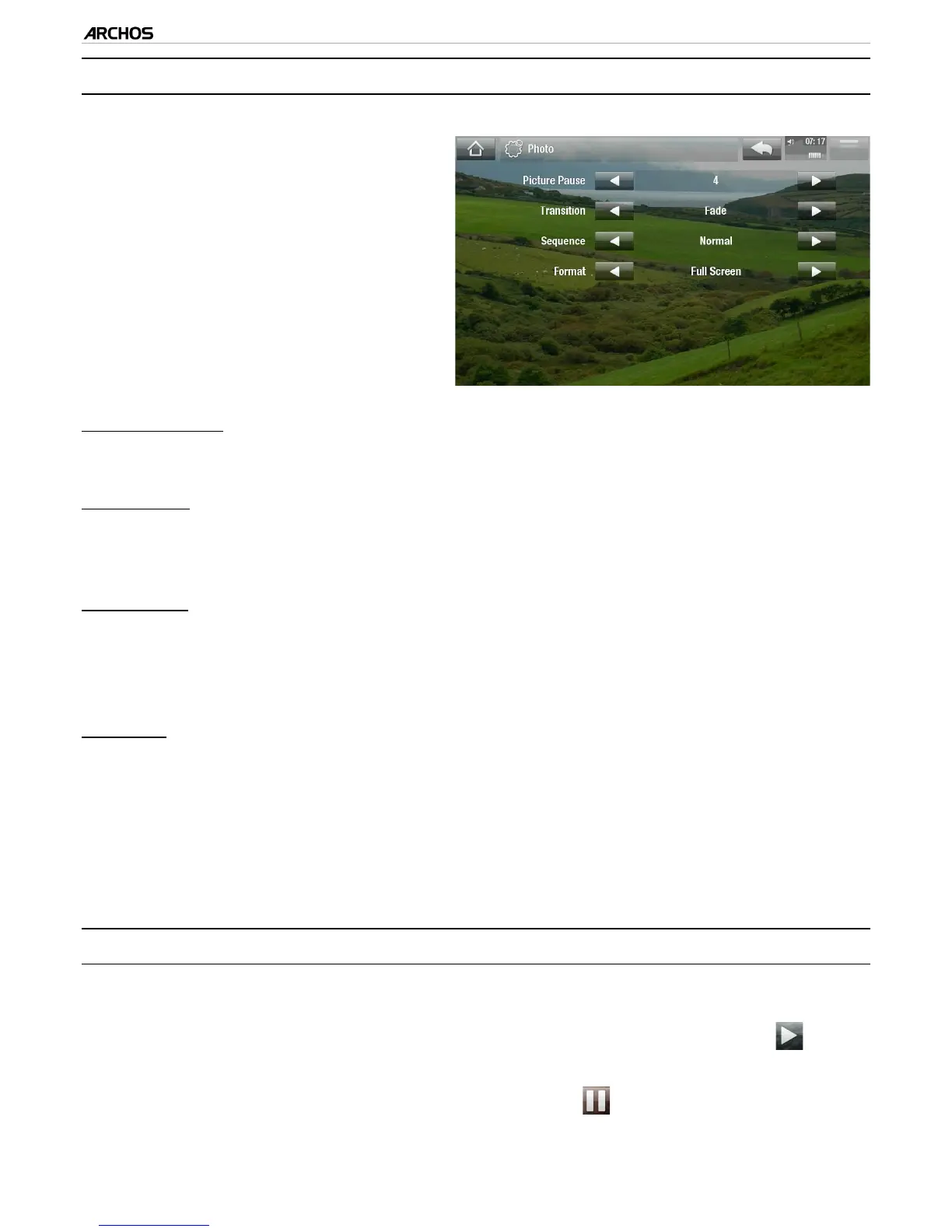
In the Photo mode, you can access
the Photo viewer settings screen via
the “Settings” menu item.
Use the left/right arrows to select a
different setting for a parameter.
•
•
“Picture Pause”
denes the time that each picture will be displayed during a slideshow.
“Transition”
denes the transition effect to be used between two pictures. There are several
cool effects that you can choose from.
“Sequence”
allows you to enable/disable the shufe mode. If this parameter is set to
“Shufe”, your pictures will be displayed randomly. To disable the shufe mode,
select “Normal”.
“Format”
allows you to change the way the picture is displayed.
“Original”: displays the entire picture in its original format.
“Full Screen”: enlarges the picture to ll the screen. In order to t the ARCHOS
screen, your device might need to cut small parts of the image, most likely at the
top and bottom.
3.4 PlayIng a slIdeshOw
To view a slideshow, highlight a picture le in the “Photo” browser or while viewing
a photo, and choose the “Start slideshow” menu item, or tap on the Play icon.
While a slideshow is playing, you can pause it at any time by selecting the “Pause
slideshow” menu item or by tapping on the Pause icon.
You can dene the time that each picture is displayed and the transition effects in
the “Photo” settings (see:
Photo Viewer Settings
).
-
-
-
-
-
-
•
•
•



 To Next Page