MANUAL V2.0
5 & 7
TROUBLESHOOTING > P. 70
to access the “Repair and Formatting Tools” settings screen: from the Home
screen, tap on “Tools”, select “Settings” and choose “Customer Assistance”.
Then use the “Repair and Formatting Tools” button. This screen allows you to do
the following actions:
“Clear temporary system les and cache” (does not erase any data)
“Reset Settings” (resets all user settings)
“Format Hard Drive” (erase all data, media les, and licenses)
“Full Reinitialization” (erase all data, media les, licenses and settings)
In the event that your ARCHOS freezes or does not respond anymore, try to
reset it (see: Resetting your ARCHOS).
If this does not work or if you cannot access the Repair and Formatting Tools,
you can try a system recovery (see: System Recovery).
7
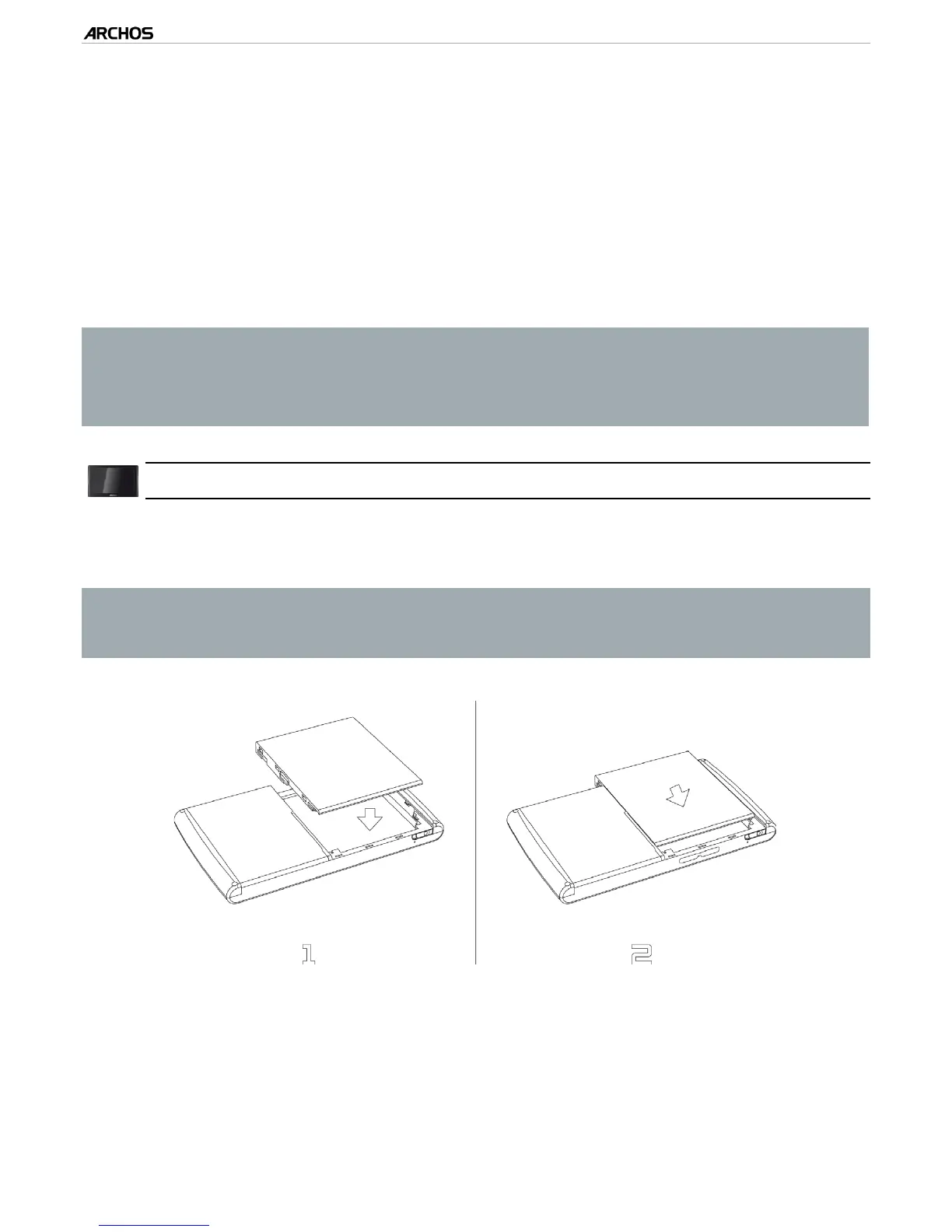
rePlaCIng The baTTery
The ARCHOS has a removable battery. You can purchase extra batteries from
www.archos.com.
Caution: if the battery is incorrectly replaced or short-circuited, this could re-
sult in damage to the product and/or serious injuries to the user. Replace only
with an original ARCHOS battery.
To replace the battery, follow these steps:
-
-
-
-
-


 To Next Page