EasyManua.ls Logo

Argox Xellent X-1000VL - User Manual

Argox Xellent X-1000VL
120 pages
Print Icon
To Next Page IconTo Next Page
Loading...
I
Argox website: http://www.argox.com
X-1000VL
X-2000V / X-2000V Zip
X-2300E / X-2300ZE
X-3200 / X-3200Z
X-3200E / X-3200ZE
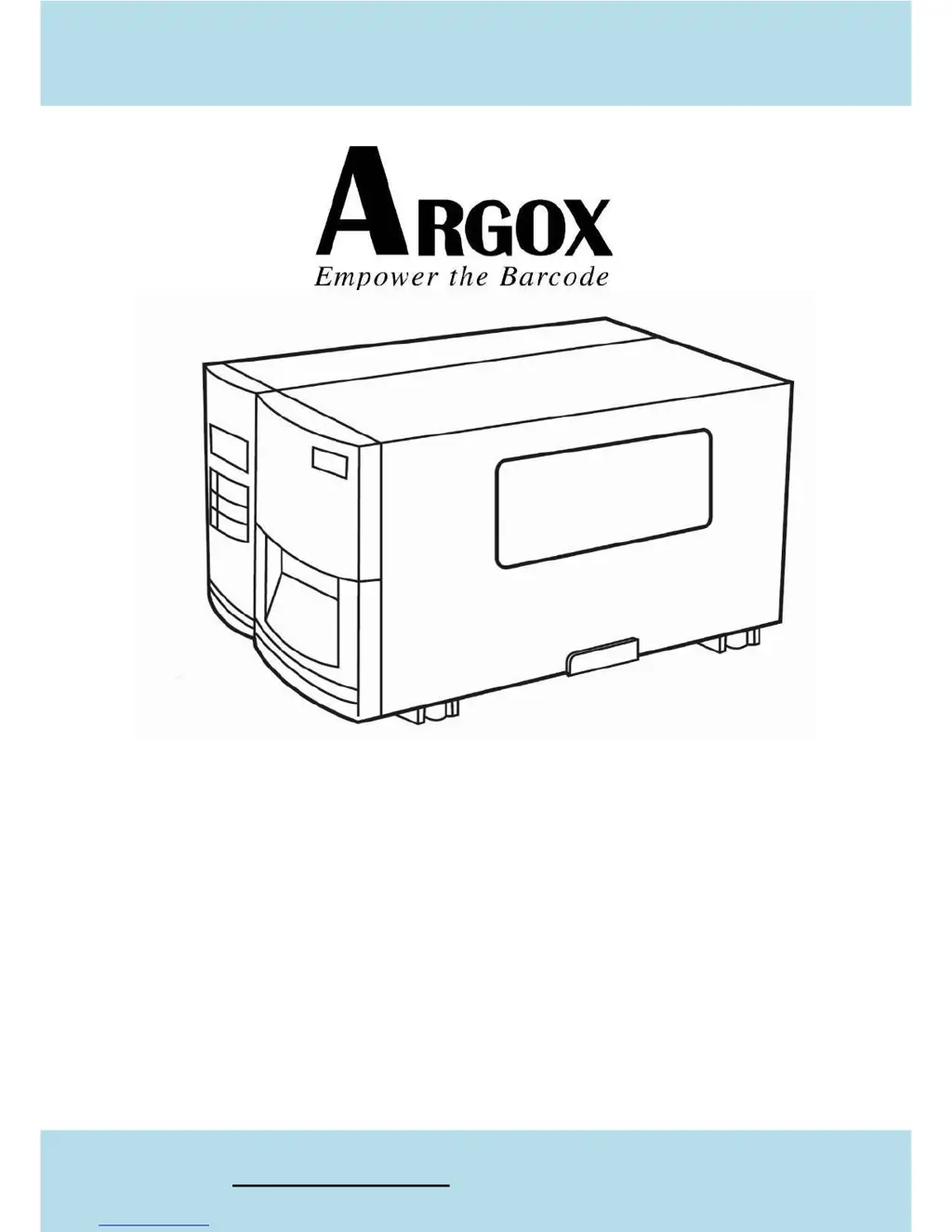
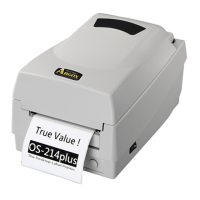
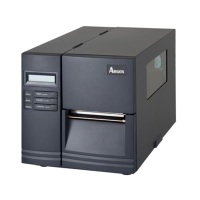
Xellent Series Industrial Barcode Printer
User‟s Manual

Table of Contents

Questions and Answers

  • B
    Benjamin BlankenshipAug 15, 2025
    Why is the media calibration out of range on my Argox Barcode Reader?
    • L
      Lisa BrownAug 16, 2025
      If the Argox Barcode Reader shows 'Media calibration is out of range for sensor detection', make sure media is loaded and the media sensor locates under the media.
  • D
    David KnightAug 18, 2025
    What to do if my Argox Barcode Reader shows 'Memory full'?
    • H
      Haley NelsonAug 18, 2025
      If your Argox Barcode Reader displays 'Memory full', check the graphics and soft fonts from the host. Delete any unused items using the application software.
  • T
    Thomas SteeleAug 21, 2025
    Why won't my Argox Xellent X-1000VL Barcode Reader print? (Print head latch)
    • S
      Stephanie RobinsonAug 21, 2025
      If the Argox Barcode Reader's print head latch is not closed, the head latch must be closed to print labels.
  • K
    Kristina RiveraAug 25, 2025
    What to do if Argox Xellent X-1000VL shows 'Ribbon out'?
    • Q
      qsanchezAug 25, 2025
      If your Argox Barcode Reader displays 'Ribbon out', supply the ribbon roll.
  • S
    Susan KellyAug 27, 2025
    What to do if Argox Xellent X-1000VL shows 'Media out'?
    • J
      Jeffrey WalkerAug 28, 2025
      If the Argox Barcode Reader displays 'Media out', supply the media roll.
  • A
    Anna HernandezAug 30, 2025
    What to do if Argox Xellent X-1000VL shows 'Media not installed'?
    • S
      Susan ParkerAug 30, 2025
      If the Argox Barcode Reader displays 'Media not installed', install the media roll.
  • J
    John EllisSep 3, 2025
    What to do if the cutter failed on my Argox Barcode Reader?
    • H
      hillthomasSep 3, 2025
      If the Argox Barcode Reader's cutter failed, check the media and the connection between the cutter and the main board.
  • J
    Jennifer FloresSep 6, 2025
    How to fix a miss-detected gap on Argox Xellent X-1000VL?
    • J
      James FergusonSep 6, 2025
      If your Argox Barcode Reader has a 'Miss-detected gap' issue, check the media path and the position of the label sensor. For continuous media, check the application and driver, and select continuous media.
  • A
    Ashley WeaverSep 8, 2025
    How to resolve a serial IO error on Argox Barcode Reader?
    • P
      Paul HansenSep 8, 2025
      If you encounter a 'Serial IO error' with your Argox Barcode Reader, check the baud rate, format, or protocol between the host and printer.
  • J
    John DavisSep 12, 2025
    What to do for 'Ribbon sensor error' on Argox Barcode Reader?
    • N
      Natalie ScottSep 12, 2025
      If you have a 'Ribbon sensor error' with your Argox Barcode Reader, replace the ribbon sensor.

Summary

1. Getting Started

Unpacking and Initial Checks

Procedure for checking printer for shipping damage and verifying package contents.

2. Printer Operation

Front Panel Overview

Details on the printer's front panel components including LEDs, buttons, and LCD display.

3. Computer Connections

Interface Types and Requirements

Covers USB, Parallel, Serial, and Ethernet interfaces and their connection requirements.

Printer Driver Installation

Step-by-step guide for installing printer drivers for USB and other interfaces.

4. Troubleshooting

Common Problems and Solutions

Troubleshooting for media, ribbon, printer status, and transmission issues.

Recovery Procedures

Steps to recover the printer after correcting a problem or error.

5. Printer Maintenance

Cleaning Procedures

Guidance on cleaning the print head, roller, and media compartment.

6. Advanced Installation and Adjustment

Print Head Adjustments

Adjusting print head pressure and print line position for optimal quality.

Ribbon and Cutter Adjustments

Adjusting ribbon tension and installing cutter accessories.

7. Stand-alone Operation

Stand-alone with Keyboard

Configuration for operating the printer independently using a keyboard.

Stand-alone with Barcode Reader

Setting up the printer for stand-alone operation with a barcode reader.

8. Technical Reference

General Specifications

Overview of the printer's technical specifications including resolution, speed, and memory.

Printer Programming Languages

Details on fonts, bar codes, and graphics supported by PPLA, PPLB, and PPLZ languages.

Interface and ASCII Specifications

Pin assignments, protocols for interfaces, and ASCII character table.

Argox Xellent X-1000VL Specifications

General IconGeneral
Print MethodThermal Transfer and Direct Thermal
Resolution203 dpi
Max Print Width104 mm
Processor32-bit RISC CPU
Print Speed4 ips
Max Print Length2, 286 mm
Memory4MB Flash, 8MB SDRAM
InterfaceUSB, Serial, Parallel

Related product manuals