Exclusive distributor of Rx100
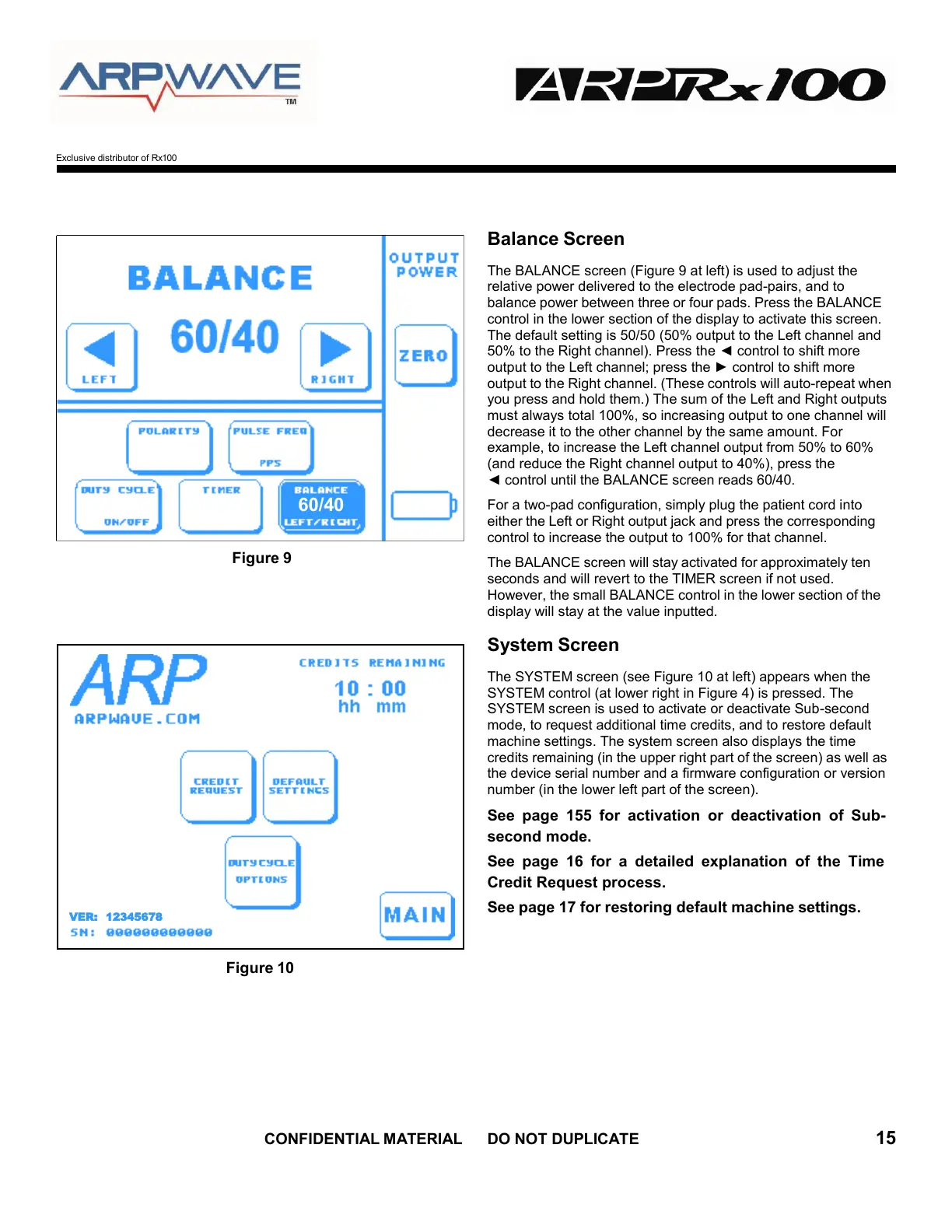
Figure 9
Balance Screen
The BALANCE screen (Figure 9 at left) is used to adjust the
relative power delivered to the electrode pad-pairs, and to
balance power between three or four pads. Press the BALANCE
control in the lower section of the display to activate this screen.
The default setting is 50/50 (50% output to the Left channel and
50% to the Right channel). Press the ◄ control to shift more
output to the Left channel; press the ► control to shift more
output to the Right channel. (These controls will auto-repeat when
you press and hold them.) The sum of the Left and Right outputs
must always total 100%, so increasing output to one channel will
decrease it to the other channel by the same amount. For
example, to increase the Left channel output from 50% to 60%
(and reduce the Right channel output to 40%), press the
◄ control until the BALANCE screen reads 60/40.
For a two-pad configuration, simply plug the patient cord into
either the Left or Right output jack and press the corresponding
control to increase the output to 100% for that channel.
The BALANCE screen will stay activated for approximately ten
seconds and will revert to the TIMER screen if not used.
However, the small BALANCE control in the lower section of the
display will stay at the value inputted.
System Screen
The SYSTEM screen (see Figure 10 at left) appears when the
SYSTEM control (at lower right in Figure 4) is pressed. The
SYSTEM screen is used to activate or deactivate Sub-second
mode, to request additional time credits, and to restore default
machine settings. The system screen also displays the time
credits remaining (in the upper right part of the screen) as well as
the device serial number and a firmware configuration or version
number (in the lower left part of the screen).
See page 155 for activation or deactivation of Sub-
second mode.
See page 16 for a detailed explanation of the Time
Credit Request process.
See page 17 for restoring default machine settings.
Figure 10
VER: 12345678



 To Next Page