Installing USB Drivers on Windows 7
Follow these steps to install USB drivers on Windows 7.
Installing Touchstone USB Drivers on New Windows 7 Systems
When running Windows 7 in either 32-bit mode or 64-bit mode, simply connect
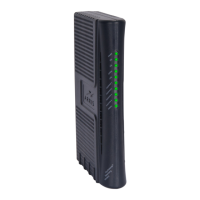
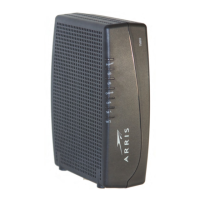
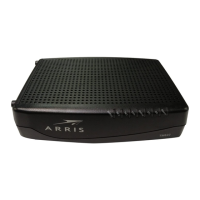
your PC to the Touchstone Telephony Modem or Cable Modem. The Windows 7
Hardware Installation Wizard finds the correct USB driver and installs it for you.
Installing Touchstone USB Drivers on Systems Upgraded to Windows 7
Previous Windows Vista Systems
If your Touchstone Telephony Modem or Cable Modem was previously running on a
Windows Vista system which was actually upgraded to Windows 7, i.e., a “Custom”
or clean installation of Windows 7 was not performed, then you will need to remove
the old Vista USB driver before installing the Windows 7 USB driver. See Remov
-
ing USB Drivers for instructions.
Previous Windows XP (or older) Systems
If your Touchstone Telephony Modem or Cable Modem was previously running on a
Windows XP system, no special steps are required. The Windows XP to Windows 7
conversion is not an upgrade path, but rather requires a “Custom” or clean instal-
lation of Windows 7 which does not keep any of your files, programs, or settings.
Proceed as if installing drivers on a new system.
Note: All Windows operating systems older than Windows XP also require a “Cus-
tom” or clean installation of Windows 7. Therefore, proceed as if installing drivers
on a new system.
Touchstone TM722 Telephony Modem User’s Guide
Safety
Getting
Started
Battery
Installation Installation
USB
Drivers
Ethernet
Configuration Usage Troubleshooting Glossary
39



 To Next Page