Page 10 · 5300 Series TECSource User’s Manual
Front Panel Operation
Operation of the TECSource is very straightforward. The sections below will
help familiarize you with the front panel, the display, and the menu structure.
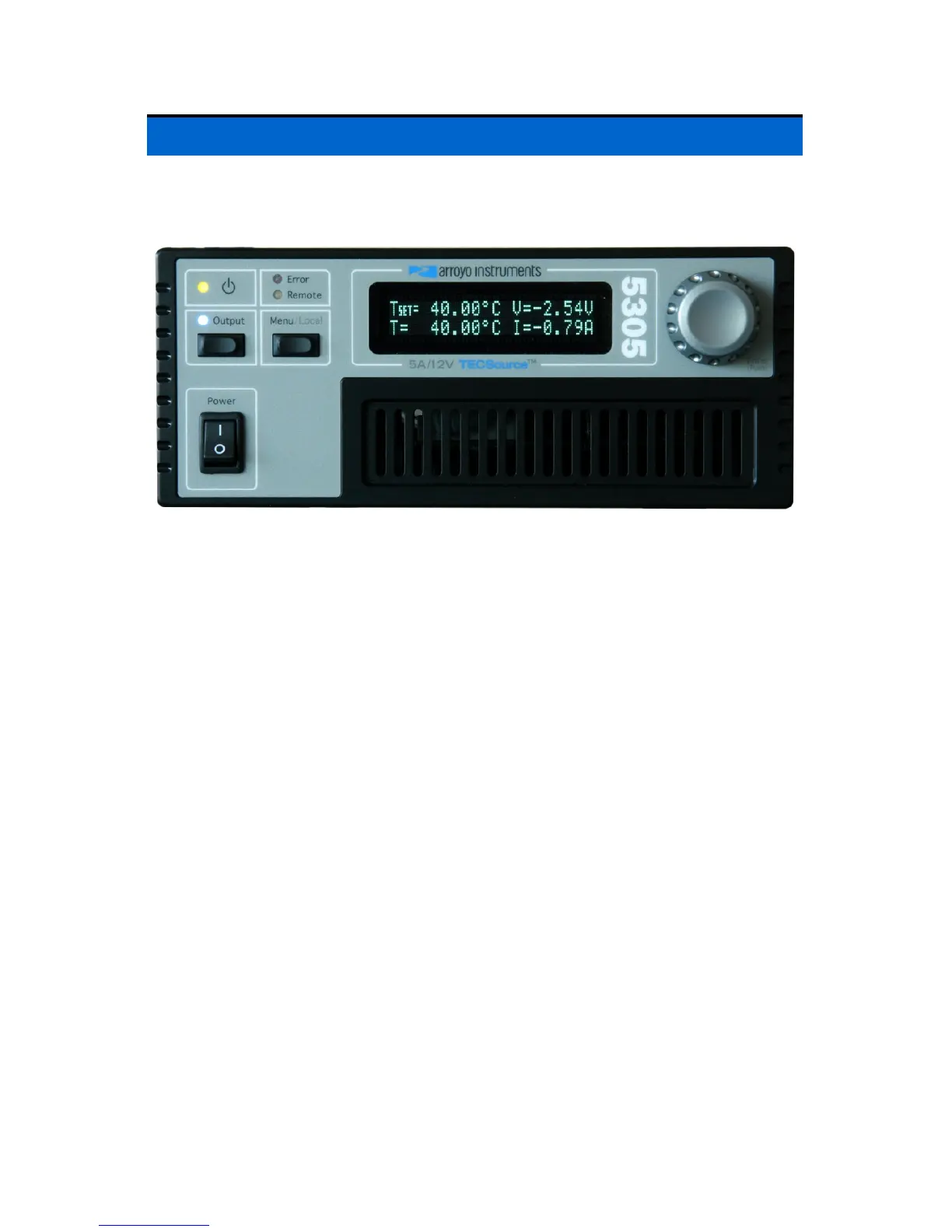
The front panel is designed for simplicity in operation. There are three buttons
on the front panel: Output, Menu, and the adjustment knob.
The Output button is used to turn the output on and off. Whenever the output is
on, the blue Output On LED will be lit.
The Menu button is used to enter the TECSource menu. When in remote mode,
it acts as a Local button, returning the instrument to local mode.
The large adjustment knob located on the right hand side of the unit is used to
change the set point or parameters in the menu. It also acts as a push button,
primarily as an enter button, when making changes in the menu. When in the
main screen, pressing the knob will change from Normal to Large display mode.
There are four LEDs: a green power LED that is lit whenever the AC power is
turned on; the blue Output On LED that indicates the TECSource is actively
controlling the temperature; a red Error LED that indicates an error has
occurred; and a yellow Remote LED that indicates the unit is being controlled via
a computer.
Whenever an error is generated, the red Error LED will light, and the error will be
displayed on the VFD display. There may be one or more errors, but only the
first error will be displayed. To display the next error, press Menu button. To
clear all errors, press the knob. A list of error codes can be found in the Error
Messages section below.


 To Next Page