• Monitor: If working in Extended Display, choose which monitor you want your ARTISUL pen display
to track with. Most likely, you will want it to track with the ARTISUL display. To learn which monitor
is Monitor 1 and which is Monitor 2, go to Start > Settings > Display and click Identify.
• Calibration: Click “Calibrate my U pen” to activate the calibration screen. Press the crosses that
appear on the screen with the U-Pen to calibrate the screen.
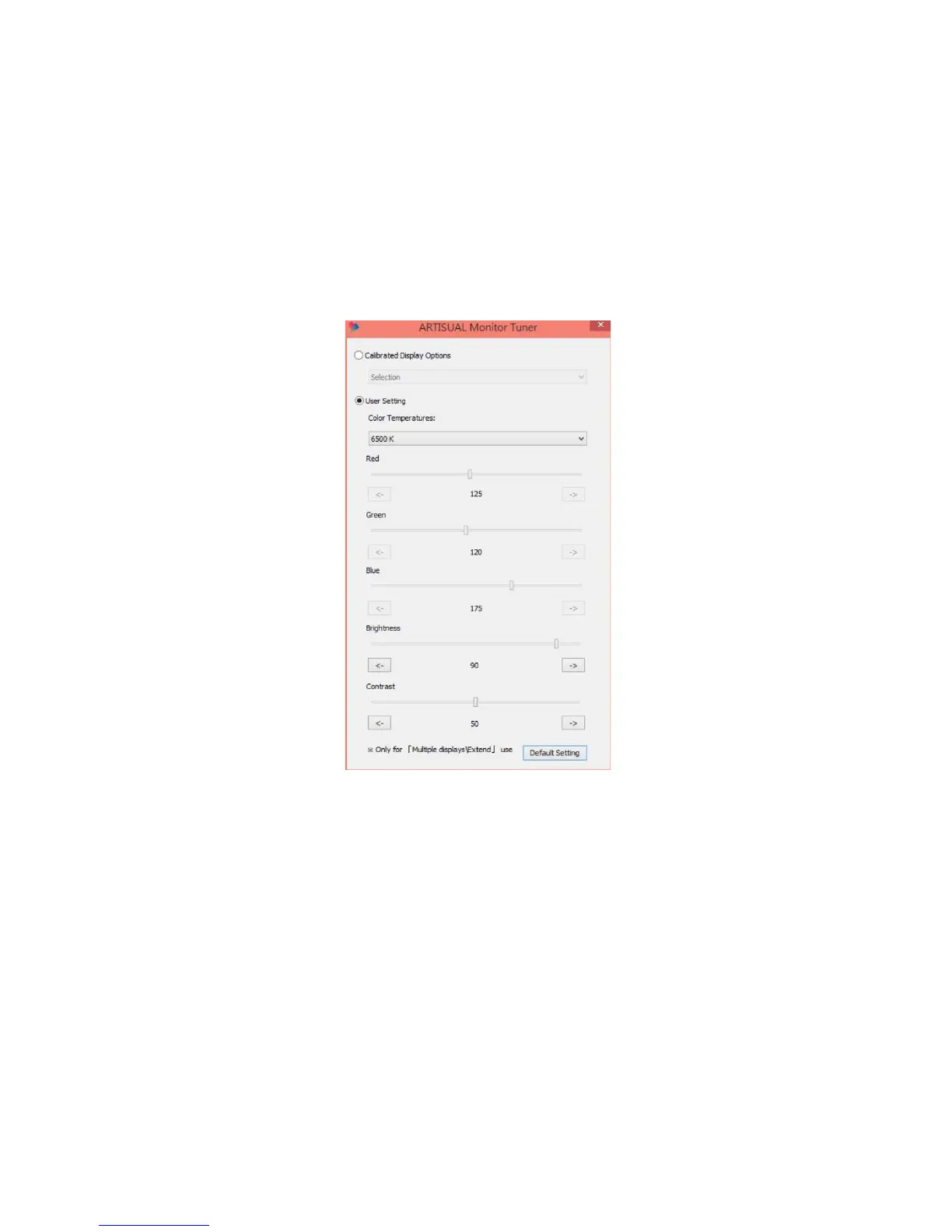
• Open Monitor Tuner: Monitor Tuner can help you configure the ARTISUL display’s Brightness,
Contrast, and Color Temperatures. Press “Open Monitor Tuner” to open “ARTISUL Monitor Tuner”
utility.
• Calibrate Display Options: These options are there to assist you with preparing your designs for
CMYK printing. You may choose a different calibrated display setting depending on the type of
paper you will be printing your work on, and the working light environment (this includes sunlight or
the color temperature of the light bulbs or tubes).
• Note: The “Calibrated Pen Displays” are only there to assist you, to prepare your work for best
accuracy before CMYK printing. Refer to guidelines set by your printing services.
• Note: When opening ARTISUL Monitor Tuner, the system will need up to 30 seconds or more to
access the necessary information for your monitor. While the system is calling up the Tuner, it is
possible for the screen to flicker once or twice.


 To Next Page