11. USING THE ICON STRIP
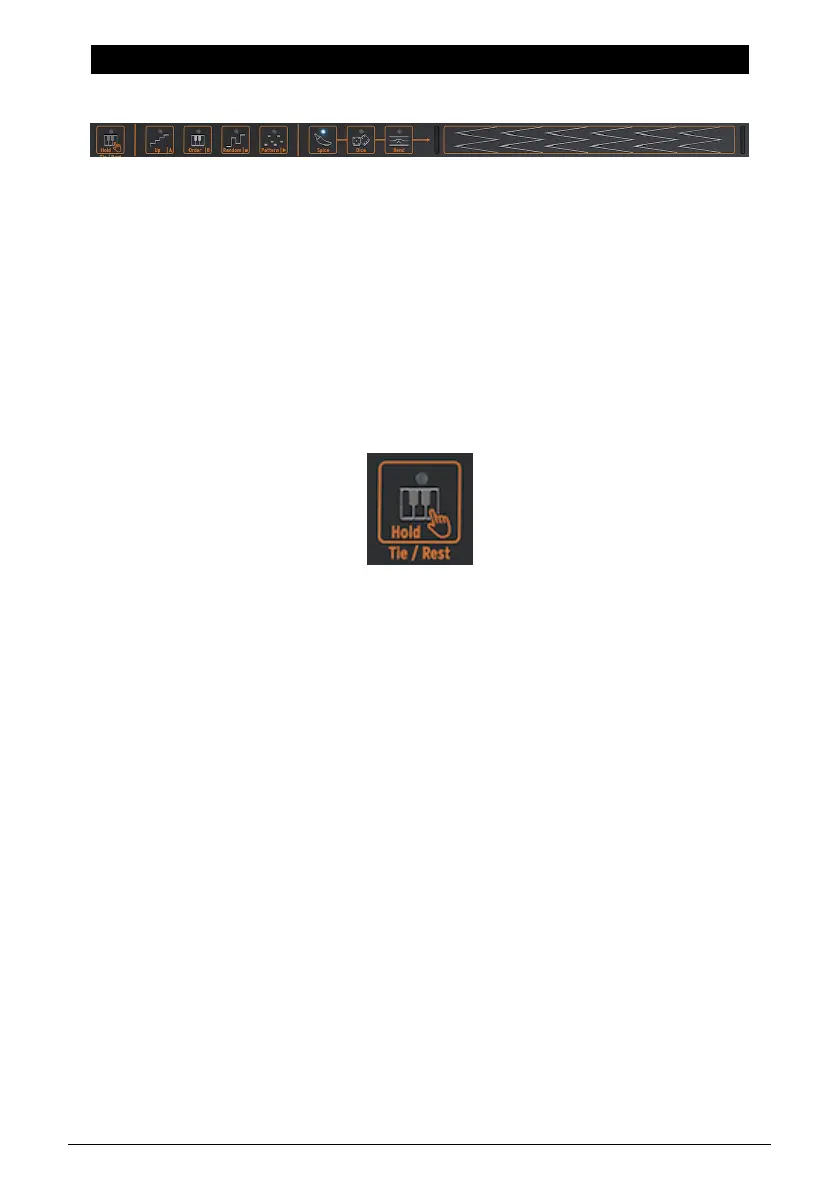
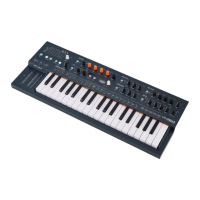
Just above the keyboard, you'll find an area with function icons and a touch strip.
The function icons on the left allow you to control the workings of the Arpeggiator [p.67] and
the Sequencer [p.72]. We'll cover those in other chapters. In the remainder of this chapter,
we'll discuss the Hold button and the icons on the right side of the Icon strip: Spice, Dice, and
Bend. Lastly, we'll talk about the touch strip and how it can be used to spice up your sound.
11.1. The Key Hold Button
The Key Hold button will lock a key or a chord, enabling you to tweak the buttons on the
MicroFreak with both hands.
Note: The HOLD state is not saved with the preset.
Pressing it once activates Key Hold. Whatever keys you hold down on the keyboard will
remain active, even after you lift your fingers. When Key Hold is active in paraphonic mode,
additional notes you play will be added to the keys/chord currently playing.
In Arp mode, pressing Hold enables you to press some keys and have the arpeggiated notes
play until either Arp mode is turned off or the Key Hold button is disabled. Playing new keys
will turn off currently playing notes and replace them with the new notes you play.
Note: Hold does not work with external MIDI. If you need to hold external MIDI note(s), send
the MicroFreak a Sustain message.
The icon strip
The Hold Icon
63 Arturia - User Manual MicroFreak - Using the Icon Strip



 To Next Page