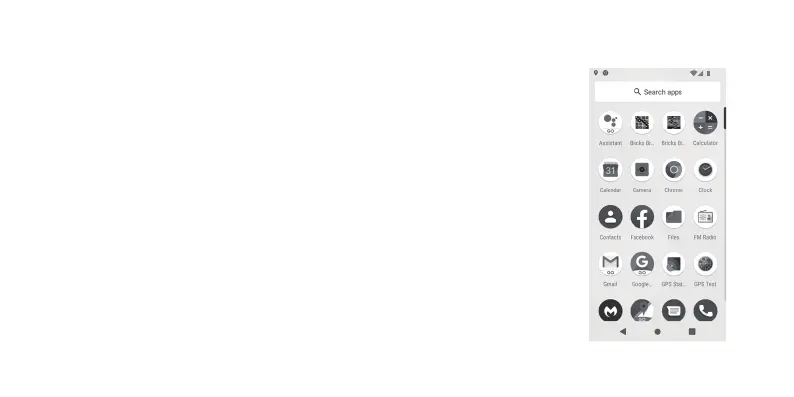
The triangle, located at the bottom left, is the back button. This will take you to the previous screen you were on.
You may see this triangle shift when using a keyboard or input method. Tapping this when the triangle is pointing downwards will remove
the keyboard/input method.
The circle, located in the middle, takes you back to the Home Screen when tapped once.
When you hold down the circle button, this will open Google Assistant. Google Assistant is a feature embedded with Android and can be
used to integrate the phone into a smart home environment. For more information regarding Google Assistant, please visit
https://assistant.google.com
The square, located in the bottom-right, opens up Android Task Manager. This allows you to open previously accessed applications, while
also allowing you to free up memory by closing applications running in the background.
You can close all applications running in the background by tapping the “broom” icon located at the bottom of the screen.
Applications Menu – All the applications can be accessed in the applications menu. When on the home screen, swipe your finger
upwards from the middle of the screen, taking care to not press any application shortcuts.
In this screen, you can tap to open up an application. To search for a particular application, tap on the “Search Apps” bar, and type in the
name (or partial name) of the application.
For further functionality in this menu regarding creating shortcuts and un-installing non-core applications, please see the section
“Applications” and “Application Shortcuts” below.
14
100%
12:00
PM



 To Next Page