ASUS P5E-VM DO 2-3
To update the BIOS using EZ Flash 2:
1. Visit the ASUS website (www.asus.com) to download the latest BIOS le for
the motherboard.
2. Save the BIOS le to a oppy disk or a USB ash disk, then restart the system.
3. You can launch the EZ Flash 2 by two methods.
2.1.2 ASUS EZ Flash 2 utility
The ASUS EZ Flash 2 feature allows you to update the BIOS without having to go
through the long process of booting from a oppy disk and using a DOS-based
utility. The EZ Flash 2 utility is built-in the BIOS chip so it is accessible by pressing
<Alt> + <F2> during the Power-On Self-Test (POST).
(2) Enter BIOS setup program. Go to the
Tools menu to select EZ Flash2
and press <Enter> to enable it.
(1)
Insert the oppy disk / USB ash disk that contains the BIOS le to the
oppy disk drive or the USB port.
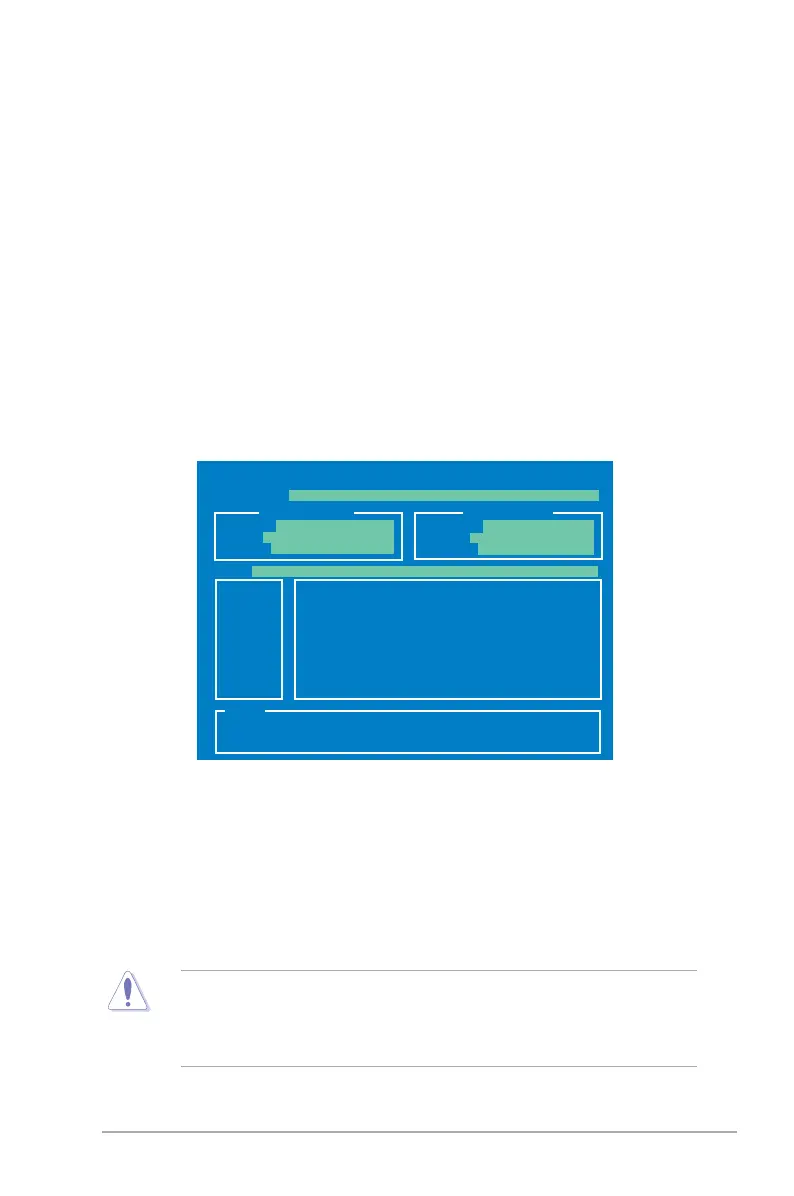
Press <Alt> + <F2> during POST to display the following.
ASUSTek EZ Flash 2 BIOS ROM Utility V3.06
Current ROM
Update ROM
A:
Note
[Enter] Select or Load [B] Backup [ESC] Exit
[Tab] Switch [Up/Down/Home/End] Move
FLASH TYPE: Winbond W25X32
PATH: A:\
BOARD: P5E-VM-DO
VER: 0017
DATE: 08/14/07
BOARD: Unknown
VER: Unknown
DATE: Unknown
You can switch between drives by pressing <Tab> before the correct le
is found. Then press <Enter>.
• This function can support devices such as USB ash disk, or oppy disk
with
FAT 32/16
format only.
• Do not shut down or reset the system while updating the BIOS to prevent
system boot failure!
4. When the correct BIOS le is found, EZ Flash 2 performs the BIOS update
process and automatically reboots the system when done.




 To Next Page