Chapter 2: Hardware Setup
2-16
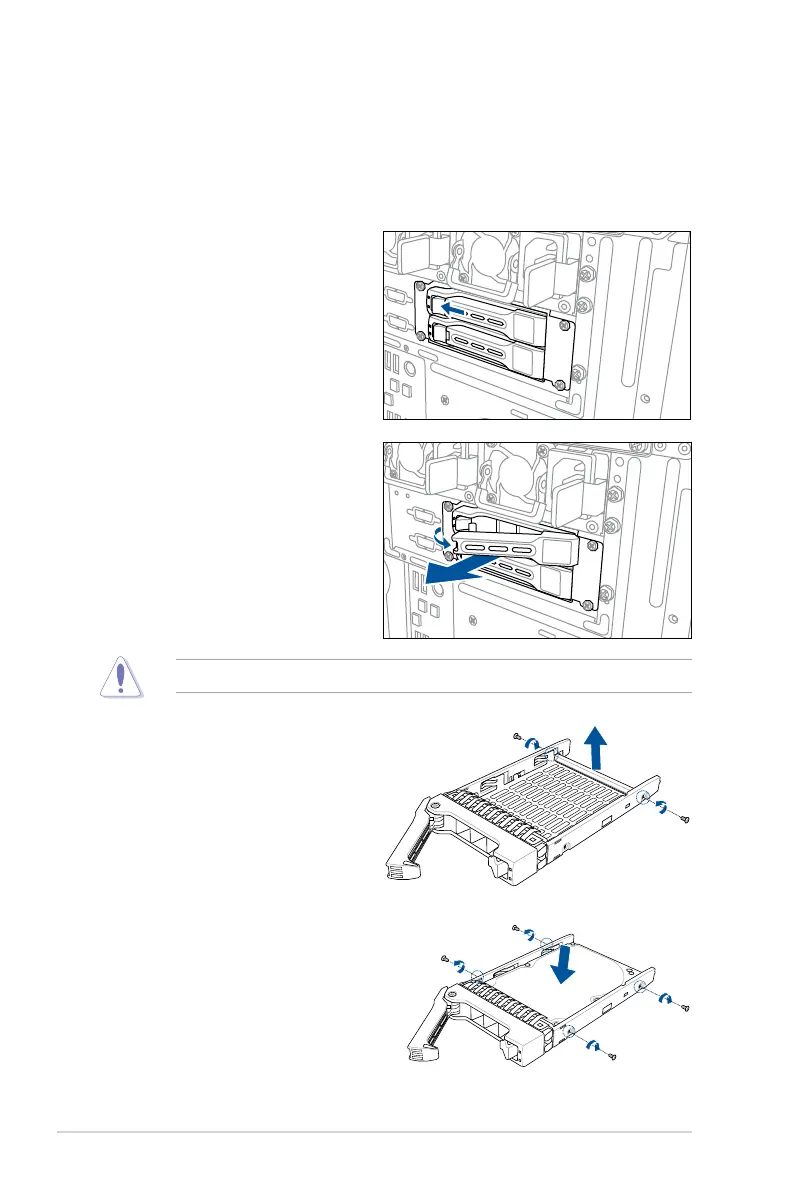
6. OrientandplacetheSSDintothe
tray.
EnsurethattheSSDisttedrmly
inside the drive tray and that the four
screws of the SSD matches the four
screws holes of the drive tray.
3. Placethedrivetrayonaatsurface.
4. Release the screws on each side of
the drive tray to release the drive tray
metalbeam.
5. Findtheharddiskdriveyouwantto
installanditsbundledscrews.
Whenthedrivetrayisout,itscaseisfacingdownwards.
2. Firmly hold the tray lever and pull the
drivetrayoutofthebay.
2.5.5 Installing a 2.5-inch hard disk drive
(TS700-E9-RS4/RS8 only)
Thesystemcomeswithtwohot-swap2.5-inchharddiskdrivesontherearpanelformounting
SATA/SASorSSDharddiskdrives.
Toinstalla2.5-inchharddiskdrive:
1. Releaseadrivetraybypushingthe
springlocktotheright,andthen
pulling the tray lever outward. The
drive tray ejects slightly after you pull
out the lever.



 To Next Page