36
Chapter 3: Work hard, play harder
Gmail
Use Gmail to set up your Google account to get into Google-related services and apps as well as
receive, send, and browse emails right from your ASUS Phone. You can also set up other email
accounts such as Yahoo or your work email account via Gmail.
IMPORTANT! Your ASUS Phone must be connected to a Wi-Fi or mobile network so you can add
an email account or send and receive emails from added accounts. For more details, see Staying
connected.
To set up your Google account:
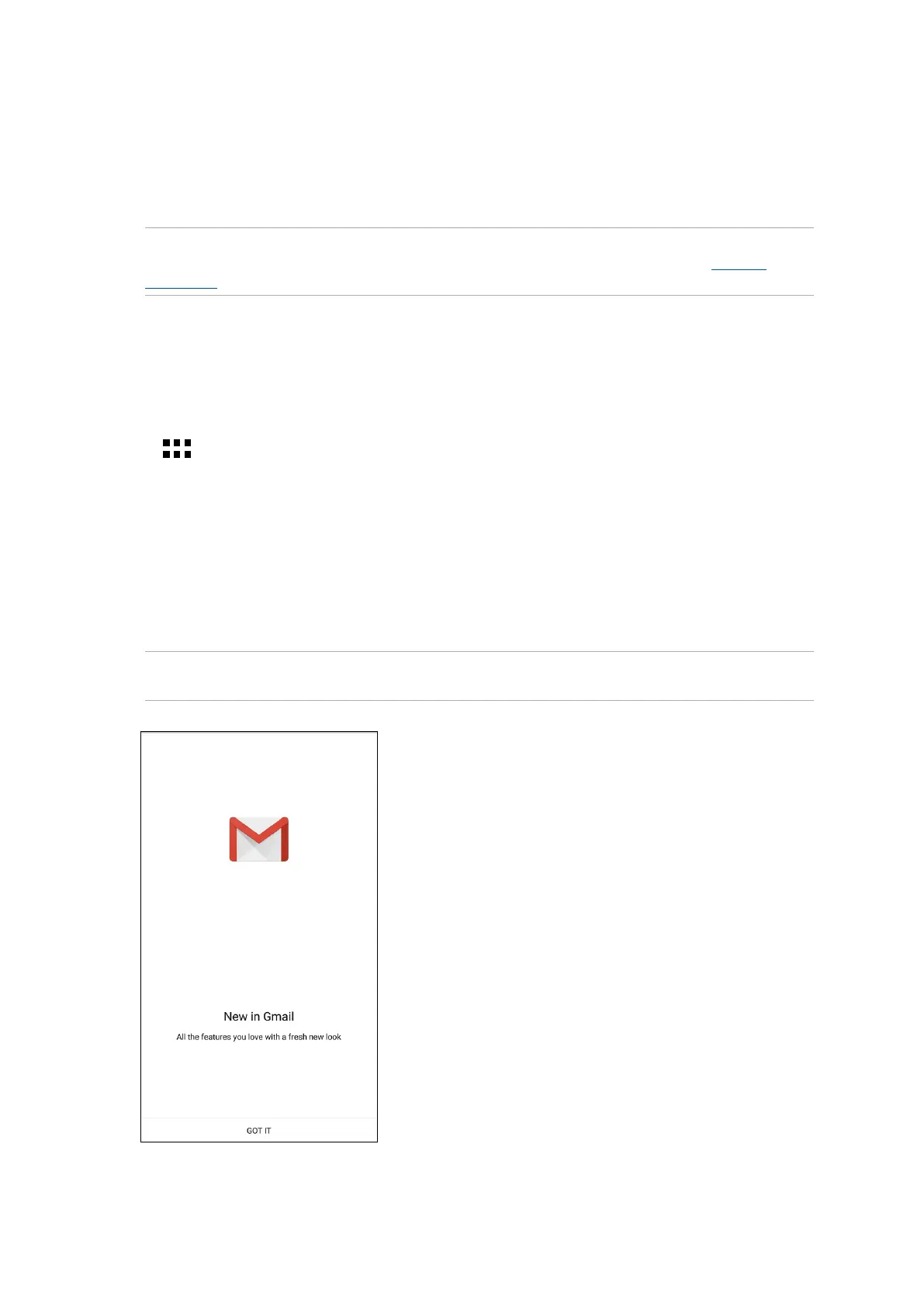
1. From your Home screen, do any of the following to launch Gmail:
• TapGoogle > Gmail.
• Tap
> Google > Gmail.
2. Tap Add an email address, then tap Next.
3. Select Google, then tap Next.
4. Enter your email address. To create a new Google account, tap Or create a new account.
5. Follow the next steps to sign in to your Google account.
NOTE: If you want to set up your work account on your ASUS Phone, ask for the email settings from
your network administrator.







 To Next Page