8
NT2508 / NT2504 / NT1308 / NT1304 / NT4004
English
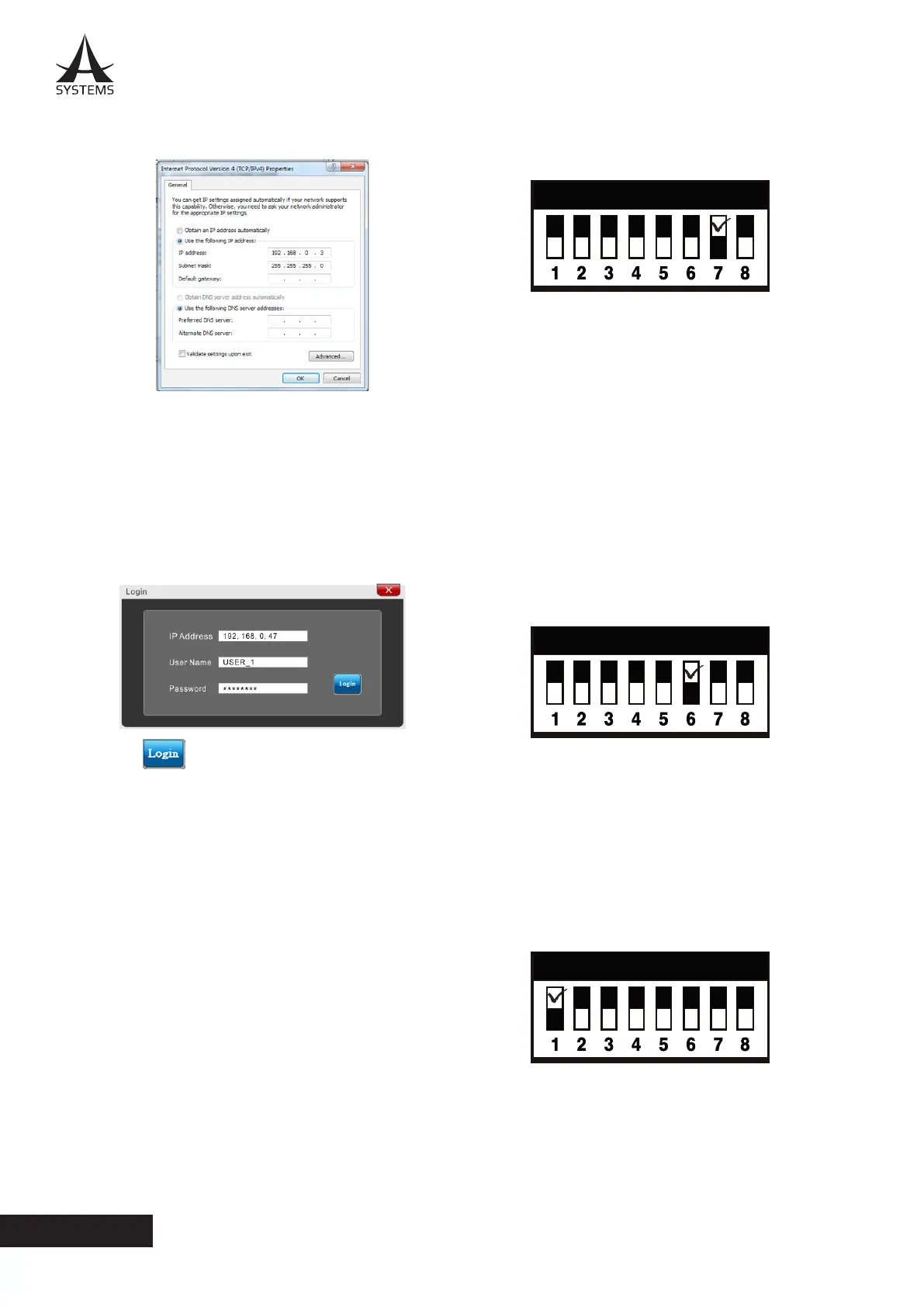
6. Change the eld “IP address” to “192.168.0.3”, and
then click “OK”�
8. Within the Login box of the NT control software, enter
the following:
IP Address: 192�168�0�47
User Name: USER_1
Password: ASYSTEMS
7. Launch the control software by double clicking the
executable le. The latest version of the NT control
software can always be found on the Asystems website.
9. Click
4.6 RESTORE FACTORY SETTINGS
1. Switch POLE 7 on the rear panel DIP Switches to the
ON position�
2. Power on the NT series network amplier.
3. Switch POLE 7 to OFF�
4. Switch the Power Switch to the “I” position (stand by).
5. Now your NT is restored to the factory default settings�
NOTE: A factory restore is particularly helpful in the event
that user names and passwords are forgotten� Restoring
to factory default settings will restore user names back
to default values�
4.7 ACTIVATING ROTARY CONTROLS
Use pole 6 on the rear panel DIP switch to turn the front
panel controls on and o. When OFF, the rotary volume
controls on the front of the NT will be deactivated. In the
event that controls are not functioning, be sure to check
this before taking further action.
In addition to this switch, each and every individual
control can be deactivated within the software. Within
the Control Panel page, the ON/OFF buttons at the very
bottom of each channel will allow you to turn the front
panel rotary controls on and o.
4.8 FIRMWARE UPDATE
When performing a rmware update, a few steps need
to be followed. First of all, set the rst pole of the DIP
switch to the upper-most position.
A connection needs to be established between the NT
system and the Windows remote software� After this is
done, enter the Global Settings tab and the Utility menu.
At the very bottom of the page, click the “Update” button
under the Firmware section. Users will be prompted
to select the rmware le (available on the Asystems
website) and the rmware update process will begin.



 To Next Page