CS1642A / CS1644A User Manual
16
Quad-View (DCC Mode)
To expand your installation to a Quad-View display, you can use DCC Mode
to connect two CS1642
A / CS1644A units together, and use four displays in
unison.
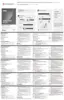
To set up DCC mode, power off all devices, refer to the installation diagram on
the next page (the numbers in the diagram correspond to the steps, below), and
do the following:
1. Connect all the computers to the Host as described in Hardware Setup,
Cable Connection, page 13.
2. On the Client, using two custom DVI Dual Link cables, plug the DVI
connectors into the DVI sockets A and B in the same KVM port section of
the switch.
3. At the other end of the two custom DVI Dual Link cables, plug the
monitor cable into the respective ports on the computer.
4. Repeat steps 2 and 3 for all computers.
5. Plug the console monitors into the DVI console ports located on the Host’s
and Client’s rear panel.
6. Use an RJ-45 cable to connect the DCC port of the Host to the DCC port
of the Client.
7. On the rear of the Client set the DCC switch to Client.*
8. On the rear of the Host set the DCC switch to Host.
9. Power up the installation: plug in the power cord for the Host and Client,
then power on both. After both units are up, power on the computer/video
source devices.
Note: 1. In DCC mode the Client’s front panel pushbuttons are disabled,
and it takes all commands directly from the Host.
2. Setting the DCC switch to Client will disable all front panel
pushbuttons on that switch.


 To Next Page
 Loading...