4.2.1.1 Saving a Report
Once saved and shared, the report can be downloaded and either attached to the
Audatex Assessment or printed.
(For further information on Gmail and Dropbox, see section 6)
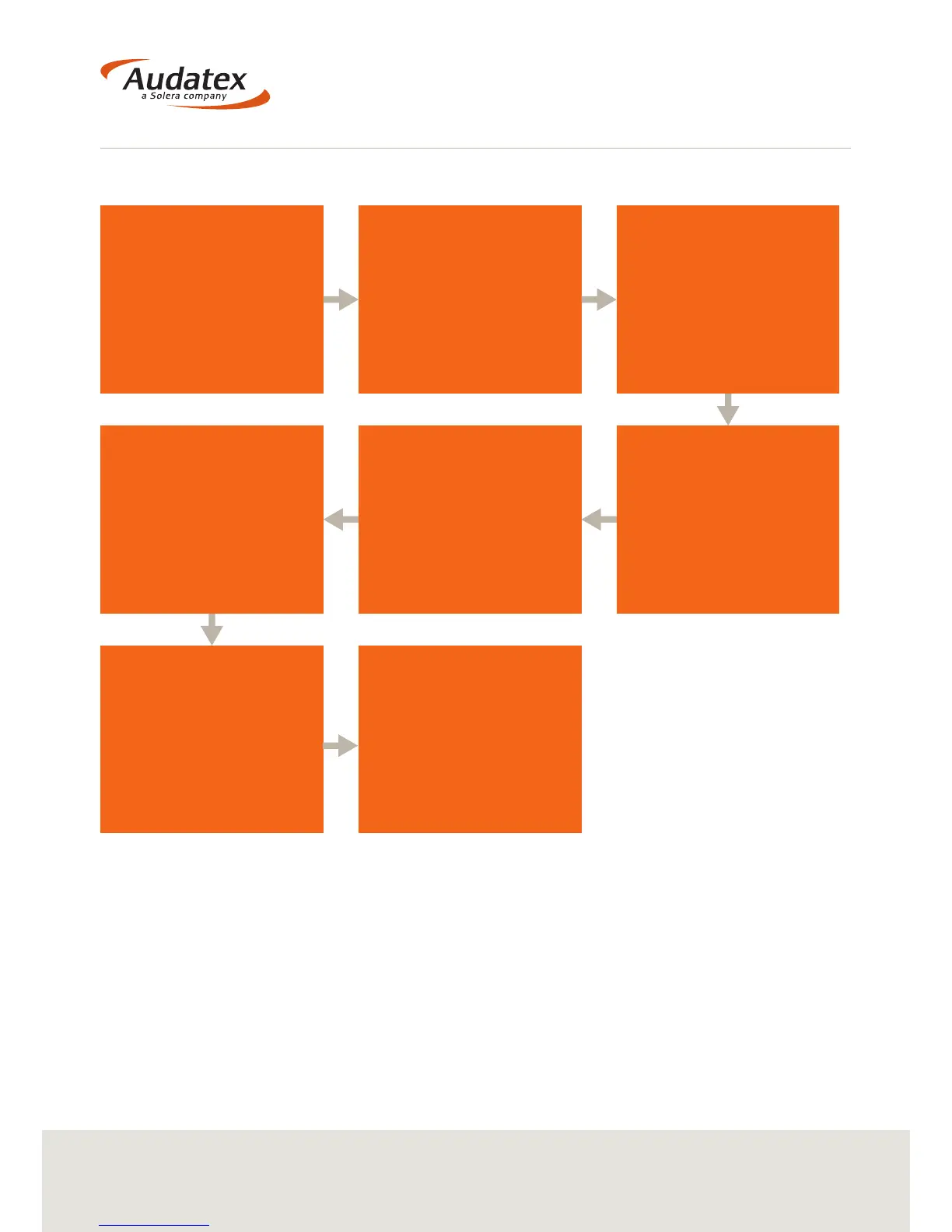
Once you have nished
your scan you will be
presented with a list of
DTCs
Once ‘Saved’ the ‘Share’
icon will become active
Select the ‘Share icon
and you will be given
the ability to share the
report
To save, select ‘Report’
You will see a pop up
information form. Input
the details requested.
All information will be
displayed in the nal
report, then select ‘
Conrm’
At the bottom of the screen
you will see icons for:
• New Session
• Online Information
• Report
• Freeze-frame
• Help
You will then be shown the
nal report, to save select:
Save as PDF (to save the
AEG Assessments) or Save
as JPG


 To Next Page