CD
CD
....
N
"
N
....
0
0
"' 'SI'
Fifth tab Navigation c::;,page 128
Map c:;, page 136
Sixth ta bbl
Sound ¢ page
162
Audi connect *¢ page 119
Sett ings c::;,page 162
a) This t ab is only visibl e if at lea st one indicator light or
mes sage is shown or if the correspond ing system is
switched on.
bJ The content s of the tab depend on the me nu th at was
used last .
@ button l<11>I
Switching tabs : press the ~ button repeated ly
until t he des ired tab is shown (such as Radio).
@ IVIEW! button
Switch between the class ic view c:;, page 19, fig . 5
and the en hanced view c:;, page 19, fig . 6 .
@ button ~
Return to func ti ons at higher leve ls .
@ Control buttons [21 and III
Open/close the selection menu or options menu
c::;,page 2 1.
(J) Left thumbwheel
- Selecting a function in a menu/list : turn the
left thumbwheel to the desired funct ion in a
menu or list (such as selecting a station , Lap
t imes*).
- Confirming a selection : press the left thumb -
wheel (for examp le, confirm the station).
- Zooming in/ out on the map : when a map is
displayed, turn the left thumbwhee l up/down
to zoom in/out on the map.
Driver in f orma t ion system
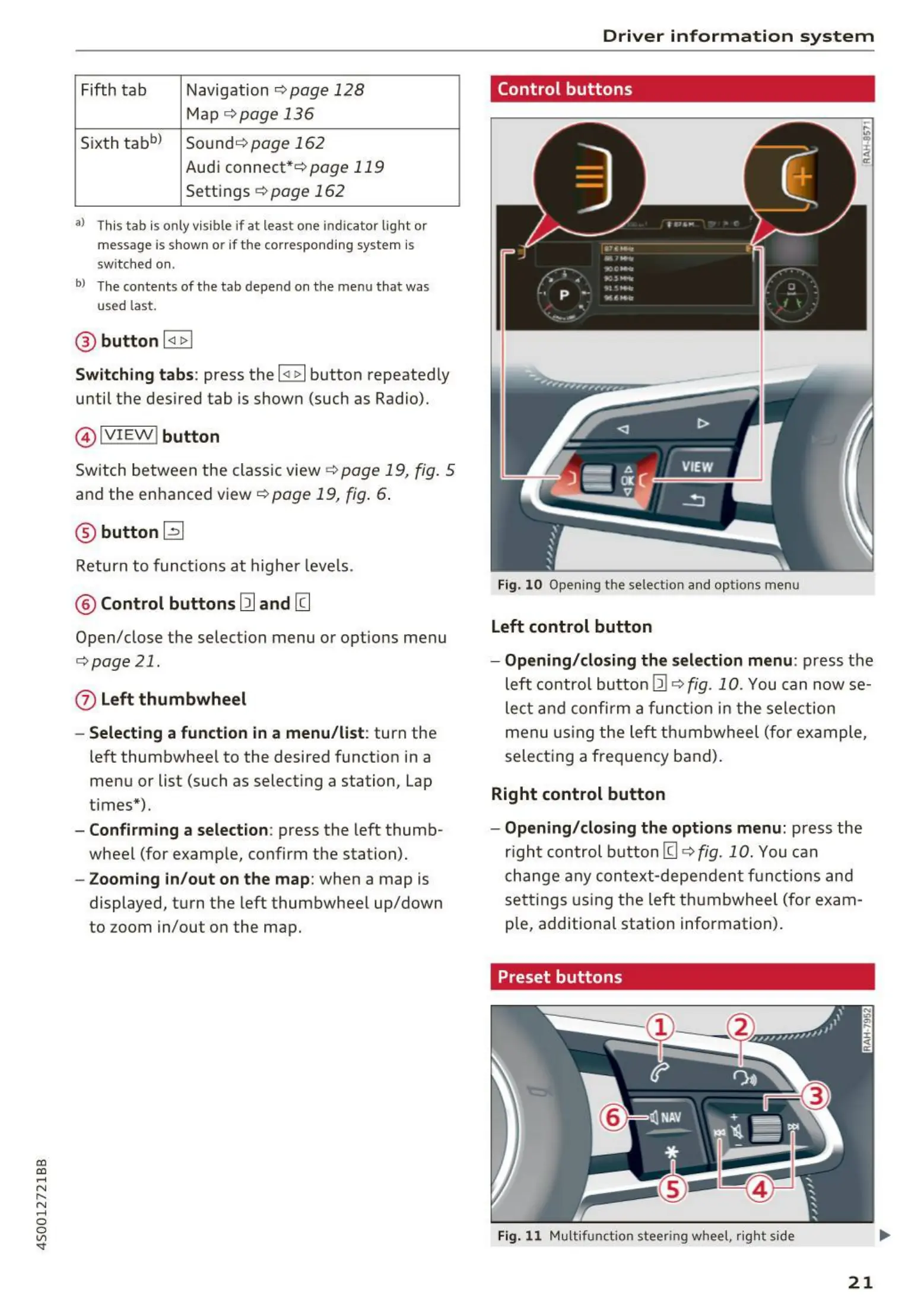
Control buttons
Fig. 10 Opening the selection and op t ions me nu
Left control button
- Opening/ closing the s election menu : press the
left contro l but ton
121 c:;, fig . 10 . You can now se-
lect a nd confirm a funct ion in t he sele ction
menu us ing the left th umbwheel (for example,
selecting a frequency ba nd).
Right control button
- Opening/ closing the options menu : press the
right control but ton
[g c:;, fig. 10. You can
cha nge a ny con t ext -depe nden t funct io ns and
se tt ing s us ing the left th umbwheel (fo r exa m-
p le, additional station information) .
Preset buttons
Fig. 11 Mult ifunct ion st eer ing whee l, right side
21


 To Next Page