SOFTWARE SOFTWARE
Cue Mix Name
Double clicking on a Cue Mix’s name allows you to rename it. If for example you
were creating mixes for four separate band members, you could name them
‘Drummer’, ‘Guitarist’, ‘Bassist’... etc.
Mix Solo
The Solo button allows you to audition each of the Cue Mixes through your
speakers.
Mix Level
The Mix level allows you to control the overall level of the Cue Mix that is sent to
the outputs.
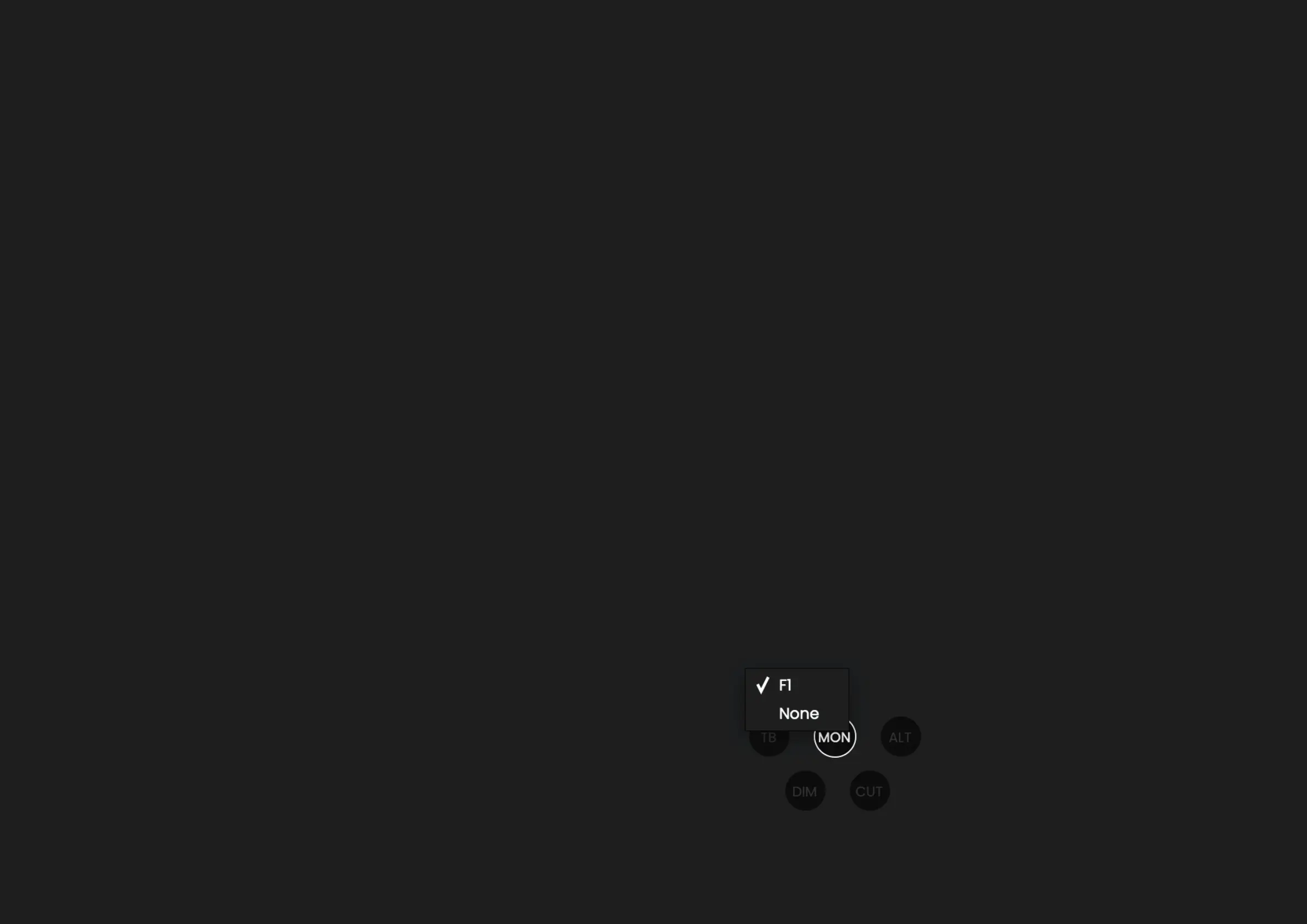
Monitor Controls
These ve buttons control various aspects of the EVO 16 monitor controller
capability:
TB (Talkback)
The talkback button switches talkback on and o. More information regarding
talkback and its various settings can be found in the ‘System Panel’ section of
this manual.
Channel Views
These three buttons allow you control which of the three channel types are shown
in the mixer. If for example you weren’t using the digital inputs for a particular
project, you can simply hide the optical channels by clicking on the OPT control.
Mix Meters
The Mix meters show the master signal level of the selected Mix.
Mono
The mono button sums the stereo outputs down to mono. This can be used to
quickly check the mono compatibility of your mix to make sure it’ll sound great
almost anywhere!
ALT
Alt allows you to quickly switch your monitor path to a secondary set of speakers
to let you check how your mix translates on various speakers. You can select
which outputs the ALT. monitor control ips to in the System Panel.
Dim
Reduces the output level by a pre-set amount which can be great if you get a
call or need to quickly chat to someone during a session.
Cut
The cut button cuts the signal to the speakers. All these controls can be controlled
from the EVO 16 itself, either by assigning them to an F-Key, or using the dedicated
Dim and Cut controls..
Assigning the F-Button
Various functions of the EVO Software Mixer can be assigned to the Function
Key of the EVO 16 to allow you to quickly control your monitoring at the click of
a button. To assign a monitor control to an F-Button, simply right click on the
control and select the F-Button.



 To Next Page