Need help?
Do you have a question about the Audiolab M-NET and is the answer not in the manual?
Warnings about electric shock hazard and not opening the enclosure for user-serviceable parts.
Servicing instructions are for qualified personnel only; do not perform other than operating instructions.
Ensure adequate ventilation and avoid confined spaces or impeding openings.
Read instructions, keep them, heed warnings, follow instructions, avoid water, clean with dry cloth.
Avoid heat sources, rain, moisture, and protect power cord from damage.
Use specified accessories and exercise caution when moving carts to prevent tip-over.
Unplug the apparatus during lightning storms or long periods of non-use.
Danger of explosion if battery replaced incorrectly; avoid excessive heat exposure.
Details input/output ports and lists items included in the product carton.
Place on a sturdy surface, ensure ventilation, minimize interference, and ensure front panel visibility.
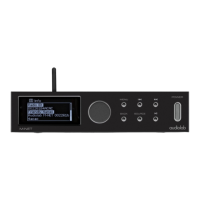
Identifies front panel elements including display, knob, buttons, and input selector.
Identifies rear panel connectors for power, digital outputs, USB, Ethernet, and Wi-Fi.
Lists and describes the functions of each button on the remote handset.
Instructions on how to open the battery cover and insert a CR2025 battery.
Advice on replacing low-power batteries and removing batteries for long-term storage.
Connects to external DACs or recorders using coaxial or optical cables.
Connects a USB memory device for playing music files stored on it.
Details power input via AC adaptor and network connections via Ethernet or Wi-Fi.
Settings for network wizard, Wi-Fi setup, viewing network details, and manual connection.
Sets a PIN for the Remote Control App and shows connected network profiles.
Allows setting time/date, changing language, and performing a factory reset.
Options for downloading new firmware, viewing system information, and adjusting backlight.
Connects the unit to the network via LAN for audio playback and internet radio.
Connects the unit to the router with a LAN cable and selects 'Wired' in SSID list.
Connects wirelessly by plugging in the aerial and selecting the appropriate SSID.
Enter password for Wi-Fi connection; 'Connected' message indicates success.
Notes the need for a strong signal for reliable wireless audio performance.
Select Internet radio via SOURCE button and access menu for stations.
Browse stations by Last listened, Station list, My Favorites, Local, and Stations.
Find Podcasts, manage My Added Stations, and retrieve radio access code.
Tune into a station and add it to the My Favorites folder.
Steps to navigate to My Favorites, select a station, and delete it.
Register M-NET to browse/edit My Favorites via web browser portal.
Lists examples of UPnP servers: Windows Media Player, Macs, and DLNA servers.
Steps to set up WMP for media sharing on the network.
Select Music player, Shared media, browse, and select tracks for playback.
Use Windows 7/8 'Play To' feature for remote control and media streaming via DLNA.
Steps to use WMP to send media to the M-NET device on the network.
Describes operations like play/pause, skip, back, select track, view info, repeat/shuffle.
Manage playlists, view them via MENU, add tracks by holding SEL, erase tracks.
USB memory stick must be in Windows/DOS FAT/FAT32 format.
Insert stick, confirm opening, or select USB playback via SOURCE.
Operations for USB playback: play/pause, skip, back, select track, view info, repeat/shuffle.
Unit turns to standby after 30 minutes of non-use and no output signal.
Enable auto dimming or manually set backlight to High, Medium, or Low.
DOK App for iOS/Android provides remote control via wired/wireless connection.
Check unit power connection, remote batteries, and remote aiming.
Check source selection, system connections, network status, and signal strength.
Check station broadcasting, codec, WMP setup, sharing settings, and antivirus.
Addresses 'Failed to connect' and 'Format error' messages.
Addresses 'Network error', 'Network not ready', and 'Network timeout' messages.
Addresses 'No UPnP media', 'No USB device', 'Unauthorized', and USB errors.
Addresses 'Update failed', 'USB device unsupported', 'USB error', and 'USB read error'.
Clean with a soft, lint-free cloth; unplug adaptor before cleaning.
Refer servicing to authorized agents; return securely packaged.
Provides contact details for Audiolab service in the UK.
Lists technical details like audio formats, display, connectivity, and power.
Details supported sample frequencies and codec sample resolution.
Highlights features like internet radio, DLNA streaming, USB playback, OLED display, and remote apps.
Specifies maximum bit rates for LPCM, FLAC, AAC, MP3, and WMA formats.
Outlines warranty coverage, period, proof of purchase, and authorized service.
Lists items not covered: serial number tampering, wear, cosmetic damage, transport, misuse.
Instructions on contacting the dealer, packaging, and returning products for service.
 General
| Type | Network Audio Player |
|---|---|
| Streaming Services | Spotify Connect, Tidal, Qobuz, Internet Radio |
| Digital Outputs | 1 x Coaxial, 1 x Optical |
| Analogue Outputs | 1 x RCA |
| Connectivity | Ethernet, Wi-Fi |
| Supported Audio Formats | ALAC, WAV, FLAC, AIFF, WMA, MP3, AAC |
| Control | IR Remote |
| Inputs | 1 x USB |

 To Next Page