34
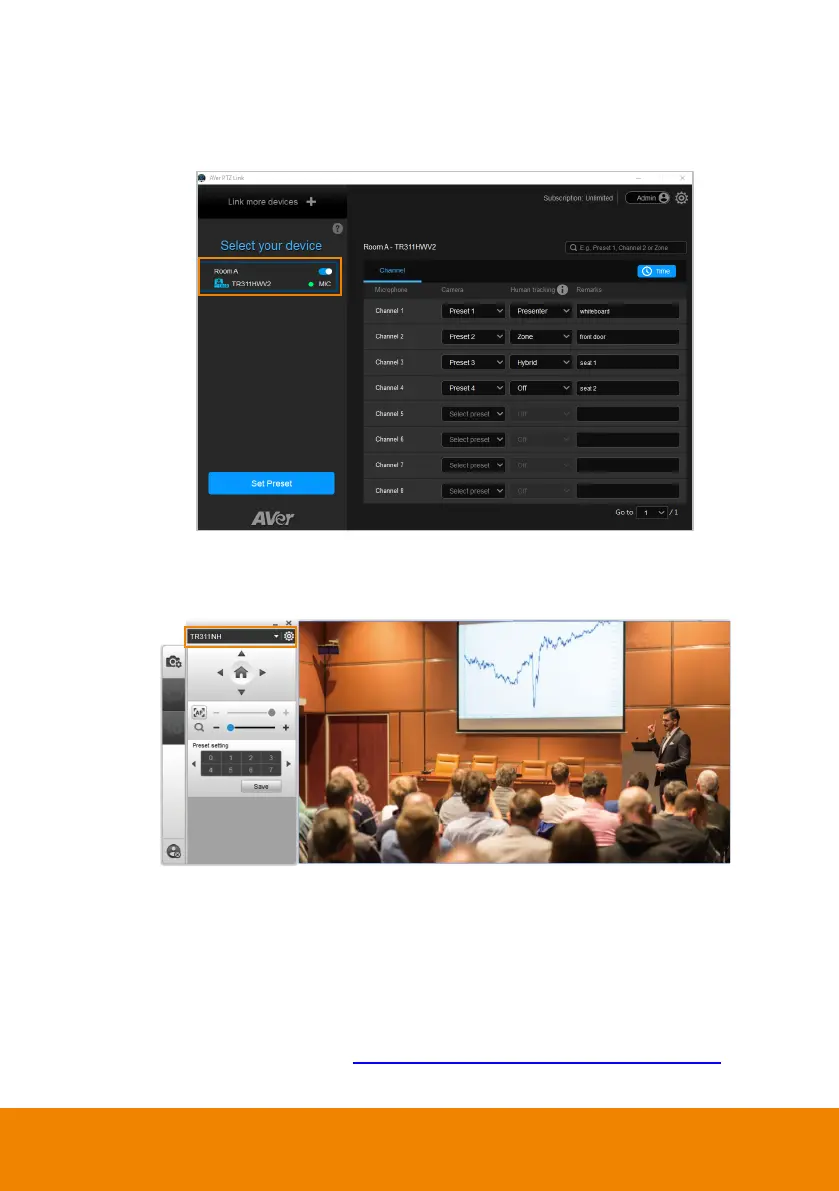
To set up preset positions for USB cameras:
1. Click to select an USB camera on the Device List. The selected device will be
highlighted with a blue frame.
2. Click
Set Preset
to set up preset positions with the AVerCamera Setting Tool.
You can set up to 256 (0~255) preset positions.
3. Select a USB camera from the top camera drop-down list.
4. Select a number in the Preset setting field to set up a preset position, then use
the direction and zoom in/out buttons to move the camera view to the desired
position. Click
Save
to save this position.
5. Configure the preset positions and then pair them with the connected
microphones. Please refer to <Pair Up Preset Positions with Microphone
>.


 To Next Page
 Loading...