55
4. Launch VC software (e.g., Zoom, Teams, Skype) and choose AVer USB VCam as the video source
to start collaborating. [Note] You will find both “camera model name” and “AVer USB VCam” as
video sources in the VC software. Please choose “AVer USB VCam”.
5. In the “Layout Option” field, click “Headshot” or “Half-body” to perform the function.
6. To stop the Smart Gallery function, click the “Stop” button.
[Notes]
Make sure each person has certain distance to have better image cropping.
To do any settings of the camera, click the “Stop” button to stop the Smart Gallery function and then
go to the USB Devices page. Click “Setting” to configure camera settings.
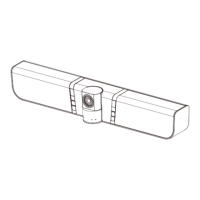
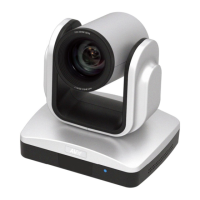
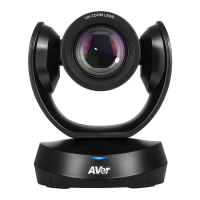
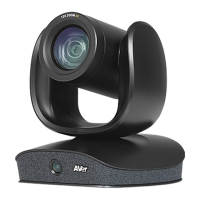
The Smart Gallery function supports up to 10-20 people, depending on different camera type.



 To Next Page