54
Smart Gallery Operation
You can use the Smart Gallery function to increase the visibility of each participant in the meeting room.
When operating Smart gallery function, please don’t open camera view in any other applications.
[Note]
While installing PTZApp2, if you refuse to install IP virtual streaming, Keystone Correction and Smart
Gallery plug-in on your Windows PC (as photo below), you will not use Smart Gallery function. If you
would like to enable this function, please reinstall PTZApp2.
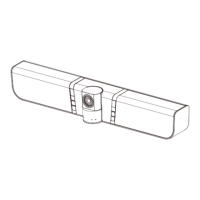
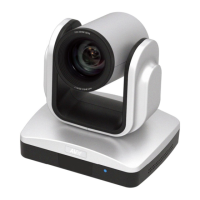
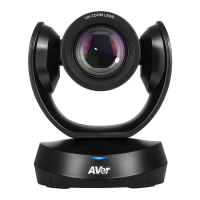
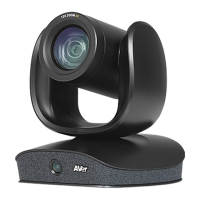
1. Connect your camera(s) supported with Smart Gallery function to the computer with USB cable.
2. Launch PTZApp 2 ( ) and click “Smart Gallery”. PTZApp 2 will start searching for the camera(s).
The searched cameras supported with Smart Gallery function will be displayed.
3. Click the “Start” button, the button will change to “Stop”, and you can start operating the Smart
Gallery function. To stop the Smart Gallery function, click “Stop”.



 To Next Page