English-19
3.4 Supported Resolutions
Game Capture HD supports YPbPr input resolution:
3.5 Video Output Settings for Game Consoles
Game Capture HD supports YPbPr input resolution up to 1080i. If you were using HDMI connection for
your game console, you need to set the console’s video output to 1080i or below.
Step 1
Power on your PS3.
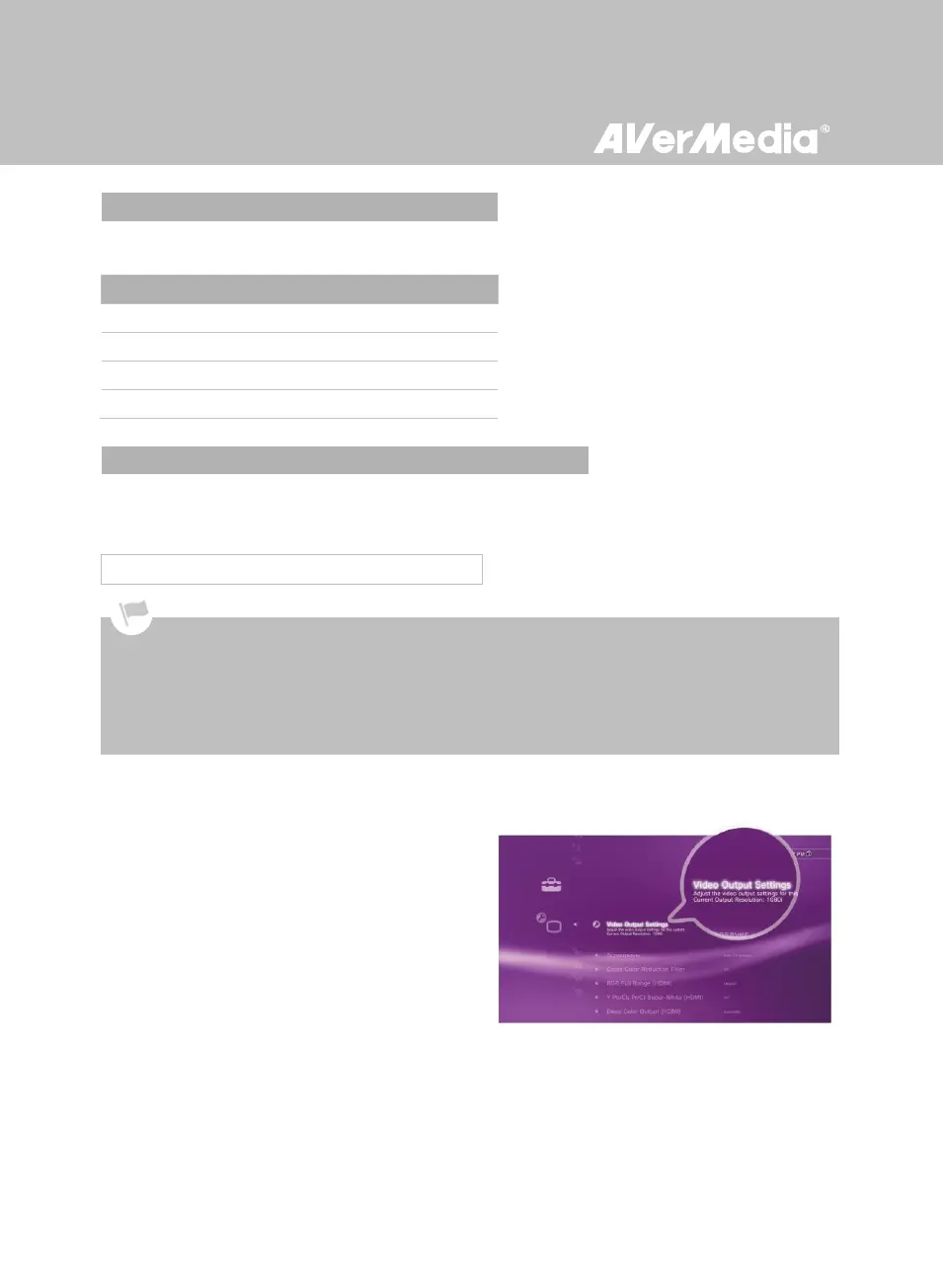
On your console, go to Settings > Display
Settings > Video Output Settings.
3.5.1 Video Output Settings for PS3
Before resetting video output for PS3, make sure to properly connect Game Capture HD with your PS3.
Leave both the HDMI cable and Universal Component Cable for Game Consoles (or your console specific
component cable) plugged in.
Make sure to power off both Game Capture HD and your PS3 beforehand.
Supported resolutions vary depending on the TV in use. For details, please refer to the documentation that
comes with your TV.



 To Next Page