AVerMedia
®
DVB-T STB5 / STB7
8
2. Press ◄ or ► to choose your Country and Language. Then select Next and
press LIST/OK.
3. If you want to setup user’s preference, select YES and press LIST/OK.
4. Next, press ▲ or ▼ to select the desired setup item such as “Menu Color”,
“Transparent Level”, “Border Pattern” and so on (For more details, please refer
4.2.1 Setup your Preference) and press ◄ or ► to change the setting. Finally,
select Next and press LIST/OK.
5. Select YES if you want to start searching program automatically. Or select NO
or BACK to exit the current setup page.
6. The “Automatic Search” box will appear, indicating the scanning percentage,
channel number and frequency. When scanning, active TV/Radio programs will
be listed inside the box. After channels are scanned, the syatem will return to
the real-time program automatically. To terminate the scanning, press “EXIT”.
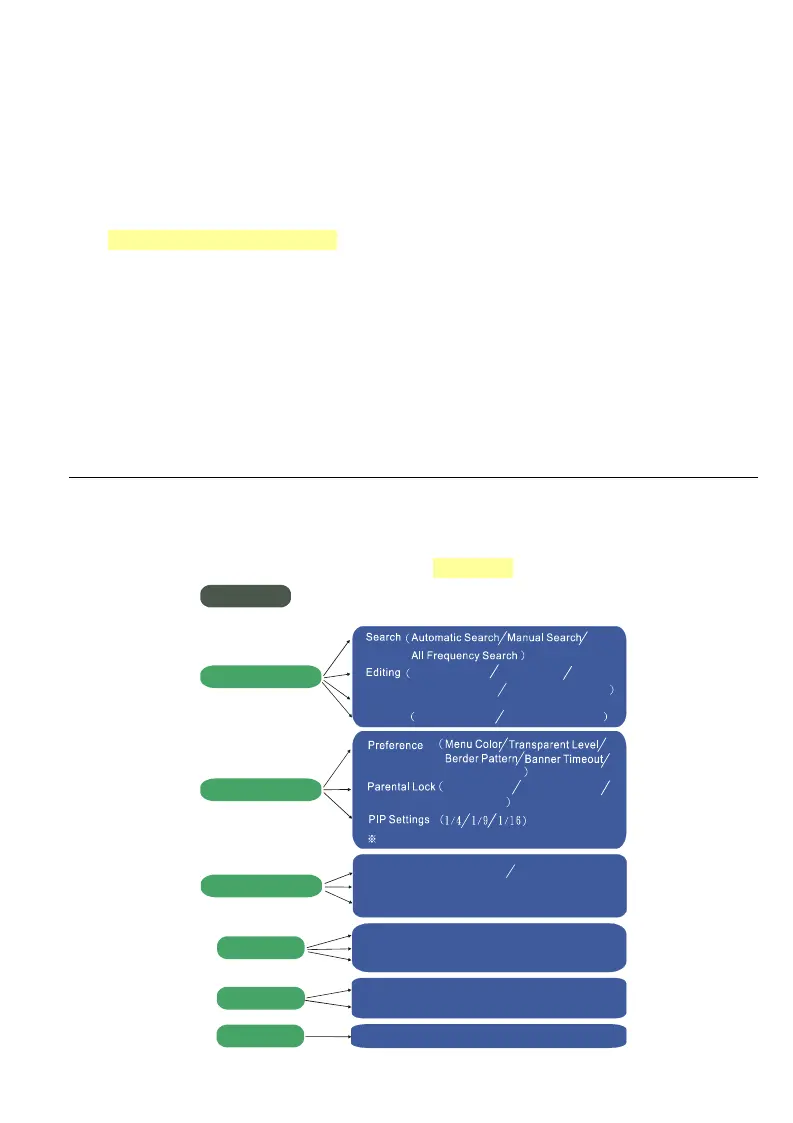
3.2 Introducing Main Menu
After completing basic configuration and scanning, you can press Menu to evoke
main menu including “Program Manager”, “User Settings”, “System Settings”,
“Game”, “Info”, “Timer”. This section will briefly introduce main menu, sub menu and
setup item. For more details, please refer to Chapter 3.
Main Menu
Program Manager
User Settings
Timer
EPG
List
Program Editing Sort by Name
Sort by Service ID Sort by Program No.
TV Program List Radio Program List
Transition Style
Program Lock
Program Control
Change PIN
This function is only for AVerMedia DVB-T STB7
System Settings
( )
System Setup
First Time Setting Wizard
Default
Display Type
Regional Setting
Game
GomokuGomoku
OXO
Dragonet
Info
Calendar
Product Info
Sleep Timer


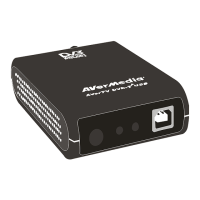
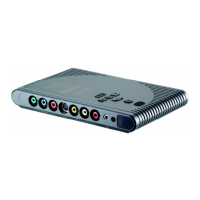
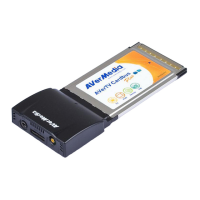


 To Next Page