HD Native Installation Guide16
To install the standalone Avid Core Audio Driver:
1 Ensure that your HD Native hardware is
correctly installed.
2 Do one of the following:
• Insert the Driver Installers Disc that came
with your Pro Tools Software package in
your computer.
– or –
• Download the standalone Avid Core Audio
driver installer from our website
(www.avid.com).
3 Locate and double-click the Install HD Family
Driver.mpkg
.
4 Follow the on-screen instructions to complete
the installation.
5 When the installation is complete, click
Restart.
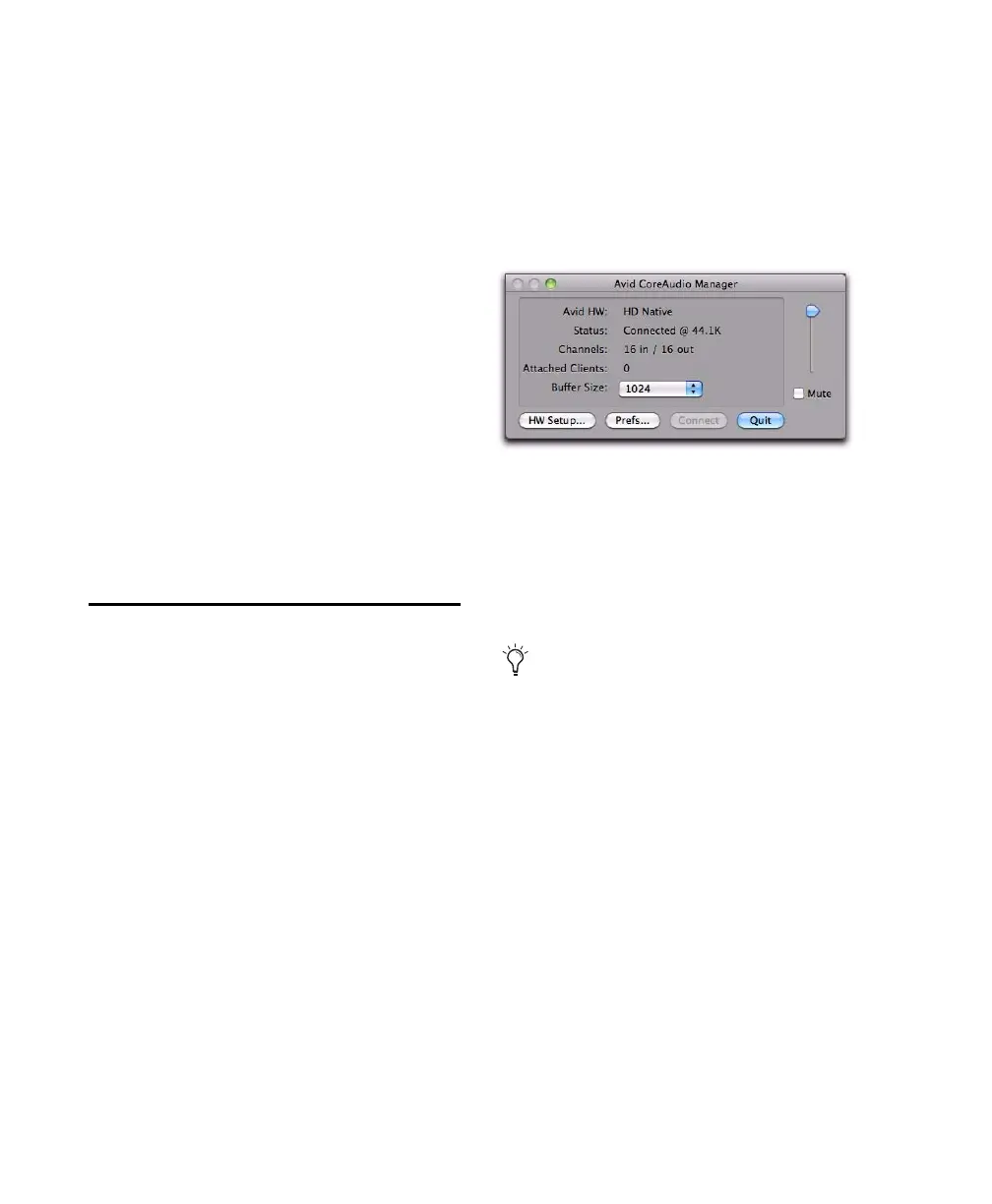
Avid Core Audio Manager
You can configure the Avid Core Audio Driver
using CoreAudio Manager, or from within most
third-party CoreAudio-compatible client
applications (such as BIAS Peak or Logic). Refer
to the manufacturer’s documentation for more
information.
Some applications (such as Apple’s iTunes or
QuickTime Player), also require that you
configure either the Apple Sound Preferences or
Apple Audio MIDI Setup (AMS) to use the Avid
Core Audio Driver.
The Avid Core Audio Manager is configured to
auto-hide when first launched. To bring it to the
foreground, click on its icon in the dock.
The Avid Core Audio Manager is not used by
Pro Tools. It is only used by other Core Audio
applications.
Accessing the Avid Core Audio
Manager
The Avid Core Audio Manager application
launches automatically when the first client
application accesses the Avid Core Audio
Driver.
Avid Core Audio Manager cannot be accessed
under the following circumstances:
• When Pro Tools is running
• When another application is using
Direct IO
Preventing an Application from Accessing the
Avid Core Audio Driver
You can prevent an application from accessing
the Avid Core Audio Driver by holding down the
Shift key just before the application would
access the Avid Core Audio Driver, typically
when launching the application. Certain
applications (such as Apple Mail and iChat), do
not access the Avid Core Audio Driver until they
first play a sound, so you will need to hold down
the Shift key just prior to sound playback in
order to prevent the use of your Avid hardware
for playback.
Avid Core Audio Manager (HD Native shown)
To ensure proper playback with the Avid
Core Audio Driver, launch the Avid Core
Audio Manager first, making sure that its
status is “Connected.”



 To Next Page