HD Native Installation Guide22
ASIO Driver Control Panel
Configuring ASIO Driver settings can be done
using the ASIO Control Panel, which is accessed
within some third-party ASIO-compatible client
applications.
Accessing the ASIO Driver
Control Panel
To access the ASIO Driver Control Panel from a
third-party application:
Refer to your ASIO-client program’s
documentation.
The ASIO Driver Control Panel cannot be
accessed under the following circumstances:
• When Pro Tools is running.
• When playing or recording in an audio
program that does not support the ASIO
Driver.
• When using a third-party audio program
that has an option to keep the ASIO Driver
open even when you are not playing or
recording. (You must close the audio
program before you can open the ASIO
Driver Control Panel.)
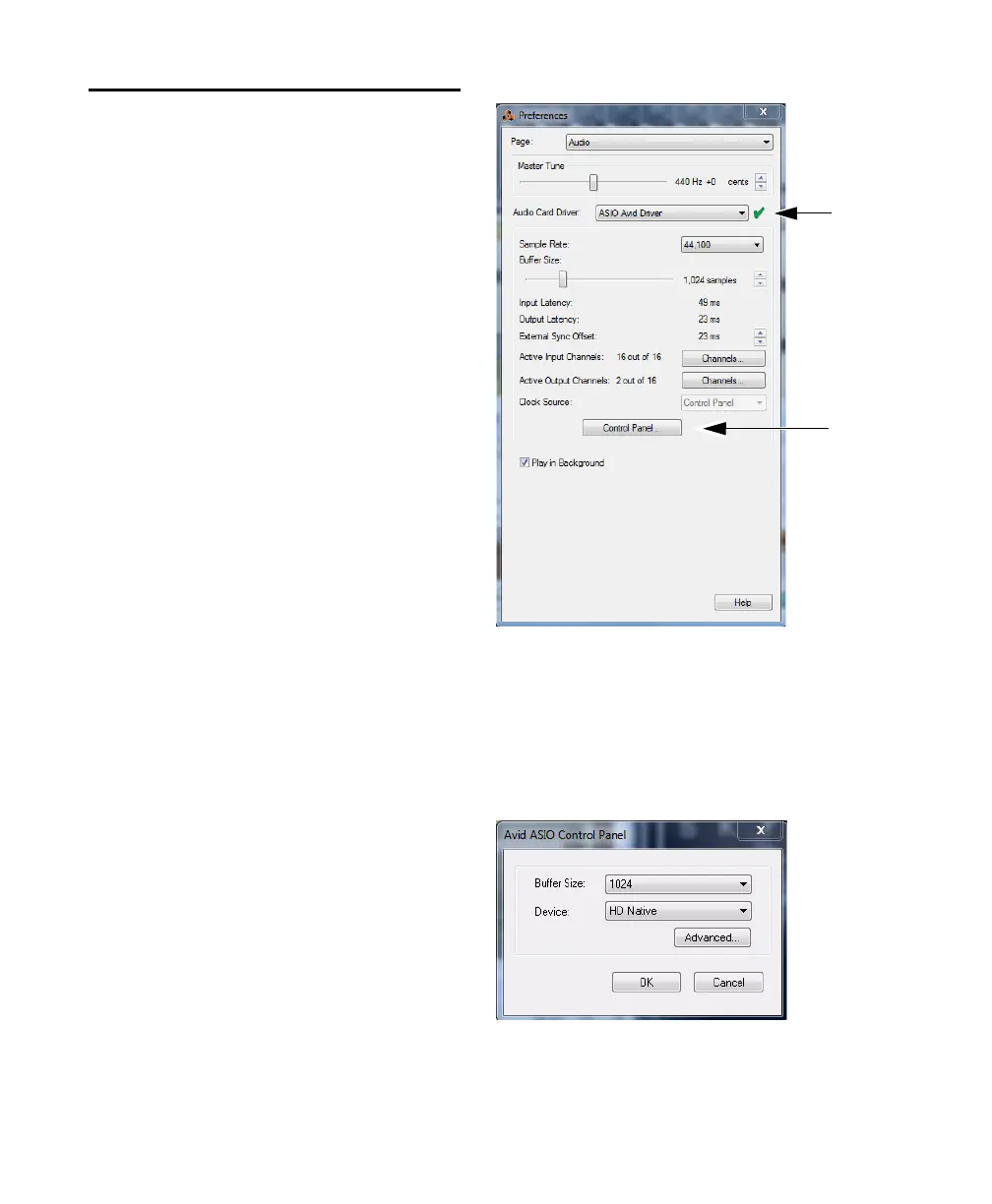
Example with Propellerheads Reason
To configure Propellerheads Reason:
1 Click the select ASIO Avid Driver from the
Audio Card Driver selector in the Audio
Preferences.
2 Click the Control Panel button to open the Avid
ASIO Control Panel.
Using the ASIO Driver Control
Panel
From the ASIO Driver Control Panel, you can
change the
Buffer Size setting or access the
Hardware Setup dialog for your Avid hardware.
Setup Example, using Propellerheads Reason
ASIO Control Panel



 To Next Page