HD Native Installation Guide18
Prefs Button
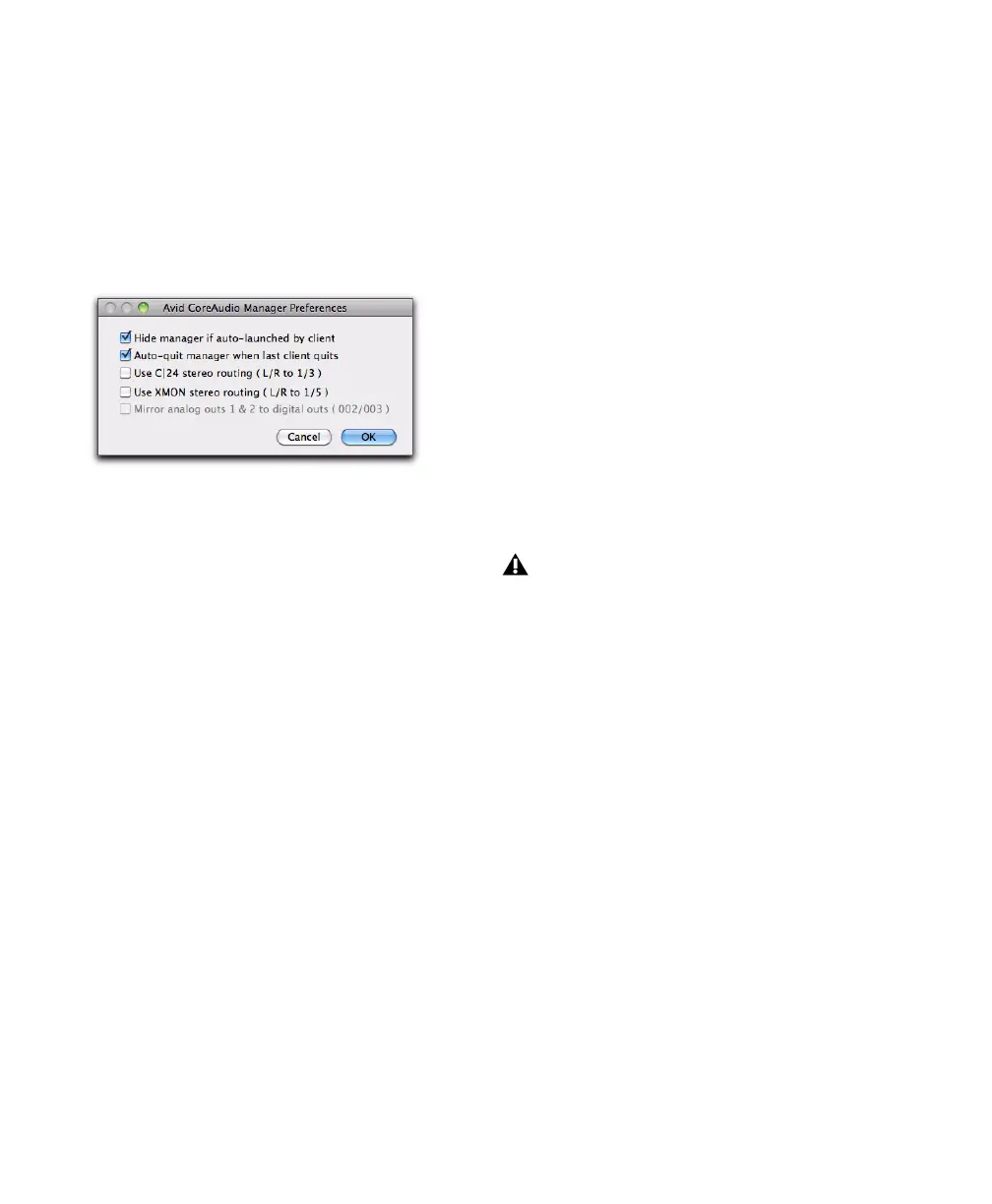
The Prefs button opens the Avid Core Audio
Manager Preferences dialog. There are several
options available configuring the Manager
application. When finished setting these
options, click
OK to close the Avid Core Audio
Manager Preferences window.
Hide Manager if Auto-Launched by Client
Enable
this option to hide the Manager panel after the
first client application accesses the Avid Core
Audio Driver. To open the Manager panel, click
on the Avid Core Audio Manager application
icon in the Dock.
Auto-Quit Manager when Last Client Quits
Enable this option to make the Manager
application quit when there are no longer any
clients using the Avid Core Audio Driver.
Use C|24 Stereo Routing (L/R to 1/3)
When using
C|24, enable this option to configure the Avid
Core Audio Driver to output through the C|24
standard stereo routing (outputs 1 and 3).
Use XMON Stereo Routing (L/R to 1/5)
When
using D-Control or D-Command, enable this
option to configure the Avid Core Audio Driver
to output through the D-Control or D-Command
standard stereo routing (outputs 1 and 5).
Mirror Analog Outs 1 & 2 to Digital Outs (002/003)
This option is grayed out for systems using an
HD Native card. When using 003, 003 Rack, 003
Rack+, Digi 002, or Digi 002 Rack, enable this
option to mirror the main outputs through the
digital outputs that are selected in the Hardware
Setup dialog.
Connect Button
The Connect button is available when the Avid
Core Audio Manager is launched and cannot
connect with the Pro Tools hardware (such as
when Pro Tools is launched and the hardware is
disconnected or disabled). Before trying to
connect, make sure to quit Pro Tools and make
sure that your hardware is connected and turned
on. You can then click on the
Connect button to
acquire the hardware.
Quit Button
Use the Quit button to quit the Avid Core Audio
Manger. Be sure to quit any client applications
before using the
Quit button in the Manager. If
any applications are currently attached to the
Manager application when quitting, you may get
an error message indicating that the Pro Tools
hardware is no longer available. You may have
to change the application’s preferences to use
different hardware for playback or possibly quit
and relaunch the application for proper
playback to be resumed.
CoreAudio Manager Preferences
If any application is launched prior to
pressing the Connect button and you want
that application to use the Avid Core Audio
Driver for playback, you will need to quit
and relaunch the application for it to
connect properly to the CoreAudio
Manager.



 To Next Page