Overview of Premium Security Suite
23
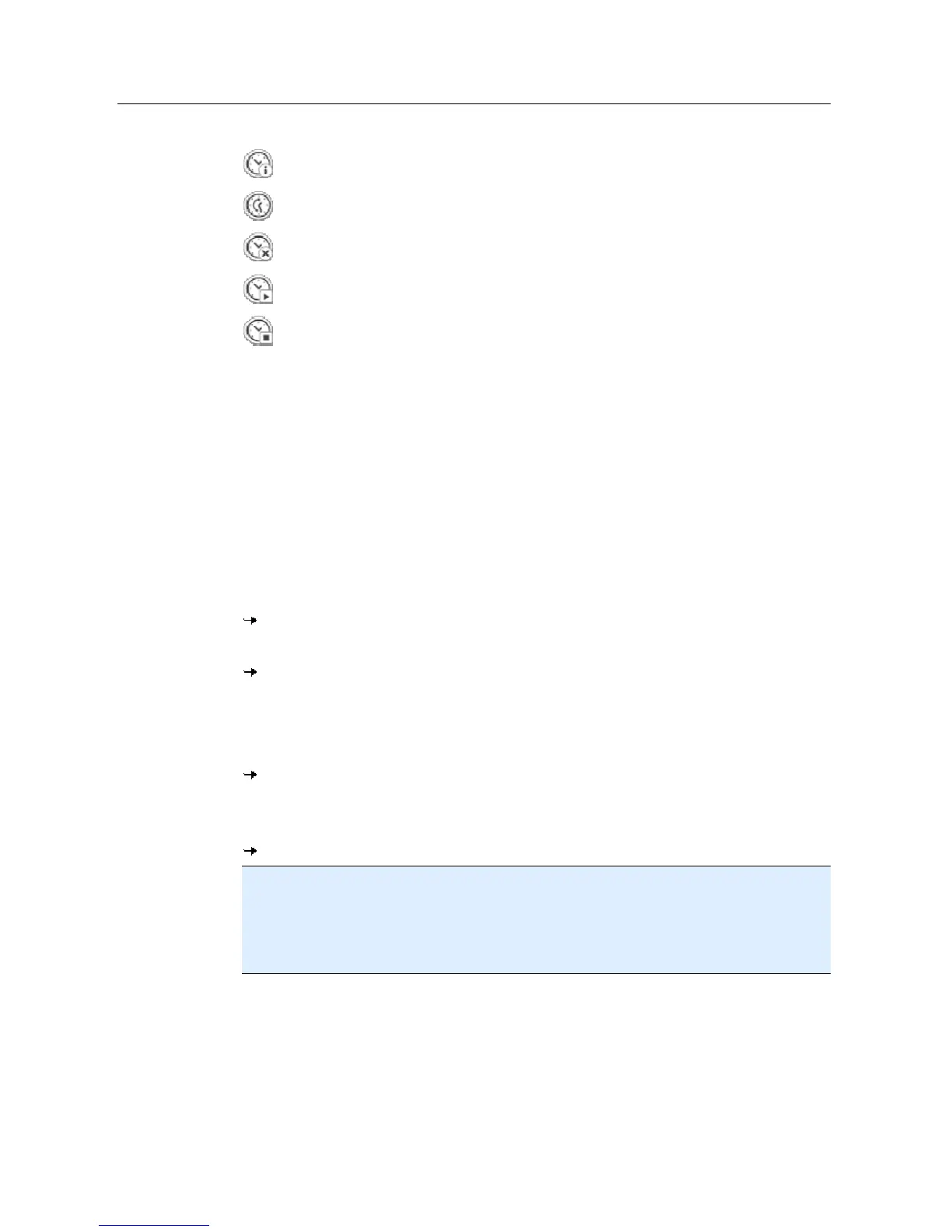
Use the following icons to further define your jobs:
View properties of a job
Modify job
Delete job
Start job
Stop job
5.2.3 Start a manual update
You have various options for starting an Avira Premium Security Suite update manually:
When an update is started manually, the virus definition file and search engine are
always updated. A product update can only take place if you have activated the option
Download and automatically install product updates in the configuration under
General :: Update
To start an Avira Premium Security Suite update manually:
With the right-hand mouse button, click on the Avira Premium Security Suite tray
icon in the taskbar.
A context menu appears.
Select Start update.
The Updater dialog box appears.
- OR -
In the Control Center, select the section Overview :: Status.
In the Last update field, click on the Start update link.
The Updater dialog box appears.
- OR -
In the Control Center, in the Update menu, select the menu command Start update.
The Updater dialog box appears.
Note
We strongly recommend regular automatic updates for Avira Premium Security Suite.
The recommended update interval is: 2 hours.
Note
You can also carry out a manual update directly via the Windows security centre.
5.2.4 On-demand scan: Using a scan profile to scan for viruses and
malware
A scan profile is a set of drives and directories to be scanned.
The following options are available for scanning via a scan profile:
– Use predefined scan profile


 To Next Page