3. Operation
Scan
The scan function allows you to first scan your documents and then send the scanned
image to a specified destinations such as Scan to Device (this product’s memory), or
Scan to USB (an inserted USB flash drive).
The Operational Steps:
1. Place your multi-page document Face Up and Top First in the auto document
feeder or single-page Face Down on the document glass.
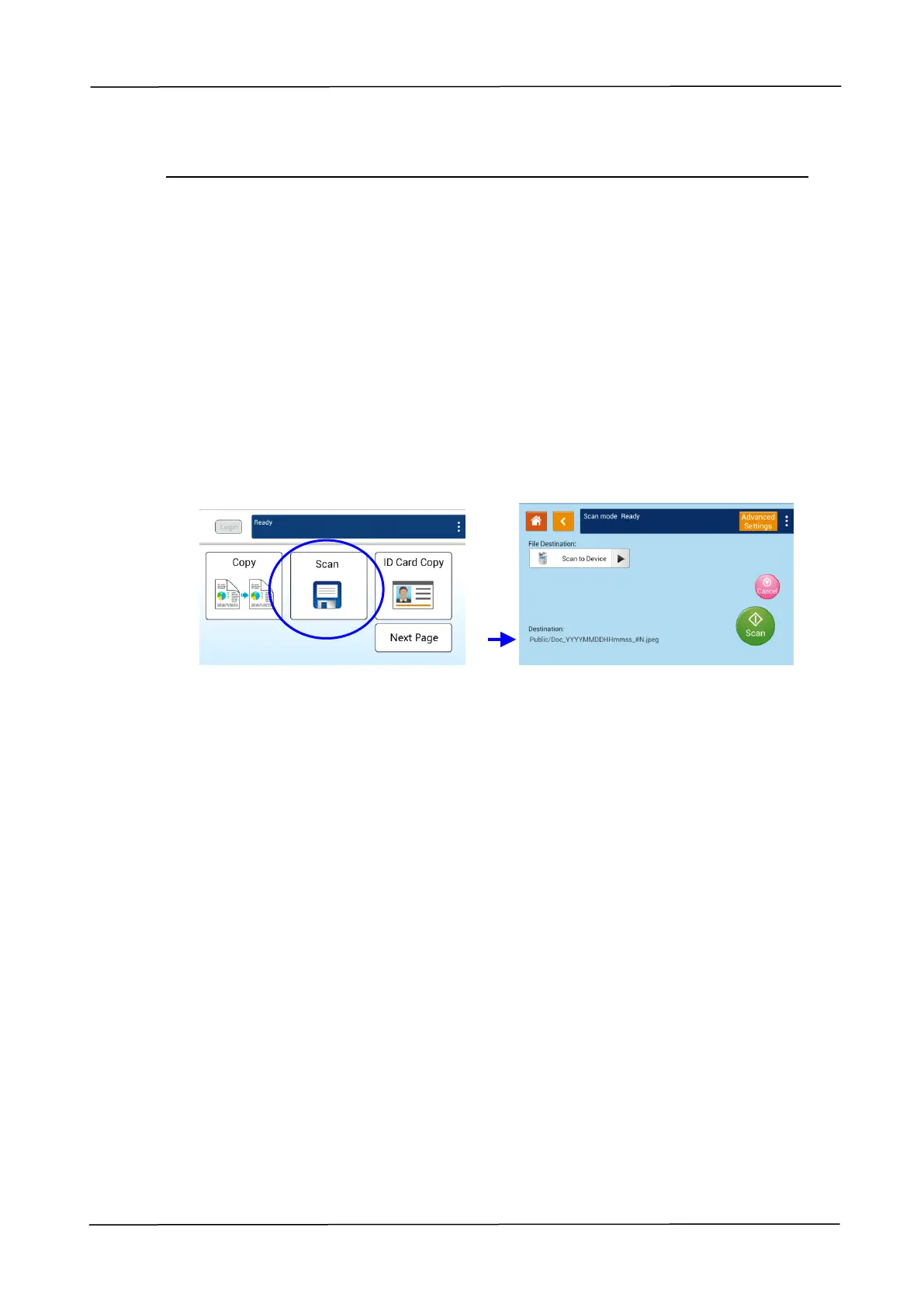
2. Tap the「Scan」button on the touch screen, and the「Scan」screen will be
displayed.
3. Tap「Scan to Device」to choose your scan-to destination.
Scan to Device: Send the scanned document to the product’s memory.
(Download the image through the embedded web page.)
Scan to USB: Send the scanned documents to the inserted USB flash drive.
4. Tap [Advanced Settings] to confirm or change Scan options as desired such
as Resolution, Output Color, Density, 1/2-Sided Scanning, File Format, Folder, or
Original Size.
Resolution: Choose the resolution of the scanned image. The higher the value,
the more details can be reviewed yet more disk space will be
required. Choice: 150/200/300/600 dpi
150 dpi: Suits to be viewed on the screen.
200 dpi: Suits for most business document.
300 dpi/600 dpi: High quality image helps increase OCR (optical
character recognition) accuracy.
Color Mode: Choose your desired color mode. Choice: Color、Gray、B&W
Original Size: Choose your scan size. Choice: Auto, A3, A4, A4, A5, B4,
B5
1/2-Sided: Choose if you wish to scan one side or both the front and rear side
of your document. Choice: 1-Sided、2-Sided
Density: Lighten or darken your original. Levels: 1~7 (default: 4)



 To Next Page