16
Establishing a Wireless LAN Connection with Windows Wireless Service
The window for entering the wireless LAN key appears.
If the wireless LAN connection can be established using
WPS (the wireless LAN access point must support WPS),
a note with the WPS icon will appear in the window.
Window for entering the network key with reference to WPS
4. Enter the network key of the wireless LAN access point
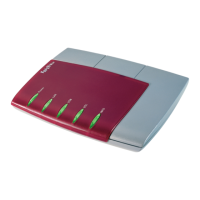
and then click “OK”. On a FRITZ!Box the network key is
found on the base of the device housing.
or
If the WPS icon is displayed, click the button assigned
for WPS on the wireless access point. The network key is
transferred to the computer automatically.
The WLAN connection will be established.
Every time the computer starts the wireless LAN connection is
resumed automatically.
On a FRITZ!Box without a WPS button, press the “WLAN”
button until the “WLAN” LED starts flashing.
N_man_en.fm Seite 16 Freitag, 27. Mai 2016 2:21 14



 To Next Page