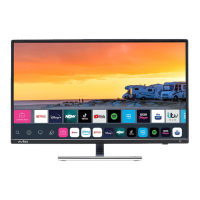
Benefits of Smart TV
• Make sure your TV and Alexa-enabled devices/Google Home devices are connected to the same network
environment.
Note:
• Only Alexa (Alexa skill is enabled) and Google Smart Home Service support turning on your TV with Alexa
Echo or Google Home.
Related information
Connect to a Wired (Ethernet) Network on page 6
Connect to a Wireless Network on page 7
Content Sharing
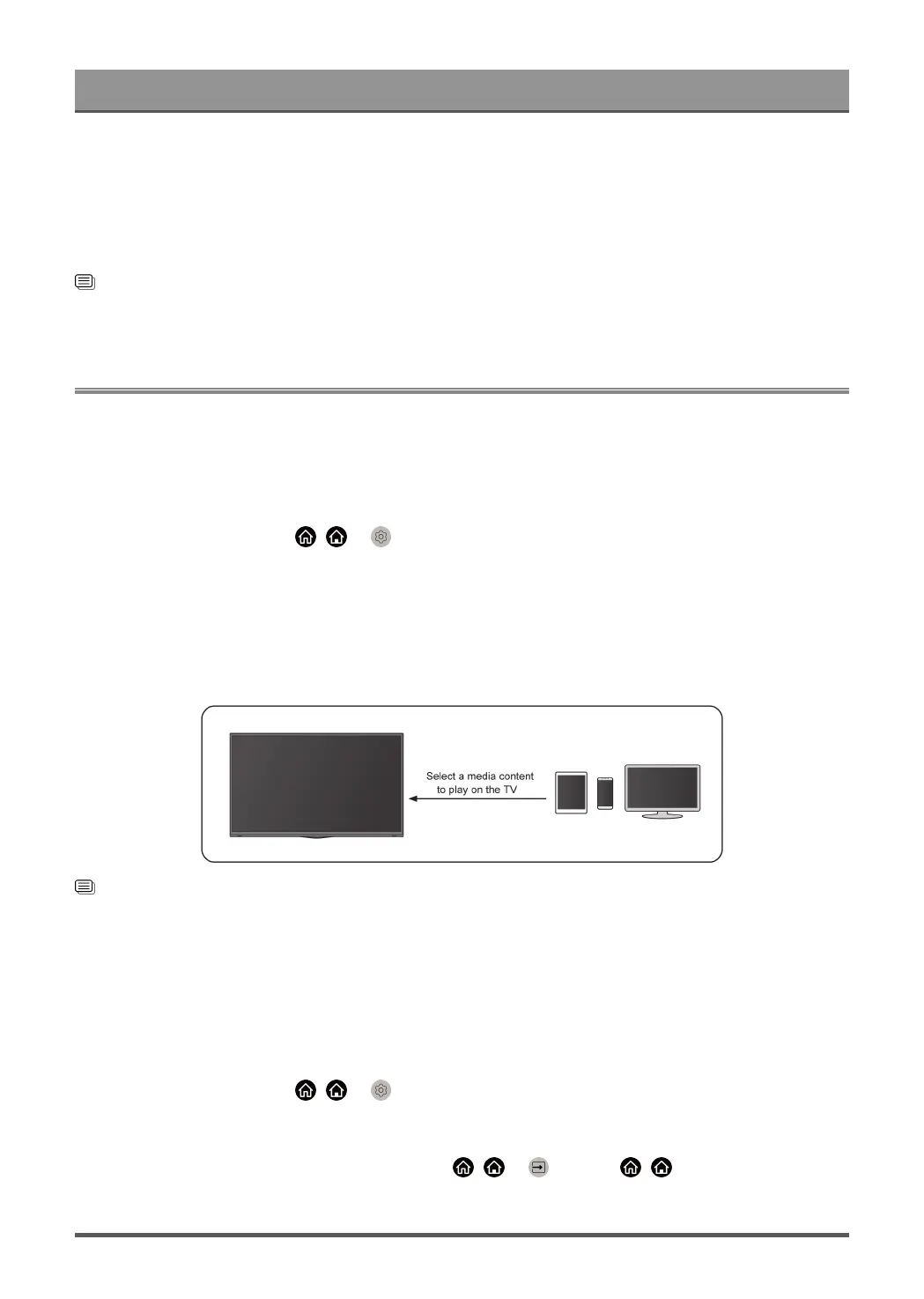
Content Sharing allows you to view media content, like videos, music or photos saved in your Android/iOS/PC
device on your TV screen.
Share Media Content from your Device
1. Connect your TV and Android/iOS/PC device to the same network.
2.
Turn on Content Sharing at / > Settings > System > Mobile Device Connection > Content
Sharing.
3. Turn on the content sharing function in your Android/iOS/PC device.
4. Find the TV name in the search list of your device and select it. Wait for the connection progress to
complete.
5. On your Android/iOS/PC device, choose the media content you want to share on your TV.
Related information
Connect to a Wired (Ethernet) Network on page 6
Connect to a Wireless Network on page 7
Play Media Content from your Device on the TV
You can connect media content saved in your Android/iOS/PC device to your local network and play the
content on your TV.
1. Connect your TV and Android/iOS/PC device to the same network.
2.
Turn on Content Sharing at / > Settings > System > Mobile Device Connection > Content
Sharing.
3. Make sure your media content in your Android/iOS/PC device are visible through the local network.
4.
On your TV, select a device with media content at / > Input, or / > More Apps > Media.
The media content list in your Android/iOS/PC device appears.
31


 To Next Page