13
2.3 Play Shared Media
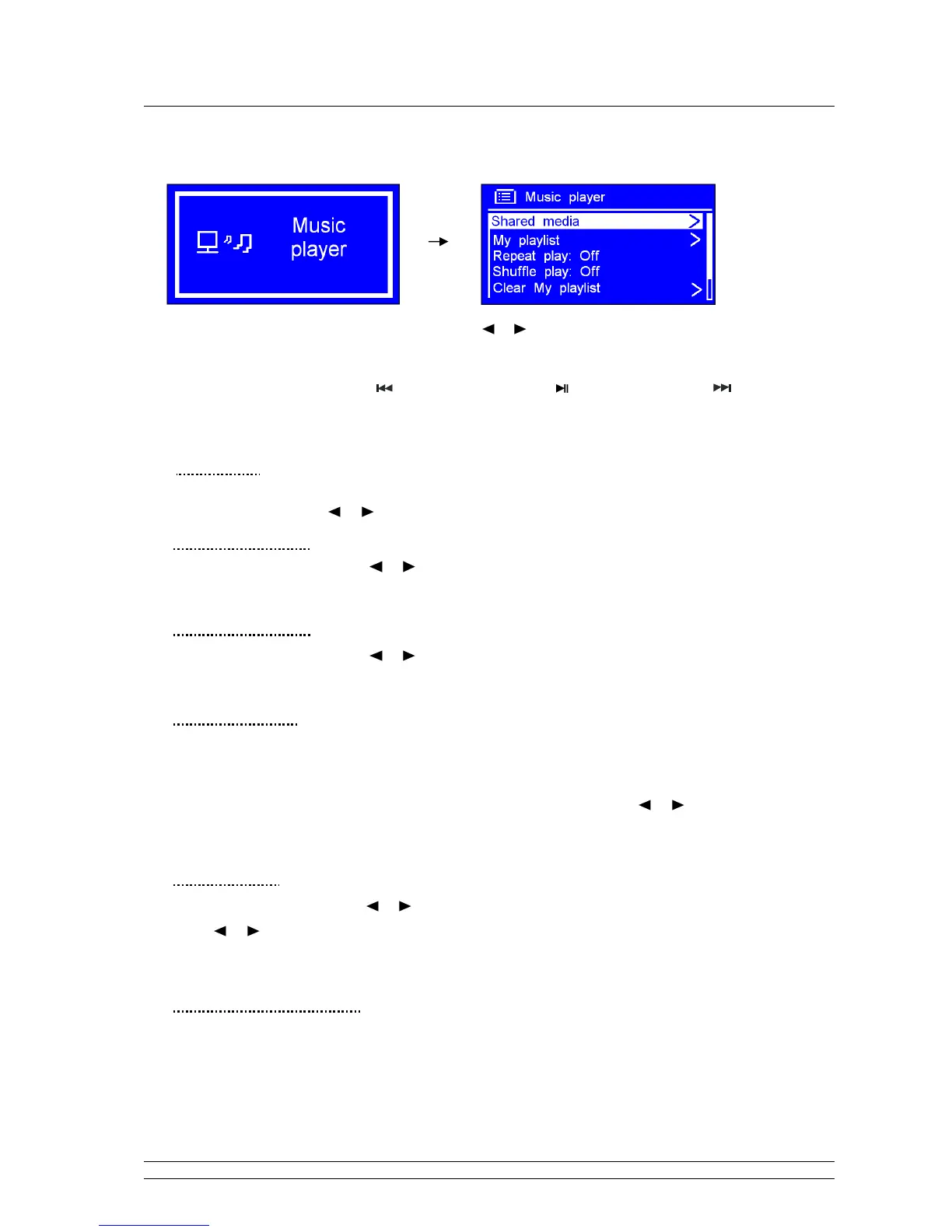
1. Press MODE repeatedly until < Music player > is showing up.
Note: Or, enter < Main menu >, and then press
or
to < Music player >, press
SELECT/SNOOZE
to
confirm.
2. While cursor point to < Shared media >, press SELECT/SNOOZE to confirm, and then step by step
to your selecting Music. Press to previous track, press to Play/Pause, Press to Next Track
3. Adjust the volume by pressing VOL+ or VOL-.
•
My Playlist
‘My playlist’ is a collection of songs added by the user from UPnP, it can be reached by pressing
MENU, and then press or to < My playlist >, press SELECT/SNOOZE to confirm.
•
Repeat Play Mode
Press MENU, and then press or to < Repeat play: Off >, press SELECT/SNOOZE to shift ‘Off’
to ‘On’.
•
Shuffle Play Mode
Press MENU, and then press or to < Shuffle play: Off >, press SELECT/SNOOZE to shift ‘Off’
to ‘On’.
•
Clear My playlist
Note: sometimes, you might be considered to fresh your media station list, follow below steps, it’s pretty
easy.
‘Clear My Playlist’ can be reached by pressing MENU, and then press or to < Clear My
playlist >, press SELECT/SNOOZE to confirm.
•
Prune servers
1. Press MENU, and then press or to < Prune servers >, press SELECT/SNOOZE to confirm.
2. Press or ‘Yes’ while your radio asks you ‘Prune shared media wake on LAN servers?’, press
SELECT/SNOOZE to confirm.
•
Now Playing Information
1. While a track is playing, the screen shows its track, artist and album if provided. There is also a
progress bar with figures for elapsed and total track time.
2. To view further information, press INFO repeatedly, screen will appear displaying information such as
bit rate, codec and sampling rate.



 To Next Page