Receive a Call
By default, all incoming calls are received automaticaly.
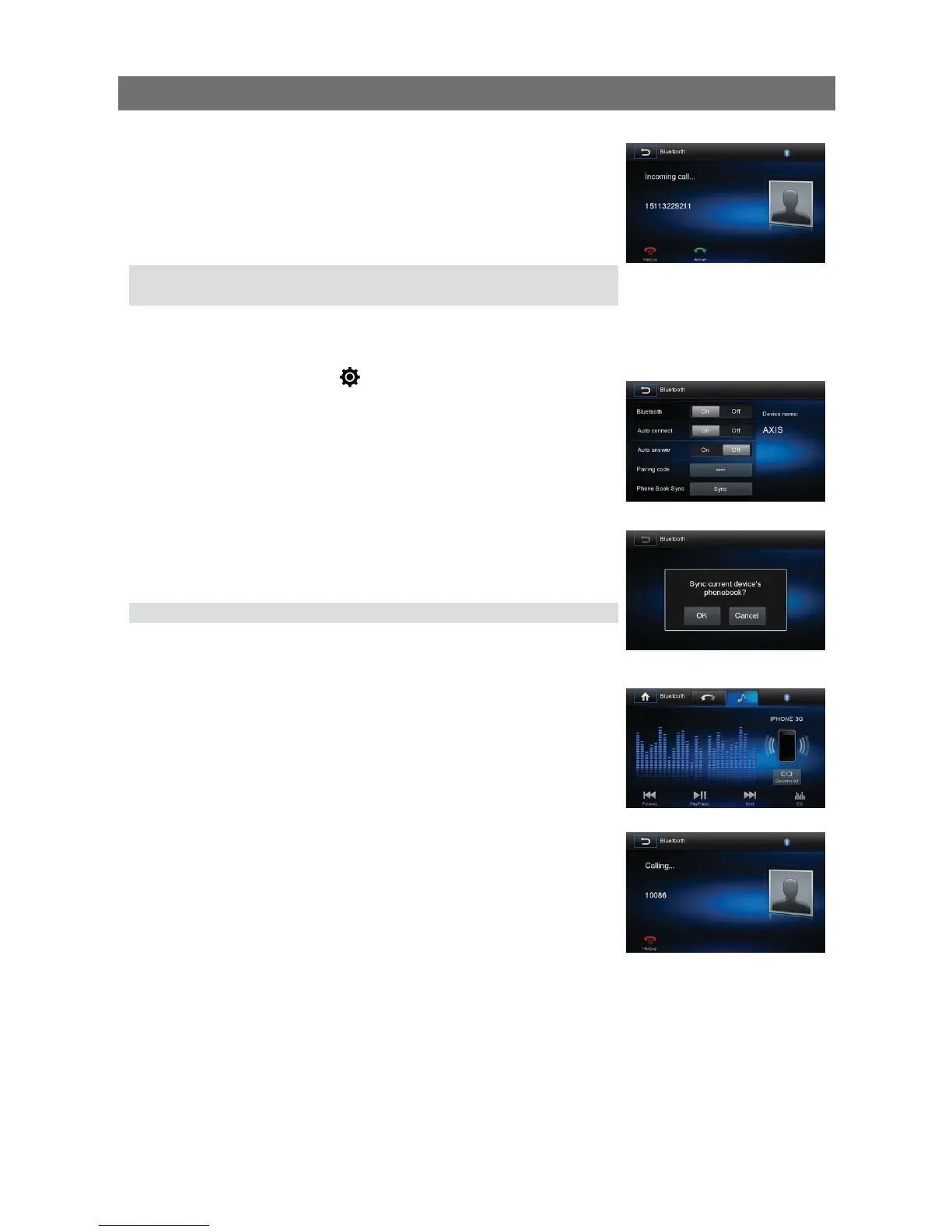
1. If there is an incoming call,
“Incoming” will appear on the screen.
2. You may touch the screen to select [ Hang up ] or [ Answer ].
Speak into the Bluetooth microphone.
Tip
• You can select to receive calls manually by setting [Auto answer]
to [Off] status.
Adjust Bluetooth Settings
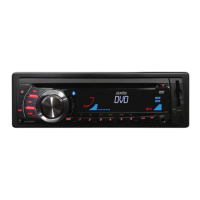
1. In Bluetooth menu, touch [ ].
The option menu is displayed.
2. Touch on the selected option to change the setting.
ŧ=$NWGVQQVJ?6QVWTPQPQTQHHő$NWGVQQVJŒHWPEVKQP
ŧ=#WVQEQPPGEV?6QVWTPQPQTQHHő#WVQEQPPGEVŒHWPEVKQP
ŧ=#WVQCPUYGT?6QVWTPQPQTQHHő#WVQCPUYGTŒHWPEVKQP
ŧ=2CKTKPIEQFG?6QUGVRCTKPIEQFG
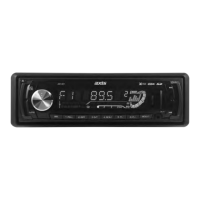
ŧ=2JQPGDQQMU[PE? To synchronize phone book, touch [ OK ] on
the sub-menu popped out.
2honebook sync may take several minutes to load on initial setup.
Tip
• You can also adLWUV$NWGVQQVJUGVVKPIUKPVJGő5GVVKPIUŒOGPW
Music Mode
A2DP
A2D2 is short for Advanced Audio Distribution 2rofile. Mobile
phones supporting this function can transmit stereo audio, whereas
the ones not supporting this function can transmit mono audio only.
#84%2
A84%2 is short for Audio/Video Remote Control 2TQHKNG The mobile
phones supporting this function can control the playback of a
Bluetooth audio player.
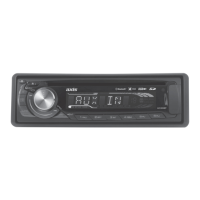
To make a call in music play mode, press the number keys on
the mobile phone and the music player will stop. ő%CNNKPIŒ will be
displayed on the TFT and once the call is received the caller audio
will be transferred to the unit. When the call ends, the screen will
display the music playing menu.
If there is an incoming phone call, the music player will stop and the
screen will display őIncomingŒ. When the call ends, the screen will
display the music menu.
Bluetooth Mode
16.


 To Next Page