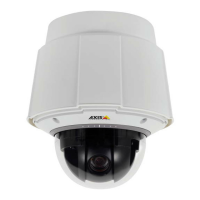
AXISQ6115-EPTZDomeNetworkCamera
Troubleshooting
Troubleshooting
Ifyoucan’tndwhatyou’relookingforhere,trythetroubleshootingsectionataxis.com/support
Howtocheckthecurrentrmware
Firmwareissoftwarethatdeterminesthefunctionalityofnetworkdevices.Oneofyourrstactionswhentroubleshootingaproblem
shouldbetocheckthecurrentrmwareversion.Thelatestversionmaycontainacorrectionthatxesyourparticularproblem.
ThecurrentrmwareversionintheAxisproductisdisplayedinthepageSetup>BasicSetupandinSetup>About.
Howtoupgradethermware
Important
•Yourdealerreservestherighttochargeforanyrepairattributabletofaultyupgradebytheuser.
•Preconguredandcustomizedsettingsaresavedwhenthermwareisupgraded(providingthefeaturesareavailableinthe
newrmware)althoughthisisnotguaranteedbyAxisCommunicationsAB.
Note
•Aftertheupgradeprocesshascompleted,theproductrestartsautomatically.Ifyourestarttheproductmanuallyafter
theupgrade,wait10minutesevenifyoususpectthattheupgradehasfailed.
•WhenyouupgradetheAxisproductwiththelatestrmware,theproductreceivesthelatestfunctionalityavailable.Always
readtheupgradeinstructionsandreleasenotesavailablewitheachnewreleasebeforeupgradingthermware.
1.Downloadthelatestrmwareletoyourcomputer,availablefreeofchargeatwww.axis.com/support
2.GotoSetup>SystemOptions>Maintenanceintheproduct’swebpages.
3.UnderUpgradeServer,clickChooseleandlocatetheleonyourcomputer.
4.ClickUpgrade.
5.Waitapproximately10minuteswhiletheproductisbeingupgradedandrestarted.Thenaccesstheproduct.
6.GotoSetup>BasicSetuptoverifythermwareupgrade.
AXISDeviceManagercanbeusedformultipleupgrades.Seewww.axis.comformoreinformation.
Symptoms,possiblecausesandremedialactions
Problemsupgradingthermware
Firmwareupgradefailure
Ifthermwareupgradefails,theproductreloadsthepreviousrmware.Checkthermware
leandtryagain.
ProblemssettingtheIPaddress
WhenusingARP/Ping
Trytheinstallationagain.TheIPaddressmustbesetwithintwominutesafterpowerhasbeen
appliedtotheproduct.MakesurethePinglengthissetto408.Forinstructions,seeAssignanIP
addressusingARP/Pingonpage44.
Theproductislocatedona
differentsubnet
IftheIPaddressintendedfortheproductandtheIPaddressofthecomputerusedtoaccessthe
productarelocatedondifferentsubnets,youwillnotbeabletosettheIPaddress.Contactyour
networkadministratortoobtainanIPaddress.
54


 To Next Page