EasyManua.ls Logo

Axxess AXDIS-CL2 - User Manual

Axxess AXDIS-CL2
12 pages
Print Icon
To Next Page IconTo Next Page
Loading...
AXDIS-CL2
INSTALLATION INSTRUCTIONS
AxxessInterfaces.com © COPYRIGHT 2020 METRA ELECTRONICS CORPORATION REV. 1/21/20 INSTAXDIS-CL2
Product Info
INTERFACE FEATURES
INTERFACE COMPONENTS
TOOLS REQUIRED
• Wire cutter • Crimp tool • Solder gun • Tape • Connectors (example: butt-connectors, bell caps, etc.) • Small flat-blade screwdriver
TABLE OF CONTENTS
Connections ........................................................3-6
- For models
without
an amplifier .......................3
- For models
with
an analog amplifier ................4
- For models
with
a digital amplifier ...................5
- 3.5mm jack steering wheel control retention ..6
Installation .............................................................6
Programming ...........................................................6-7
Adjustments ...........................................................8
Extra features .....................................................8-9
Steering wheel control settings ......................9-12
- L.E.D. feedback ....................................................9
- Changing radio type ......................................... 10
- Remapping ...............................................................10
- Dual assignment instructions .................................11-12
Troubleshooting ....................................................12
GM Data Interface with SWC 2000-2013
APPLICATIONS
See inside front cover
Provides accessory power
(12-volt 10-amp)
Retains R.A.P. (retained
accessory power)
Provides NAV outputs (parking
brake, reverse, speed sense)
Retains chimes
Retains audio controls on the
steering wheel
Retains OnStar / OE Bluetooth
Adjustable OnStar level
Retains the factory AUX-IN jack
Retains RSE (rear seat
entertainment) *
Retains SAT (satellite radio)
Can be used in non-amplified,
or analog/digital amplified
models
Retains balance and fade
(excludes digital amplified
models)
Micro “B” USB updatable
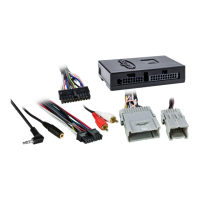
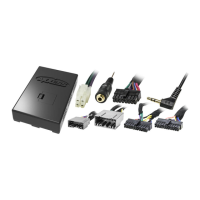
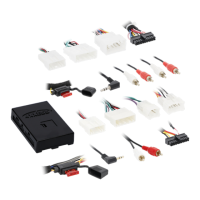
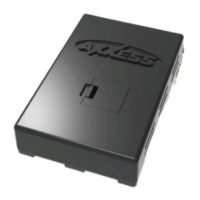
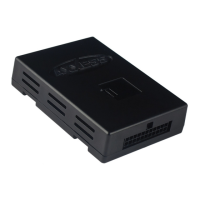
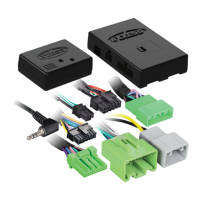
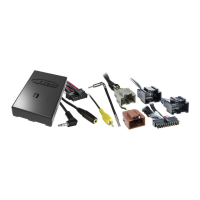
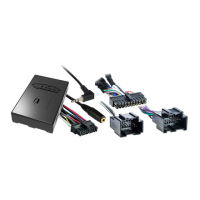
• AXDIS-CL2 interface • AXDIS-CL2 harness
• 16-pin harness with stripped leads • 4-pin harness with stripped leads
• Female 3.5mm connector with stripped leads
* The RSE must be activated by the factory radio
Question and Answer IconNeed help?

Do you have a question about the Axxess AXDIS-CL2 and is the answer not in the manual?

Summary

Applications

Vehicle Compatibility List

Lists all compatible vehicle makes and models with their respective years.

Connections to be Made

Connections for Non-Amplified Models

Details wiring connections for vehicles without factory amplifiers.

Connections for Analog Amplified Models

Details wiring connections for vehicles with analog factory amplifiers.

Connections for Digital Amplified Models

Details wiring connections for vehicles with digital factory amplifiers.

Installing the AXDIS-CL2

Physical Installation Procedure

Provides steps for physically connecting the interface harness to the vehicle.

Programming the AXDIS-CL2

General Programming Steps

Outlines the basic process for programming the interface for radio detection.

Adjusting the AXDIS-CL2

Steering Wheel Control Settings

Troubleshooting

Overview

The AXDIS-CL2 is a GM Data Interface with Steering Wheel Control (SWC) retention, designed for various GM models from 2000-2013. It facilitates the integration of an aftermarket radio into a vehicle while retaining several factory features.

Function Description:

The primary function of the AXDIS-CL2 is to provide accessory power (12-volt 10-amp) to the aftermarket radio. It also retains Retained Accessory Power (R.A.P.), which keeps the radio on for a short period after the ignition is turned off. For multimedia/navigation radios, it provides essential NAV outputs including parking brake, reverse, and speed sense signals.

A key feature of this interface is its ability to retain factory chimes, ensuring that important vehicle alerts are still audible. It also maintains audio controls on the steering wheel, allowing the user to operate the aftermarket radio without taking their hands off the wheel. The interface supports the retention of OnStar and OE Bluetooth functionalities, with an adjustable OnStar level. It also retains the factory AUX-IN jack, Rear Seat Entertainment (RSE) (provided RSE is activated by the factory radio), and Satellite Radio (SAT).

The AXDIS-CL2 is versatile, compatible with non-amplified, analog amplified, and digital amplified vehicle models. It retains balance and fade controls, though this excludes digital amplified models. For future updates and maintenance, the device is micro "B" USB updatable.

Important Technical Specifications & Usage Features:

Connections:

The installation process varies depending on whether the vehicle has a non-amplified, analog amplified, or digital amplified system.

  • For all models (non-amplified, analog amplified, digital amplified):
    • Connect the Black wire from the AXDIS-CL2 harness to the aftermarket radio's ground wire.
    • Connect the Yellow wire to the aftermarket radio's battery wire.
    • Connect the Red wire to the aftermarket radio's accessory power.
    • Ensure the (2) 4-pin Molex connectors are connected together (for non-amplified and digital amplified models). For analog amplified models, disconnect the (2) 4-pin Molex connectors and attach the 4-pin to 4-pin resistor pad harness.
    • Connect the Red and White RCA jacks to the audio AUX-IN jacks of the aftermarket radio.
    • The DIN jack is for the optional AX-LCD (sold separately).
    • The Blue/White wire from the 16-pin harness connects to the amp turn-on wire of the aftermarket radio. This connection is crucial for audio controls on the steering wheel (non-amplified) or for sound from the factory amplifier (analog/digital amplified).
    • If the aftermarket radio has an illumination wire, connect the Orange/White wire to it.
    • If the aftermarket radio has a mute wire, connect the Brown wire to it. If not connected, the radio will turn off when OnStar is activated.
    • The Gray wire connects to the right front positive speaker output.
    • The Gray/Black wire connects to the right front negative speaker output.
    • The White wire connects to the left front positive speaker output.
    • The White/Black wire connects to the left front negative speaker output.
    • For multimedia/navigation radios, connect the Blue/Pink wire to the VSS/speed sense wire (note: there are two speed sense wires; use the one populated on the factory side of the AXDIS-CL2 harness if present).
    • Connect the Green/Purple wire to the reverse wire.
    • Connect the Light Green wire to the parking brake wire.
    • For non-amplified models, tape off and disregard the Green, Green/Black, Purple, and Purple/Black wires from the 16-pin harness.
    • For analog amplified models, connect the Green wire to the left rear positive speaker output, Green/Black to left rear negative, Purple to right rear positive, and Purple/Black to right rear negative.
    • For digital amplified models, connect the Green wire to the left rear positive speaker output, Green/Black to left rear negative, Purple to right rear positive, and Purple/Black to right rear negative. Tape off and disregard the Green, Green/Black, Purple, and Purple/Black wires from the AXDIS-CL2 harness.
    • The Black/Yellow wire is used for OnStar level adjustment, particularly for models without steering wheel controls. Tapping it to ground adjusts the OnStar level.

3.5mm Jack Steering Wheel Control Retention:

The 3.5mm jack is used to retain audio controls on the steering wheel.

  • For specific radio brands (Eclipse, Metra OE, Kenwood/JVC, XITE, Parrot Asteroid Smart/Tablet, Universal "2 or 3 wire" radios), connect the included female 3.5mm connector with stripped leads to the male 3.5mm SWC jack from the AXDIS-CL2, following brand-specific wiring instructions.
  • For all other radios, connect the 3.5mm jack from the AXDIS-CL2 directly into the aftermarket radio's external steering wheel control interface jack.

Installation & Programming:

  1. With the key in the off position, connect the 16-pin harness and the AXDIS-CL2 harness into the interface. Do not connect the AXDIS-CL2 harness to the vehicle's wiring harness yet.
  2. If retaining steering wheel controls, ensure the 3.5mm jack/wire is connected to the radio before proceeding.
  3. Programming (for specific Buick, Chevrolet, Pontiac, Oldsmobile, Saturn models listed on page 6):
    • Start the vehicle.
    • Connect the AXDIS-CL2 harness to the vehicle's wiring harness.
    • The L.E.D. will turn solid Green, then off for a few seconds as it auto-detects the radio.
    • The L.E.D. will flash Red up to 18 times, indicating the detected radio type.
    • After a few seconds, the L.E.D. will turn solid Red while the interface auto-detects the vehicle (5-30 seconds). The radio will shut off.
    • Once auto-detected, the L.E.D. will turn solid Green, and the radio will come back on, indicating successful programming.
    • Immediately press the following steering wheel buttons in sequence: Volume Up, Seek Up, Volume Up, PTT (OnStar) or MUTE, Volume Up. If a button is not present, press Volume Up to skip.
    • The L.E.D. will turn on after the last Volume Up button press, indicating programming has ended.
    • Test all functions. If it fails, refer to "Resetting the AXDIS-CL2" and resume from step 7.
    • Note: PTT (OnStar) will mute/attenuate the radio when pressed, and activate OnStar when pressed and held for 2 seconds.
  4. Programming (for all other applications):
    • Start the vehicle.
    • Connect the AXDIS-CL2 harness to the vehicle's wiring harness.
    • The L.E.D. will turn solid Green, then off for a few seconds as it auto-detects the radio.
    • The L.E.D. will flash Red up to 18 times, indicating the detected radio type.
    • After a few seconds, the L.E.D. will turn solid Red while the interface auto-detects the vehicle (5-30 seconds). The radio will shut off.
    • Once auto-detected, the L.E.D. will turn solid Green, and the radio will come back on, indicating successful programming.
    • Test all functions. If it fails, refer to "Resetting the AXDIS-CL2."
    • Note: The L.E.D. will turn solid Green momentarily, then off under normal operation after the key has been cycled.

Adjustments:

  • Audio Level Adjustment (digital amplified models only): With the vehicle and radio on, turn the radio volume to 3/4. Use a small flat-blade screwdriver to adjust the potentiometer clockwise to raise the audio level, counterclockwise to lower it.
  • Chime Level Adjustment (digital amplified models only): With the vehicle on, turn it off and leave keys in ignition. Open the driver's door to hear chimes. Wait 10 seconds, then use a small screwdriver to adjust the potentiometer clockwise to raise the chime level, counterclockwise to lower it. Remove keys when desired level is reached to lock the volume.
  • OnStar Level Adjustment: Press the OnStar button. While OnStar is speaking, use the steering wheel VOLUME UP/DOWN buttons to adjust the level. If no steering wheel controls, tap the Black/Yellow wire on the AXDIS-CL2 harness to ground while OnStar is speaking to set the level.

Extra Features:

  • AUX-IN, RSE, and SAT Retention: If equipped, these features are retained. Change the radio source to AUX-IN for satellite radio. The optional AX-LCD will display satellite radio information.
  • AX-LCD Functions (Satellite Radio): Arrow up (Channel up), Arrow down (Channel down), Enter (Selects current item), Return/ESC (Exits previous screen).
  • Advanced Satellite Radio Features: Press and hold the SOURCE button on the steering wheel for 3 seconds. Steering wheel control buttons (SEEK UP/DOWN, VOLUME UP) can then scroll menus and enter selections.
  • Accessing AUX-IN/RSE: Press and hold the SOURCE button for 2 seconds to cycle through SAT/RSE/AUX-IN sources. The AX-LCD will visually confirm the source.

Steering Wheel Control Settings:

  • L.E.D. Feedback: The Red L.E.D. flashes indicate the detected radio brand (1-18 flashes for different manufacturers). This helps in troubleshooting.
  • Changing Radio Type: If the L.E.D. flashes don't match the connected radio, manually program the AXDIS-CL2.
    1. Within 3 seconds of turning the key on, press and hold Volume-Down on the steering wheel until the L.E.D. goes solid.
    2. Release Volume-Down; L.E.D. goes out, entering Changing Radio Type mode.
    3. Refer to the Radio Legend (1-18) for the desired radio number.
    4. Press and hold Volume-Up until the L.E.D. goes solid, then release. Repeat for the desired radio number.
    5. Once selected, press and hold Volume-Down until the L.E.D. goes solid (approx. 3 seconds) to store the new radio info.
    6. L.E.D. goes off, ending Changing Radio Type mode. Test controls.
    • Note: If no button is pressed for >10 seconds, the process aborts.
  • Remapping Steering Wheel Control Buttons:
    1. Ensure AXDIS-CL2 L.E.D. is visible. Turning radio off is recommended.
    2. Within 20 seconds of ignition on, press and hold Volume-Up until L.E.D. goes solid.
    3. Release Volume-Up; L.E.D. goes out. Volume-Up is now programmed.
    4. Follow the Button Assignment Legend (1-18) to program other buttons in order.
    5. To complete, press and hold Volume-Up until L.E.D. goes out.
  • Dual Assignment Instructions (Long Button Press): Assign two functions to a single button (except Volume-Up/Down). Seek-Up/Down are pre-programmed as Preset-Up/Down for long press.
    1. Turn on ignition (do not start vehicle).
    2. Press and hold the desired steering wheel button for ~10 seconds, or until L.E.D. flashes rapidly. Release; L.E.D. goes solid.
    3. Press and release Volume-Up the number of times corresponding to the new button from the Dual Assignment Legend. L.E.D. flashes rapidly while Volume-Up is pressed, then solid when released.
    4. To store, press the button assigned in Step 2. L.E.D. goes off, indicating storage.
    • Note: Repeat for each button. To reset, repeat Step 1, then press Volume-Down.

Maintenance Features:

  • USB Updatable: The AXDIS-CL2 is equipped with a Micro "B" USB port, allowing for firmware updates. This ensures compatibility with new radio models or vehicle changes and allows for bug fixes or feature enhancements.
  • Resetting the AXDIS-CL2: If the interface malfunctions, it can be reset.
    1. The Blue reset button is located inside the interface, between the two connectors, accessible without opening the interface.
    2. Press and hold the reset button for two seconds, then release.
    3. Refer back to the "Programming the Interface" section to re-program the device.
  • Troubleshooting: The L.E.D. feedback system (Red flashes indicating radio type) is a key troubleshooting tool. The manual provides a legend for these flashes to help diagnose connection issues.
  • Technical Support: Metra Electronics Corporation offers technical support via phone (386-257-1187) and email (techsupport@metra-autosound.com) during specified Eastern Standard Time hours.
  • MECP Certified Technicians: Metra recommends installation by MECP (Mobile Electronics Certified Professional) certified technicians, emphasizing professional installation for optimal performance and troubleshooting.

Axxess AXDIS-CL2 Specifications

General IconGeneral
BrandAxxess
ModelAXDIS-CL2
CategoryAutomobile Accessories
LanguageEnglish

Related product manuals